Dictation on iPad: How to Turn It On and Type With Your Voice

Sarah Johnson
Writes about field sales, meeting notes and voice-first workflows at ParrotNotes. Every article is reviewed by the ParrotNotes product team before it goes live.
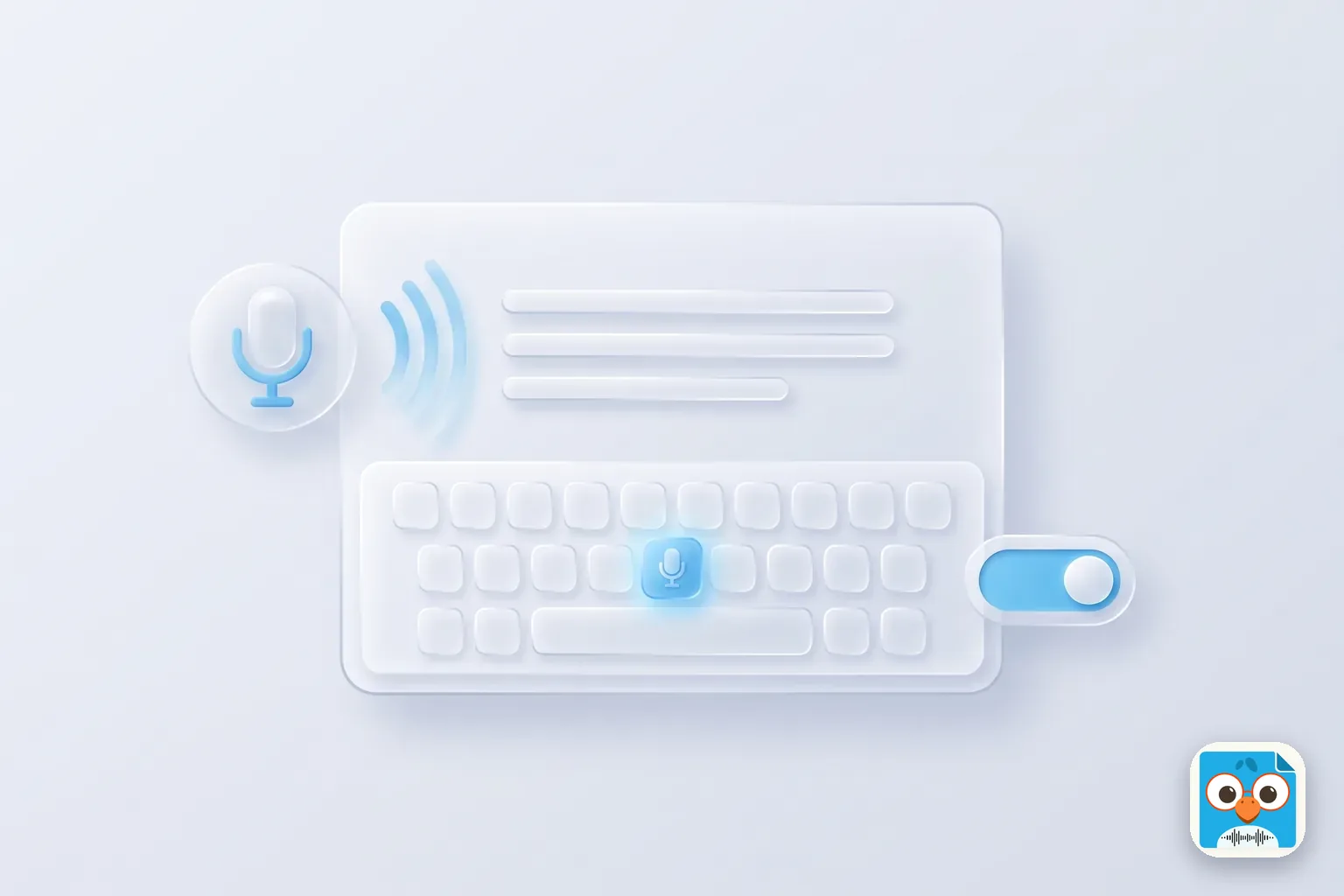
Table of Contents
- 1.How to turn on dictation on iPad
- 2.How to use dictation on iPad
- 3.iPad dictation commands for punctuation, formatting and emoji
- 4.What dictation on iPad can do, model by model
- 5.Languages and offline dictation on iPad
- 6.Voice Control: edit and control your iPad by voice
- 7.iPad dictation not working? Match the symptom
- 8.When the keyboard mic is the wrong tool
- 9.Start dictating on your iPad today
Nadia had a sixty-word email to write, an iPad propped on the kitchen counter, and flour on both hands. She tapped the microphone on the keyboard with a knuckle, said the email out loud, said "period" at the end, and sent it before the dough had rested. (Nadia is an illustration, not a real customer.)
That's what dictation on iPad is for. To turn it on, go to Settings > General > Keyboard and switch on Enable Dictation. Then tap in any text field, tap the microphone key on the keyboard, and talk. It's free, it's built in, and on most iPads it works without an internet connection.
You probably already know the mic is there. What's less obvious is how to get clean punctuation, which iPads get Apple's newer on-device model, and what to check when the mic disappears. This guide covers all of it, checked against Apple's iPadOS 27 support pages as of November 2026: setup, commands, a model-by-model table, languages, Voice Control, and fixes.
Need to capture a whole meeting or lecture on your iPad rather than a few sentences? Try ParrotNotes free: it records, transcribes and summarizes long conversations.
How to turn on dictation on iPad
Apple's Dictate text guide for iPad gives one switch:
- Open Settings.
- Tap General, then Keyboard.
- Turn on Enable Dictation. If a prompt appears, confirm it.
That's it. To turn dictation off later, go back to the same screen and switch Enable Dictation off.
On the same Keyboard screen you'll find Auto-Punctuation. With it on, iPad dictation adds commas, periods and question marks for you in supported languages. Leave it on unless you'd rather say every mark yourself.
How to use dictation on iPad
Once it's on, dictation works anywhere you can type: Notes, Mail, Messages, Pages, a web form.
- Tap in the text field where the words should go.
- Tap the microphone key on the onscreen keyboard.
- Start talking when the mic appears near the cursor.
- Stop by tapping the mic again, saying "Stop dictation", or staying quiet for 30 seconds.
Apple notes that the keyboard can stay open while you dictate, so you can type, or write with Apple Pencil, without stopping. That makes it easy to fix one word by hand and keep talking.
Using dictation with a Magic Keyboard
With a hardware keyboard attached, the onscreen keyboard often hides. Apple's iPad keyboard shortcuts page lists Globe-D as the shortcut to start dictation: hold the Globe key and press D.
Tom, a high school teacher, grades on an iPad with a Magic Keyboard. He types the score, presses Globe-D, and speaks two sentences of feedback for each essay. (Tom is also an illustration.) Talking is faster than typing for the comments, and the keyboard stays useful for numbers.
iPad dictation commands for punctuation, formatting and emoji
Commands are words iPad turns into symbols or actions instead of typing them. These come from Apple's Commands for dictating text page for iPad.
| Say | You get |
|---|---|
| "period" / "comma" | . / , |
| "question mark" / "exclamation point" | ? / ! |
| "colon" / "semicolon" | : / ; |
| "quote" … "end quote" | " … " |
| "open parenthesis" … "close parenthesis" | ( … ) |
| "dollar sign" / "hashtag" | $ / # |
| "new line" | A line break |
| "new paragraph" | A new paragraph |
| "cap" / "all caps" | Capitalizes the next word / makes it all uppercase |
| "no space" | Joins two words (not in all languages) |
For emoji, say the emoji name, such as "heart emoji", "smiley emoji" or "fingers crossed emoji". Apple says emoji work only in certain languages.
Apple also lists editing commands: "change … to …", "insert … before …", "select …", "delete …", "delete all", "undo" and "redo". There's a limit: Apple says these "are available in U.S. English on supported iPad models." On a UK English keyboard or another language, punctuation still works but editing by voice doesn't.
For the full list, with the "caps on … caps off" pairs explained, see our iPhone dictation commands cheat sheet. The commands are the same on iPad.
What dictation on iPad can do, model by model
Not every iPad gets every feature. This table pulls the requirements from Apple's iPadOS 27 pages into one place (checked November 18, 2026).
| Feature | What you need | Where to switch it |
|---|---|---|
| Basic dictation | Any iPad that runs iPadOS 27, in a supported language | Settings > General > Keyboard > Enable Dictation |
| Dictation without internet | A language on Apple's on-device dictation list | Works automatically |
| Auto-Punctuation | A supported language | Settings > General > Keyboard > Auto-Punctuation |
| Editing commands ("change", "delete", "undo") | U.S. English keyboard on a supported iPad | Settings > General > Keyboard > Keyboards |
| Emoji by voice | Certain languages | Works automatically |
| Apple Intelligence dictation model (better spelling, punctuation and capitals) | English, on an iPad with M4 or later and at least 12GB of unified memory | Apple Intelligence on, in Settings |
| Start from a hardware keyboard | Magic Keyboard or another keyboard with a Globe key | Press Globe-D |
| Full voice editing and control | Voice Control set up (Wi-Fi needed for the first download) | Settings > Accessibility > Voice Control |
The Apple Intelligence row surprises people. Apple says the on-device model that improves dictation in iPadOS 27 is "Available in English on iPad models with M4 or later, at least 12GB of unified memory." Apple Intelligence itself runs on more iPads (iPad mini with A17 Pro or later, and iPads with M1 or later), but the dictation upgrade has the narrower list. On other iPads, dictation still works; it just uses the standard model.
Languages and offline dictation on iPad
Dictation listens in the language of the keyboard that's open. To dictate in Spanish, switch to a Spanish keyboard with the globe key; add one in Settings > General > Keyboard > Keyboards > Add New Keyboard.
Apple's iOS and iPadOS 27 feature availability page lists dozens of dictation languages and regional versions, from Arabic to Vietnamese. A shorter list runs on-device, which is what lets you dictate with no connection. That list includes English, Spanish, French, German, Italian, Japanese, Korean, Mandarin and Portuguese (Brazil), among others.
Apple says Dictation runs on your device in many languages and doesn't need internet. Two exceptions: in a search field, what you say may go to the search engine, and Apple notes that cellular data charges may apply when you use Dictation.
Voice Control: edit and control your iPad by voice
Keyboard dictation types what you say. Voice Control goes further: it lets you edit text and run the whole iPad by voice, which matters if typing or touch is hard for you.
Turn it on in Settings > Accessibility > Voice Control, tap Set Up Voice Control, and follow the steps. According to Apple's Voice Control guide, the first setup needs Wi-Fi to download files, then it works offline.
It has three modes:
- Dictation mode (the default) types word by word.
- Spelling mode types letter by letter, useful for passwords and web addresses.
- Command mode only listens for commands, so nothing gets typed by mistake.
Say "Show numbers" to label what's on screen, then "Delete" plus a number to remove a piece of text. One catch: when Voice Control is on, standard iPad Dictation isn't available. If your mic key vanished after you tried Voice Control, that's why.
iPad dictation not working? Match the symptom
Most problems come down to a switch. Start with the row that matches what you see.
| Symptom | Likely cause | Fix |
|---|---|---|
| No microphone key | Dictation is off | Settings > General > Keyboard > Enable Dictation |
| Mic key missing after an accessibility change | Voice Control is on and replaces Dictation | Settings > Accessibility > Voice Control, turn it off |
| Mic missing on a school or family iPad | Screen Time or a management profile limits it | Settings > Screen Time > Content & Privacy Restrictions, or ask the school's IT |
| Mic missing with a third-party keyboard | That keyboard replaces Apple's | Hold the globe key and pick an Apple keyboard |
| Words come out in the wrong language | Wrong keyboard is active | Switch keyboards with the globe key |
| "Delete" and "change" get typed as words | Editing commands need U.S. English | Switch to an English (US) keyboard |
| Dictation stops mid-sentence | 30 seconds of silence ends it | Tap the mic and continue |
If none of these help, restart the iPad, then check Settings > General > Software Update. Our guide to iPhone dictation not working goes deeper, and nearly every fix uses the same Settings paths on iPad.
When the keyboard mic is the wrong tool
Dictation on iPad is built for sentences: a message, an email, a note. It's not built for a 50-minute meeting or a lecture, because it stops after 30 seconds of silence and gives you raw text with no summary.
Priya, a project lead, tried to dictate notes during a vendor walkthrough on her iPad. Every pause stopped the mic, and she missed half of what the vendor said while restarting it. (Priya is an illustration too.) For that job she needed a recorder, not a keyboard.
For longer audio you have two good options:
- Voice Memos, free on every iPad, records audio and, on supported models, writes a transcript. See how to record audio on iPad.
- ParrotNotes records long conversations and turns them into a transcript, summary and action items. Its App Store listing says it's designed for iPad and needs iPadOS 17.0 or later. The free plan includes 100 minutes of recording a month (up to 30 minutes per recording) and an AI summary on every recording. Transcription needs an internet connection. It isn't a keyboard, so it won't type into other apps the way Dictation does.
Comparing dictation apps across devices? Our best dictation app roundup covers iPhone, Android, Mac and Windows, and voice to text on Mac covers the Mac version of this feature. For a voice keyboard that types into any app on Mac, Windows, iPhone and Android, see our Wispr Flow review.
Start dictating on your iPad today
Dictation on iPad takes one switch and one tap. Turn on Enable Dictation in Settings > General > Keyboard, tap the mic, and say your punctuation or let Auto-Punctuation handle it. Use Globe-D on a Magic Keyboard. If the mic vanishes, check Voice Control and Screen Time first.
For anything longer than a few sentences, record instead of dictating. Download ParrotNotes to turn a meeting or lecture on your iPad into notes you can actually use.
Frequently Asked Questions
How do I turn on dictation on iPad?
Go to Settings > General > Keyboard and turn on Enable Dictation. Then tap in a text field and tap the microphone key on the keyboard to start talking.
Why is there no microphone on my iPad keyboard?
Usually Enable Dictation is off, Voice Control is on (it replaces Dictation), Screen Time limits it, or a third-party keyboard is active. Check those four in that order.
Does iPad dictation work offline?
Yes, in many languages. Apple says Dictation runs on the iPad itself for languages on its on-device list, with no internet needed. Search fields may still send what you say to the search engine.
How do I add punctuation when dictating on iPad?
Say the mark, such as "comma", "period" or "question mark", or leave Auto-Punctuation on in Settings > General > Keyboard and iPad adds common marks for you.
Can I start dictation from a Magic Keyboard?
Yes. Apple lists Globe-D as the keyboard shortcut to start dictation on iPad.
Related Posts
Timekettle Review: Translator Earbuds, the App and What They Cost
Timekettle review from its own store and guides (Nov 2026): which translator earbuds are still sold, real prices, offline packs and the $14.99 app plan.
Sonix AI Review: Automated Transcription Pricing, Languages and Limits
Sonix AI reviewed from Sonix's own pages, checked November 2026: plans from $10 an hour, the 30-minute trial, 54+ languages and limits. Try ParrotNotes free.
oTranscribe Review: The Free Browser Transcription Tool, Pros, Cons and Alternatives
Our oTranscribe review, as of November 2026: what the free browser tool does, its shortcuts, privacy, reported problems and alternatives. Try ParrotNotes free.