
iPhone Dictation Commands: Punctuation, Formatting and Shortcuts

Sarah Johnson
Writes about field sales, meeting notes and voice-first workflows at ParrotNotes. Every article is reviewed by the ParrotNotes product team before it goes live.
Table of Contents
- 1.How iPhone dictation commands work
- 2.iPhone dictation commands for punctuation
- 3.Formatting and capitalization commands
- 4.Editing commands: change, insert, delete and undo
- 5.Emoji commands
- 6.Shortcuts that save the most time
- 7.Three iPhone dictation scripts to copy
- 8.When you need more than dictation commands
- 9.Commands you'll see online that Apple doesn't list
- 10.Printable iPhone dictation commands cheat sheet
- 11.Your iPhone dictation commands, in short
Priya has four minutes between client meetings. She taps the mic, dictates a reply about tomorrow's workshop, and hits send. Her client gets one long block of text with no line breaks, "asap" in lowercase, and a question that ends with a period. (Priya is a composite, not a real client.)
The fix isn't to type. It's to learn a handful of iPhone dictation commands: short words like "new line", "all caps" and "question mark" that tell your iPhone what to do instead of what to write. Once you know about 10 of them, a dictated message reads like a typed one.
This is the full iPhone dictation commands list Apple documents for iOS 27, checked against Apple's support pages on October 27, 2026: punctuation, formatting and editing tables, emoji and shortcuts, three scripts to copy, and a printable cheat sheet.
Dictating longer notes that need to become an email or a task list? Try ParrotNotes free and get a transcript, a summary and your action items.
How iPhone dictation commands work
Say a command in your normal voice as part of the sentence, and the iPhone turns it into a symbol or an action instead of typing the word. To get started, per Apple's Dictate text guide:
- Go to Settings > General > Keyboard and turn on Enable Dictation.
- Tap in a text field where you want the words to go.
- Tap the microphone key on the keyboard and start talking.
- Stop by tapping the mic, saying "Stop dictation", or staying silent for 30 seconds.
Three settings change how commands behave:
- Auto-Punctuation. In supported languages, Dictation adds commas, periods and question marks on its own. Turn it off in Settings > General > Keyboard to say every mark yourself.
- Keyboard language. Dictation listens in the language of the keyboard that's open. Switch with the globe key.
- Your iPhone model. With Apple Intelligence in iOS 27, an on-device model improves spelling, punctuation and capitalization in English on iPhone 17 Pro, iPhone 17 Pro Max, iPhone Air or later.
If the mic key is missing or nothing types, start with our iPhone dictation not working guide before trying any command.
iPhone dictation commands for punctuation
These are the 12 punctuation commands on Apple's Commands for dictating text page. For iPhone dictation punctuation, say the word where the mark should go.
| Say | You get |
|---|---|
| "period" | . |
| "comma" | , |
| "exclamation point" | ! |
| "question mark" | ? |
| "dollar sign" | $ |
| "open parenthesis" | ( |
| "close parenthesis" | ) |
| "quote" | " (opening quotation mark) |
| "end quote" | " (closing quotation mark) |
| "colon" | : |
| "semicolon" | ; |
| "hashtag" | # |
Apple adds that in some languages Dictation inserts certain punctuation automatically. So with Auto-Punctuation on, you mostly need the commands for marks it can't guess: colons, quotes, parentheses and the dollar sign.
Formatting and capitalization commands
Apple lists nine commands for capitals, spacing and line breaks:
| Say | What it does |
|---|---|
| "cap" | Capitalizes the next word |
| "caps on" … "caps off" | Capitalizes the first letter of each word in between |
| "all caps" | Makes the next word all uppercase |
| "all caps on" … "all caps off" | Makes every word in between all uppercase |
| "no caps on" … "no caps off" | Makes every word in between all lowercase |
| "no space" | Removes the space between two words (not in all languages) |
| "no space on" … "no space off" | Runs a series of words together (not in all languages) |
| "new line" | Starts a new line |
| "new paragraph" | Starts a new paragraph |
How the "on … off" pairs work
The pairs act like a switch. Everything you say after "on" gets the format until you say "off". That makes them handy for titles and acronyms:
- "caps on quarterly business review caps off" should give you Quarterly Business Review.
- "all caps on asap all caps off" should give you ASAP. Close each pair with its own words: "all caps off", not "caps off". For a single word, "all caps asap" is shorter.
- "no space on parrot notes no space off" should give you parrotnotes, useful for usernames and web addresses.
Mateo, a property manager, dictates unit numbers all day. He used to get "Unit 4 B" until he started saying "no space" between the number and the letter. (Mateo is also a composite.)
Editing commands: change, insert, delete and undo
Apple lists eight commands for fixing text by voice. There's a catch Apple states plainly: these work only in U.S. English, on iPhone 12 and later, except iPhone SE. On a UK or Australian English keyboard, or an older phone, punctuation and formatting still work but these don't.
| Say | What it does |
|---|---|
| "change … to …" | Replaces existing text with new text |
| "insert … before …" | Adds new text before existing text |
| "insert … after …" | Adds new text after existing text |
| "select …" | Selects text |
| "delete …" | Deletes text |
| "delete all" | Deletes all the text |
| "undo" | Undoes the last action |
| "redo" | Redoes the action |
Apple's own examples are worth copying: say "change tea to T-E-E" to fix a homophone, or "delete" and then the phrase to remove it. If "change" keeps appearing as a typed word, check your keyboard is English (US).
Emoji commands
In some languages you can say an emoji's name followed by "emoji". Apple's commands page gives 20 examples:
- Faces: smiley, halo, laugh out loud, heart eyes, amazing, yum, goofy, sick, scream
- Feelings: congrats, hug, fingers crossed, purple heart, cheers, celebrate
- Things: speech balloon, puppy, music, rainbow, present
So "fingers crossed emoji" inserts 🤞 and "heart emoji" inserts a heart. Apple's other guides add "smiley face emoji", "mind blown emoji" and "happy emoji". Emoji by voice isn't available in every language; Apple's iOS Feature Availability page has the list.
Shortcuts that save the most time
These aren't punctuation, but they're the moves that make dictation fast.
Stop dictation without touching the phone
Say "Stop dictation". Or pause: Dictation turns off after 30 seconds of silence. That pause rule is the reason long dictations break off mid-thought; for walk-through notes, record instead (see below).
Spell a name letter by letter
Say the name, then spell it: "Let's invite Steven S-T-E-P-H-E-N". Apple documents this on the Dictate text page, and it's the quickest fix for client names that Dictation keeps getting wrong.
Use a keyboard shortcut with Magic Keyboard
If you type on a Magic Keyboard with your iPhone, Apple's Magic Keyboard dictation guide says to choose a dictation shortcut in Settings > General > Keyboard. Press the shortcut key twice to start dictating, and twice again to go back to typing. Punctuation is added for you as you speak.
Want your spoken notes to do more than land in a text field? Download ParrotNotes free to record client conversations and voice notes, then get the summary and next steps written for you.
Three iPhone dictation scripts to copy
Each script shows what you say and what should appear. With Auto-Punctuation on, your iPhone may add or move a comma; that's expected. The names are made up.
1. A client text
Say: "Hi Dana comma new line the revised quote is ready period new paragraph can we confirm all caps asap question mark"
You should see:
Hi Dana, The revised quote is ready.
Can we confirm ASAP?
2. An address block
Say: "Riverside Plaza new line Suite 400 new line Austin comma Texas"
You should see:
Riverside Plaza Suite 400 Austin, Texas
3. Call notes with a quote and an aside
Say: "Budget colon quote we can move in Q1 end quote open parenthesis Dana close parenthesis new line next step colon send the caps on statement of work caps off"
You should see:
Budget: "we can move in Q1" (Dana) Next step: send the Statement Of Work
Notice the last line: "caps on" capitalizes every word, including "Of". For a title with small words, say "cap" before each word you want capitalized instead.
When you need more than dictation commands
Voice Control: commands for the whole phone
Apple's Voice Control (Settings > Accessibility > Voice Control) has its own, larger command set. While it's on, standard Dictation isn't available; you dictate through Voice Control. Three of its modes help anyone who writes by voice:
- "Dictation mode": anything that isn't a command is typed (the default).
- "Spelling mode": character by character, for web addresses and codes. "Alfa Bravo Charlie" gives "abc".
- "Command mode": only commands are acted on, so nothing is typed by mistake.
Say "Show commands" to see what works in the app you're in. If the keyboard mic vanishes after you turn it on, our troubleshooting guide covers turning it back off.
Recording instead of dictating
Rosa, a consultant, dictates her debrief in the car after each workshop. She kept losing sentences to the 30-second stop while she checked her notes. (Rosa is a composite.) Now she records the debrief as one voice note and turns it into text afterwards.
For notes like that, see which dictation app for iPhone suits each job, or our guide to voice notes on iPhone. ParrotNotes records with pauses and the screen locked, then gives you a transcript, a summary and action items.
Mostly dictating emails? How to dictate an email covers Outlook and Gmail too. No phone handy? The free online dictation tool works in a browser.
Commands you'll see online that Apple doesn't list
Some lists that rank for this search date back to iOS 10, or include commands missing from Apple's current page: "at sign", "percent sign", "forward slash", "winking emoji" and "line break" (Apple's word is "new line"). They may work in some languages, but Apple doesn't document them for iOS 27, so they're not in the tables above.
Printable iPhone dictation commands cheat sheet
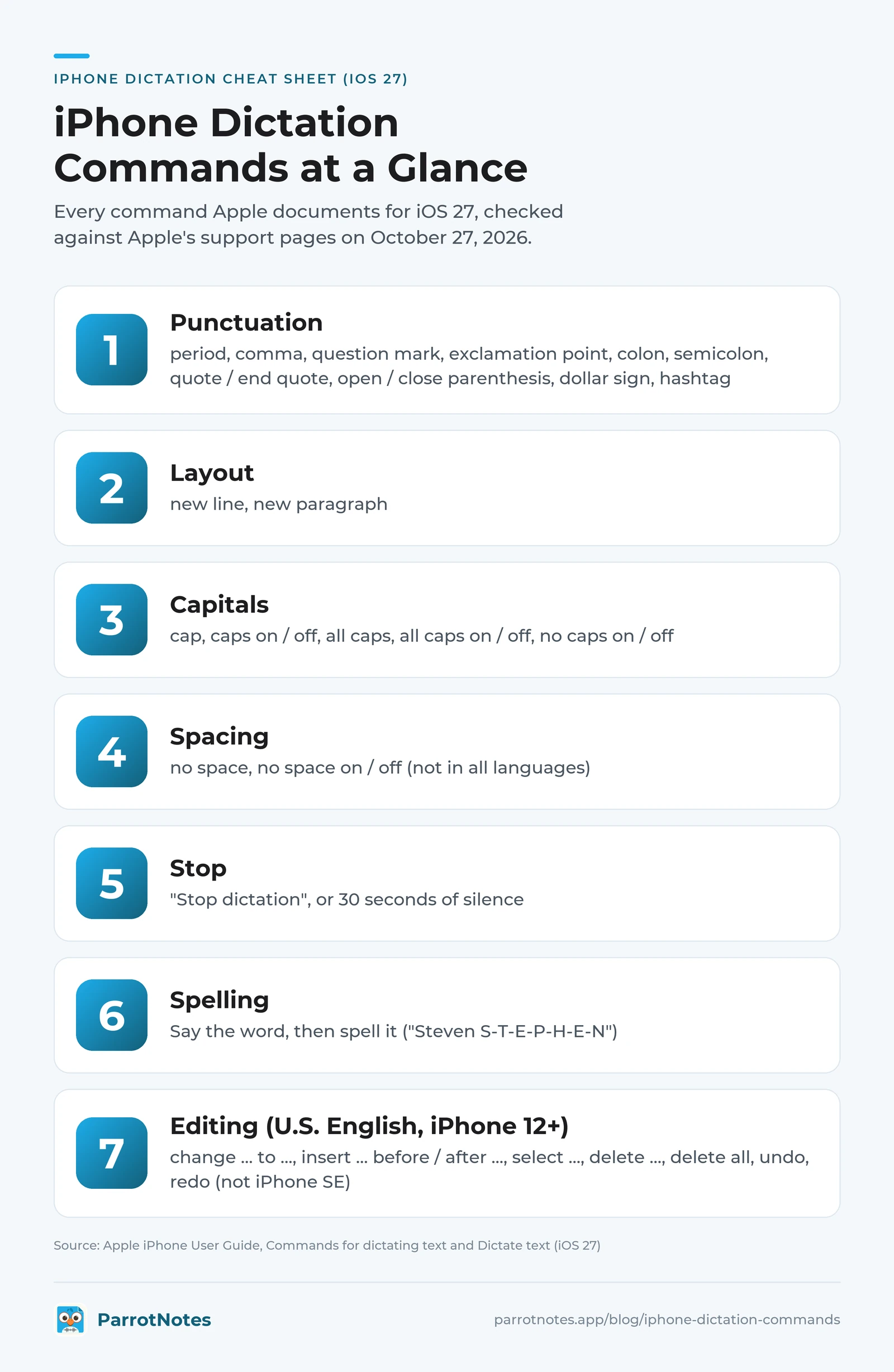
Here's the short version of everything above. Screenshot it or print it for the first week, until the commands become habit.
Works wherever Dictation works:
- Punctuation: period, comma, question mark, exclamation point, colon, semicolon, quote / end quote, open / close parenthesis, dollar sign, hashtag
- Layout: new line, new paragraph
- Capitals: cap, caps on / off, all caps, all caps on / off, no caps on / off
- Spacing: no space, no space on / off (not in all languages)
- Stop: "Stop dictation", or 30 seconds of silence
- Spelling: say the word, then spell it ("Steven S-T-E-P-H-E-N")
U.S. English, iPhone 12 or later (not SE):
- change … to …, insert … before / after …, select …, delete …, delete all, undo, redo
Your iPhone dictation commands, in short
- Learn five first: "comma", "period", "question mark", "new line" and "new paragraph".
- Use the pairs for titles and acronyms: caps on / off, all caps, no space.
- Fix by voice with change, insert and delete, if you're on U.S. English and an iPhone 12 or later.
- Spell names letter by letter, and say "Stop dictation" when you're done.
- Record longer notes instead of fighting the 30-second stop.
Priya now uses three iPhone dictation commands, "new paragraph", "all caps" and "question mark", and her client messages read as if she typed them. For the notes that are too long for the mic key, try ParrotNotes free and let the summary write itself.
Frequently Asked Questions
What are the commands for iPhone dictation?
Apple lists punctuation commands ("comma", "question mark", "quote"), formatting commands ("new line", "all caps", "no space"), editing commands ("change … to", "delete", "undo") and emoji such as "heart emoji". Editing commands need U.S. English and an iPhone 12 or later.
How do I add punctuation when dictating on iPhone?
Say the name of the mark, such as "comma" or "question mark". In supported languages, Auto-Punctuation also adds commas, periods and question marks for you. Turn it off in Settings > General > Keyboard if you prefer to say every mark.
How do I start a new line with iPhone dictation?
Say "new line" for a line break or "new paragraph" for a blank line between paragraphs. Both are on Apple's list and work while you're dictating.
Why don't "change" and "delete" work when I dictate?
Apple says the editing commands work only in U.S. English on iPhone 12 and later, except iPhone SE. Check that your keyboard is English (US); on other keyboards or older models, punctuation and formatting commands still work.
How do I stop iPhone dictation by voice?
Say "Stop dictation". Dictation also stops by itself after 30 seconds of silence, or when you tap the microphone key.
Related Posts
Sales Ramp Time: How Long New Reps Take and How to Shorten It
Sales ramp time: how long new reps take to reach full productivity. Get 2026 benchmarks, the formula, a worked example and a six-month plan to shorten it.
Rev Transcription Review: Accuracy, Pricing and Turnaround
Rev transcription review from Rev's own pages, checked Oct 27, 2026: plans, per-minute prices, add-ons, accuracy and turnaround. Try ParrotNotes free.
Product Spec Sheet: Format, Example and What Buyers Look For
Copy a product spec sheet format, see a filled-in example, and learn what engineers, purchasing and quality check first. Free template and checklist inside.