
Voice to Text on Mac: Built-In Dictation and the Apps Worth Using

Sarah Johnson
Writes about field sales, meeting notes and voice-first workflows at ParrotNotes. Every article is reviewed by the ParrotNotes product team before it goes live.
Table of Contents
- 1.The short answer
- 2.How to turn on voice to text on a Mac
- 3.The Mac Dictation settings checklist (five minutes)
- 4.Where built-in Mac dictation stops
- 5.Voice to text Mac apps worth paying for
- 6.Six voice to text Mac app options side by side
- 7.Which voice to text Mac app for which job
- 8.Start with the Mac you already have
Priya runs a two-person consulting firm from a MacBook Air. By 4 p.m. on a Tuesday she has typed replies to 30 Slack threads, two proposals and a dozen emails, and her wrists ache. She searches for a voice to text Mac app, opens five "best of" lists, and finds that every one is written by a company ranking its own app first. (Priya is a composite, an illustration rather than a real client.)
Here's what none of those lists says up front: your Mac already has voice to text built in, and once it's set up properly it handles most everyday typing for free. You only need an app for the jobs it can't do.
This guide shows you how to turn on Mac Dictation, the settings worth changing in five minutes, where it stops, and which apps are worth paying for. Every price below was checked on the vendor's own site on October 28, 2026.
If your voice notes are less "type this sentence" and more "record this conversation and tell me what we agreed", ParrotNotes runs on Mac, iPhone and Android and turns each recording into a transcript and a summary.
The short answer
To use voice to text on a Mac, open System Settings > Keyboard, turn on Dictation, pick a shortcut, then press it in any text field and speak. It's free, it works in almost every app, and there's no time limit while you keep talking. Download a voice to text Mac app only if you need cleaner text from rambling speech, a one-time-price app that keeps dictation on your Mac, file transcription, or notes from a recorded meeting.
How to turn on voice to text on a Mac
Apple's Mac User Guide gives the steps. It takes about a minute:
- Open the Apple menu > System Settings, then click Keyboard in the sidebar.
- Scroll to Dictation, turn it on, and click Enable when asked.
- Open the Shortcut menu and choose a shortcut, or choose Customize to make your own. If your keyboard has a Microphone key, it already works.
- Click into any text field, press your shortcut, and start talking.
You can also start from the menu bar with Edit > Start Dictation. To stop, press Escape, the Microphone key or your shortcut again. Press and hold the Microphone key and you'll get Siri instead, so tap it rather than hold it.
Say punctuation and line breaks
In supported languages, Mac Dictation adds commas, periods and question marks for you. You can still say them out loud when you want control:
- "comma", "period", "question mark", "exclamation mark"
- "new line" for one return, "new paragraph" for two
- an emoji's name, such as "thumbs up emoji"
If a word comes out underlined in blue, Dictation wasn't sure. Click it to pick an alternative, or just type the fix. For the full spoken command list on the iPhone side, see our iPhone dictation commands cheat sheet; most of them work the same way on a Mac.
The Mac Dictation settings checklist (five minutes)
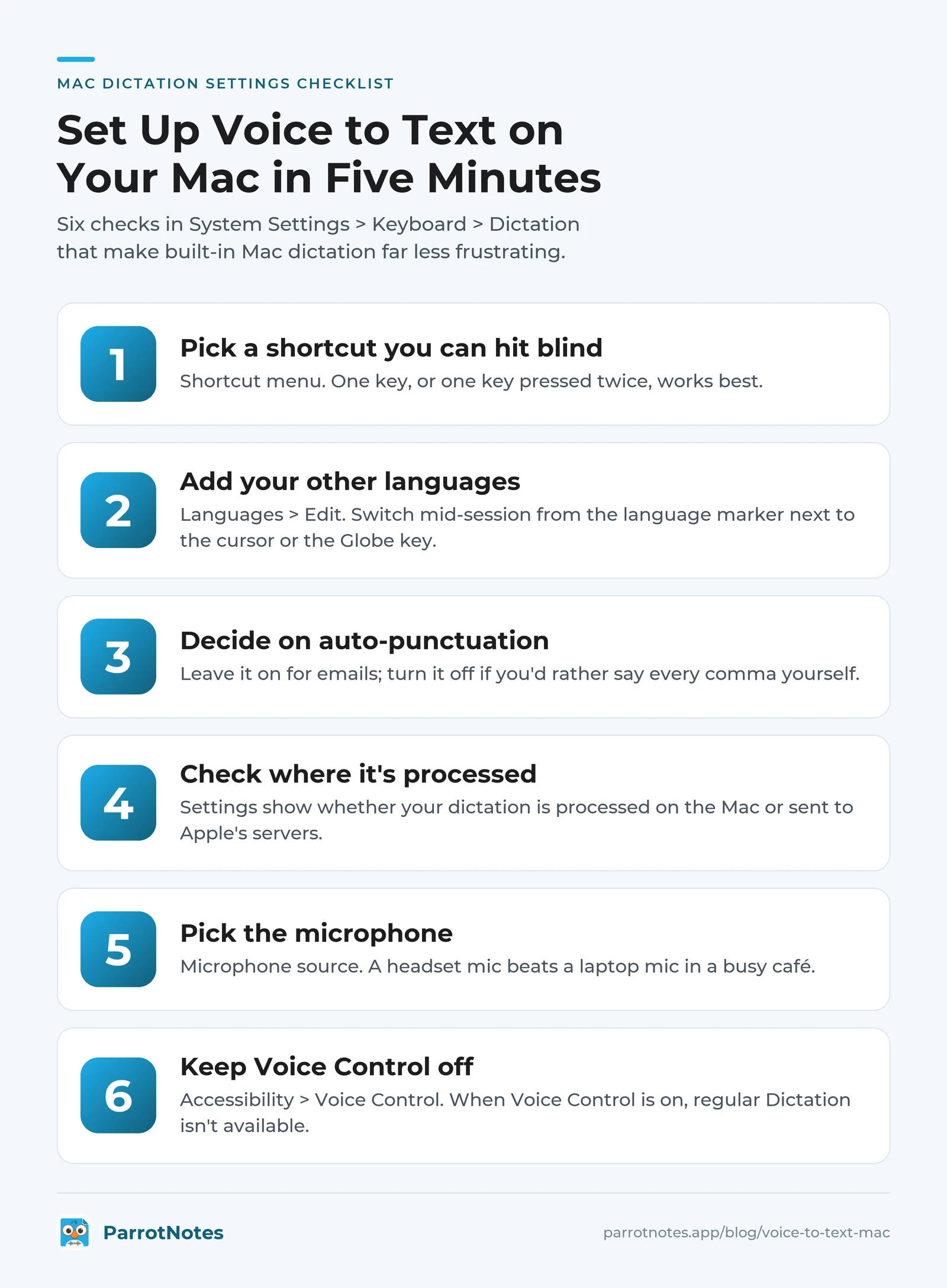
Most people turn Dictation on and never open the settings again. These six checks make talk to text on a MacBook far less frustrating. All of them live in System Settings > Keyboard > Dictation unless noted.
| Check | Where | Why it matters |
|---|---|---|
| 1. Pick a shortcut you can hit blind | Shortcut menu | A shortcut you fumble is a shortcut you won't use. One key, or one key pressed twice, works best |
| 2. Add your other languages | Languages > Edit | Once added, switch mid-session from the language marker next to the cursor or the Globe key |
| 3. Decide on auto-punctuation | Auto-punctuation toggle | Leave it on for emails; turn it off if you'd rather say every comma yourself |
| 4. Check where it's processed | The Dictation section | Settings show whether your dictation is processed on the Mac or sent to Apple's servers |
| 5. Pick the microphone | Microphone source | A headset mic beats a laptop mic in a busy café |
| 6. Don't run Voice Control by accident | Accessibility > Voice Control | When Voice Control is on, regular Dictation isn't available |
That last one catches people out. Voice Control is Apple's full hands-free mode for the whole Mac, and it can also dictate. Its extras are commands like "Show commands" or "Replace cat with dog," according to Apple's Voice Control guide. If you only want to type by voice, keep it off and use Dictation.
Ready to go beyond typing? If you talk through a client call or a site visit, try ParrotNotes free: record on your Mac or phone and get the summary and action items when you stop.
Where built-in Mac dictation stops
Mac Dictation is good. It also has limits that no settings change will fix, and they're the real reasons to download a voice to text Mac app.
- It stops when you pause. Apple says you can dictate "text of any length without a timeout," but it stops after 30 seconds without speech. Fine for a paragraph, annoying when you stop to think.
- It types what you say, as you say it. "Um, so, the thing is, actually, let's push Thursday" goes in more or less word for word. Apple Intelligence now cleans up spelling, punctuation and capitalization, but Apple lists that as English only, on Macs with M3 or later and at least 12 GB of memory.
- Typing while dictating needs Apple silicon. On an Apple silicon Mac you can keep typing while it listens. Older Intel Macs don't get this.
- Languages vary. Apple says Dictation "is not available in all languages or regions, and features may vary."
- It doesn't do files or meetings. It won't transcribe a voice memo you already recorded, and it won't give you notes from a 40-minute client meeting. It only types into the field your cursor is in.
If none of these bother you, stop here: built-in Dictation is the best free talk to text for Mac. If one does, the apps below each fix a different one.
Voice to text Mac apps worth paying for
These are the options that come up again and again for Mac users. Each one solves a different problem, so read for your problem rather than for a winner.
Wispr Flow: cleaner text in any app
Wispr Flow is a dictation app that types into any app and tidies up as it goes. Its free plan gives you 2,000 words a week on desktop. Pro is $15 per user a month, or $12 a month billed annually.
It runs on Mac, Windows, iPhone and Android, so your dictation habit follows you. Our Wispr Flow review covers accuracy and limits in detail.
Superwhisper: local models and custom modes
Superwhisper types into any app too, and it can run speech models on your Mac rather than in the cloud. The free plan includes voice to text in any app and unlimited use of its Whisper models. Pro is $8.49 a month, $84.99 a year, or $249.99 once, according to its billing page. Its own FAQ says offline models "only run really well on Apple Silicon macs." See our Superwhisper review, or Superwhisper vs Wispr Flow if you're choosing between the two.
VoiceInk: open source, paid once
VoiceInk is an open-source Mac dictation app that transcribes on your device. It's a one-time purchase: $25 for one Mac, $39 for two, $49 for three. It needs macOS 14.4 or later and an Apple silicon Mac. If you dislike subscriptions and own a recent Mac, it's the simplest paid step up.
MacWhisper: files first
MacWhisper started as a file transcriber: drag in an audio or video file and get text. It now offers dictation in any app as well. There's a free version, and Pro is a one-time €64 license with lifetime updates. Pick it when your voice to text job is mostly recordings you already have.
Google Docs voice typing: free, in the browser
If you write in Google Docs, open Tools > Voice typing and click the microphone. Google says it works in current Chrome, Edge and Safari. Spoken punctuation commands work in English only (Google's help page). It's free, but it only types into Docs.
ParrotNotes for Mac: record now, notes after
ParrotNotes is different from everything above. It isn't a keyboard that types where your cursor is. It's a recorder and notes app: you record a conversation, a voice note or a thinking-out-loud session, and you get a transcript, a summary and action items.
The Mac app needs macOS 12.3 Monterey or later and runs on Apple silicon and Intel. Recording works offline on the Mac; transcription runs once you're connected.
The free plan gives you 100 minutes of recording a month, up to 30 minutes per recording, with a summary on every recording. Pro is $19.99 a month, or $14.99 a month billed annually, for 3,000 minutes and recordings up to 3 hours. Your notes are the same on your iPhone and Android phone.
Got a single file to turn into text without installing anything? Our free transcription tool for Mac does it in Safari or Chrome.
Six voice to text Mac app options side by side
| Option | Best at | Mac requirement | Price (checked October 28, 2026) |
|---|---|---|---|
| Mac Dictation | Everyday typing in any app | Built in; AI clean-up on M3+ with 12 GB, English | Free |
| Wispr Flow | Polished text from loose speech | Mac app; also Windows, iPhone, Android | Free 2,000 words a week; Pro $15 a month ($12 annual) |
| Superwhisper | Local models, custom modes | Offline models best on Apple silicon | Free; Pro $8.49 a month, $84.99 a year, $249.99 once |
| VoiceInk | One-time price, on-device | macOS 14.4+, Apple silicon only | $25 once (1 Mac) |
| MacWhisper | Transcribing files | Mac only | Free version; Pro €64 once |
| ParrotNotes | Recording a conversation or voice note, then notes | macOS 12.3+, Apple silicon and Intel | Free 100 min a month; Pro $19.99 a month ($14.99 annual) |
Dragon isn't on this list because the current version, Dragon Professional v16, is built for Windows. Our Dragon dictation review covers what's still sold.
Which voice to text Mac app for which job
Start with the job, not the app.
| Your job | Use |
|---|---|
| Replies, emails and short notes in any app | Mac Dictation, set up with the checklist above |
| Long drafts where you ramble and want clean text | Wispr Flow or Superwhisper |
| Dictation that never leaves the Mac, paid once | VoiceInk (Apple silicon) |
| A pile of existing audio files | MacWhisper, or our free Mac transcription tool for the odd file |
| Client meetings, interviews and voice notes you need to act on | ParrotNotes |
| Writing only in Google Docs | Docs voice typing |
Back to Priya. She set a single-key shortcut, added Hindi as a second language, and left auto-punctuation on. Slack replies went to Mac Dictation.
Her proposals were the problem: she thinks out loud, so the text came out full of restarts. She tried a dictation app with cleanup for the proposals and kept Dictation for everything else, which kept her bill to one subscription.
Marcus, a founder with back-to-back investor and customer calls, had the opposite problem. (Marcus is a composite too.) He wasn't short of typing speed; he was short of memory. Dictating notes after each call meant rebuilding the conversation from scratch.
He switched to recording in-person meetings with permission on his phone and talking through a two-minute debrief on his Mac after video calls. Each recording became a summary and a list of next steps he could paste into his CRM. For long sessions, our guide to the best voice to text app for long recordings explains the recording limits that matter.
A tip that works with any of these: speak in signposts. Say "Three things from today. One..." before you start, and the text comes out already organised. We cover more of these habits in speech to text notes, and our best dictation app roundup compares options across phones and Windows too.
Start with the Mac you already have
The best voice to text Mac app for most people is the one already built in. Here's the short version:
- Turn on Dictation in System Settings > Keyboard and pick a shortcut you can hit without looking.
- Spend five minutes on the settings: languages, auto-punctuation, the microphone, and keep Voice Control off unless you need it.
- Know the limits: it stops after 30 seconds of silence, types your ums, and doesn't handle files or meetings.
- Pay only for the gap: Wispr Flow or Superwhisper for cleaner drafts, VoiceInk for a one-time on-device app, MacWhisper for files.
And if what you really want is notes from the conversations themselves, download ParrotNotes for Mac, iPhone or Android. Record your next meeting or voice note and you'll have the summary and action items before you open your inbox.
Frequently Asked Questions
Does the Mac have built-in voice to text?
Yes. Every current Mac has Dictation. Turn it on in System Settings > Keyboard > Dictation, choose a shortcut, then press it in any text field and speak. It adds punctuation automatically in supported languages, and Apple says you can dictate text of any length, though it stops after 30 seconds without speech.
What is the best voice to text app for Mac?
For everyday typing, the built-in Mac Dictation is free and good enough for most people. For cleaner text from loose speech, Wispr Flow and Superwhisper are the common paid picks. VoiceInk suits people who want a one-time price on Apple silicon. For notes from recorded meetings and voice notes, ParrotNotes gives you a transcript, summary and action items.
Is there a free dictation app for Mac?
Yes. Mac Dictation is built in and free. Wispr Flow has a free plan with 2,000 words a week on desktop, Superwhisper has a free plan with local Whisper models, and MacWhisper has a free version for transcribing files. ParrotNotes is free for 100 minutes of recording a month.
Why does dictation keep stopping on my Mac?
Mac Dictation stops automatically after 30 seconds without speech, so long pauses end the session. It also isn't available while Voice Control is turned on, because Voice Control takes over dictation. Check System Settings > Accessibility > Voice Control, and make sure your chosen microphone is the one you're speaking into.
Related Posts
Telecom Sales: Selling Business Phone and Internet Face to Face
Telecom sales guide for field reps: read the business bill with the owner, run a site survey, answer contract objections and switch lines honestly. Try it free.
Status Meeting: How to Keep Project Updates Short
Run a status meeting in 20 minutes: a run sheet, a three-line RAG update card, a notes template, and when to send it in writing. Try ParrotNotes free.
Sales Manager Weekly Report Template (With a Filled-In Example)
Copy a one-page sales manager weekly report template for your VP: numbers vs plan, forecast changes, deals at risk and asks, plus a filled-in example.