
How to Record Audio on iPad

Sarah Johnson
Writes about field sales, meeting notes and voice-first workflows at ParrotNotes. Every article is reviewed by the ParrotNotes product team before it goes live.
Table of Contents
- 1.Three built-in ways to record audio on iPad
- 2.How to record audio on iPad with Voice Memos
- 3.Which iPads write a transcript of the recording
- 4.How to record audio inside a note on iPad
- 5.How to record the iPad screen with audio
- 6.External microphones on iPad, briefly
- 7.Before you record on iPad: a seven-point checklist
- 8.Turn an iPad recording into notes
- 9.Recording other people: ask first
- 10.Conclusion
Here's how to record audio on iPad: open the Voice Memos app, tap the red Record button, and tap Done when you're finished. Voice Memos is Apple's built-in voice recorder for iPad. It's free, and on most recent models it writes a transcript while you talk.
Your iPad has two more built-in ways to record. The Notes app records audio inside a note, next to what you type. Screen Recording in Control Center captures the screen with your voice on top.
Dana tutors high school chemistry in Portland. Her Tuesday sessions run 50 minutes at a kitchen table, with her iPad Air propped up for diagrams. She used to email parents a recap from memory.
One Tuesday in October she asked the family if she could record, opened Voice Memos and tapped Record. That evening she searched the transcript for "molarity" and found the exact problem her student got stuck on. (Dana is an illustration, not a real customer.)
Below: each method step by step, which iPads write a transcript, a short note on external microphones and a checklist to run before you record. Every step comes from Apple's iPad User Guide for iPadOS 27, checked on November 12, 2026.
Three built-in ways to record audio on iPad
Pick the job first. The three methods save different things in different places.
| What you're recording | Use | What it saves | Where it lands | Transcript |
|---|---|---|---|---|
| A meeting, lecture, interview or voice note | Voice Memos | Audio (.m4a when you share it) | Voice Memos app, synced by iCloud | Yes, on supported iPads |
| Audio that belongs with typed notes | Notes | Audio inside a note | The note itself | Yes, on supported iPads |
| What's on the screen, with your voice | Screen Recording | A video | Photos app | No |
For most people asking how to record audio on iPad, the answer is Voice Memos. On an iPhone instead? See our guide to recording audio on iPhone.
How to record audio on iPad with Voice Memos
Apple's page on making a recording in Voice Memos on iPad gives these steps:
- Open the Voice Memos app. Apple's guide places it in the Utilities folder; you can also swipe down on the Home Screen and search for it.
- Tap the red Record button.
- To adjust the recording level, move the iPad closer to or farther from what you're recording.
- Tap Done to finish.
The recording is saved as "New Recording", or with the name of your location if Location Services is on. To rename it, tap the recording, tap the name and type a new one. While you record, an orange dot at the top of the screen shows the microphone is in use.
Pause, resume and tidy up the sound
For a long session, swipe up from the top of the waveform to see the full controls. Tap stop, then Resume to carry on in the same recording, and Done when you finish.
Three settings from the same Apple page are worth knowing:
- Voice Isolation: with Voice Memos open, open Control Center and tap Voice Memos at the top. It filters out background sound.
- Recording Mode: go to Settings > Apps > Voice Memos > Recording Mode and choose Mono or Stereo. The built-in microphone records in Mono unless you turn Stereo on. Mono is fine for speech.
- Silent mode: turn it on in Control Center to mute the start and stop tones.
The iPad catch: another app playing sound stops the recording
Apple says you can use another app while Voice Memos records, as long as that app doesn't play audio. If it does, Voice Memos stops recording.
That's easy to trip over on an iPad, where a video, a slide deck or a browser tab often sits open beside the recorder. Leo, an engineering student, found out in a 75-minute statics lecture. Forty minutes in, he tapped a short clip in his course app, and Voice Memos stopped recording. He lost the last 35 minutes. (Leo is an illustration.)
So pause videos and mute tabs before you start. To get back to Voice Memos from another app, tap the orange icon at the top of the screen.
Find, share and sync your recordings
Recordings stay in the Voice Memos list. To send one, tap it, tap the more button, then Share. Under Options, Apple's sharing page offers Rendered (a single .m4a file) or Editable. Rendered suits almost everyone.
To keep a file, choose Save to Files in the same sheet; recordings export as .m4a by default. Need an MP3? Our free voice memo to MP3 converter does that in the browser.
To see iPad recordings on your iPhone and Mac, go to Settings > [your name] > iCloud > See All and turn on Voice Memos (Apple's sync page). See also where voice memos are stored.
Which iPads write a transcript of the recording
Voice Memos and Notes can turn speech into text, but not on every iPad. Apple keeps two separate lists: iPads that run iPadOS 27 and iPads that support transcription. We put them side by side on November 12, 2026:
| iPad family | Records audio on iPadOS 27 | Writes a transcript |
|---|---|---|
| iPad mini | 6th generation, A17 Pro, A20 Pro | All three |
| iPad | 10th generation, A16 | Both |
| iPad Air | 4th generation and later, M2, M3, M4 | All of them |
| iPad Pro 11-inch | 2nd generation and later, M4, M5 | 3rd generation and later; not the 2nd generation |
| iPad Pro 12.9-inch and 13-inch | 4th generation and later, M4, M5 | 5th generation and later; not the 12.9-inch 4th generation |
So two iPads that run iPadOS 27 give you audio only: the iPad Pro 11-inch (2nd generation) and the iPad Pro 12.9-inch (4th generation). Not sure which iPad you have? Look in Settings > General > About.
Apple's transcription page adds the other limits. Transcripts need iPadOS 18 or later. They cover 10 languages: English, Spanish, Portuguese, Italian, French, German, Japanese, Korean, Simplified Chinese and Traditional Chinese. And they aren't available in every country or region.
To watch the words appear, tap the transcript button while you record. Afterwards, open the recording, view the transcript, select the text and tap Copy. The search field finds words in titles and in transcripts.
With Apple Intelligence, Writing Tools can summarize a transcript, on iPad mini (A17 Pro or later) and iPads with M1 or later. For more ways to get text, see how to transcribe a voice memo.
Want a summary and action items on any iPad? Try ParrotNotes free: it turns each recording into notes.
How to record audio inside a note on iPad
When the recording belongs with typed notes, such as a client file or a lecture outline, record it in the Notes app. From Apple's guide to recording and transcribing audio in Notes on iPad:
- Open the Notes app and open a note, or start a new one.
- Tap the attachment button, then tap Record Audio.
- Tap the record button to start. You can pause, resume or tap the transcript button for the live transcript.
- To type while recording, swipe down from the top of the screen.
- Stop the recording and tap Done.
The audio sits inside the note. Tap the recording to play it, to use Find in Transcript, or to choose Add Transcript to Note or Copy Transcript. On iPads with Apple Intelligence, tap Summary.
One warning from Apple: deleting the audio also deletes the transcript. Add the transcript to the note first.
How to record the iPad screen with audio
Showing someone how an app works? Record the screen and talk over it. Apple's screen recording page gives these steps:
- Swipe down from the top-right corner to open Control Center.
- Touch and hold the Screen Recording button. If it's missing, add it to Control Center first.
- Tap Microphone to turn it on, then tap Start Recording.
- Wait for the 3-second countdown.
- To stop, tap the red button at the top of the screen, then tap Stop.
The result is a video, not an audio file. It's saved in the Photos app under Collections > Media Types > Screen Recordings. Apple notes that some apps don't allow recording, and that you can't record while screen mirroring.
Only need the sound? The free screen recording to MP3 converter pulls the audio out of the video.
External microphones on iPad, briefly
The built-in microphones are fine for your own voice at arm's length. For a panel, an interview or music, an external microphone helps more than any setting.
Apple says Voice Memos records through the built-in microphone, a supported headset or an external microphone. For stereo, it suggests an external stereo microphone or an audio interface marked Made for iPad or Works with iPad.
Current models such as the iPad (A16) have a USB-C connector. Plug the microphone in before you open the recording app, then check it with our free microphone test. Recording on an iPhone instead? See our guide to the external microphone for iPhone.
Before you record on iPad: a seven-point checklist
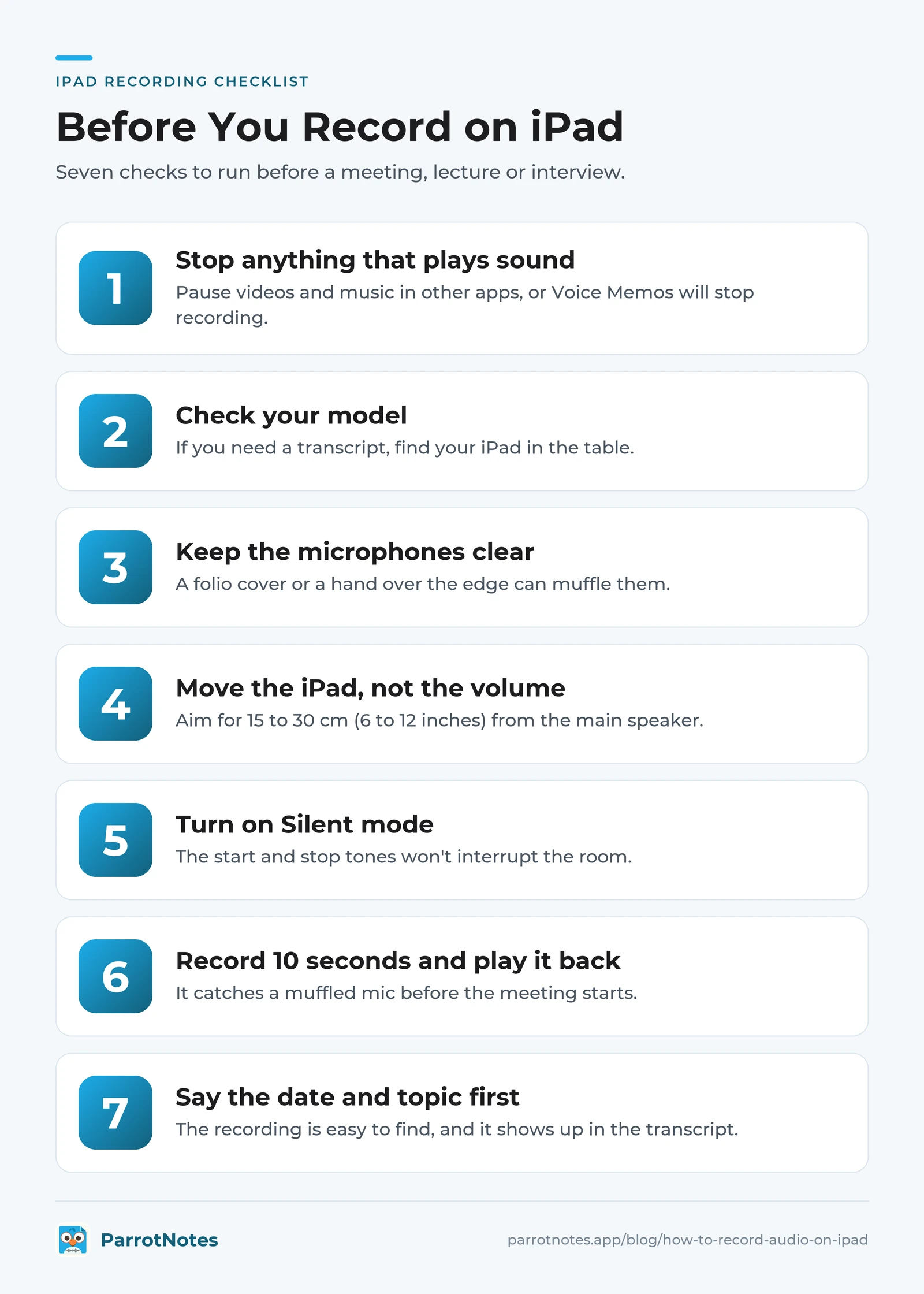
- Stop anything that plays sound. Pause videos and music in other apps, or Voice Memos will stop recording.
- Check your model. If you need a transcript, find your iPad in the table above.
- Keep the microphones clear. A folio cover or a hand over the edge can muffle them.
- Move the iPad, not the volume. Apple's own advice for level is distance. Aim for 15 to 30 cm (6 to 12 inches) from the main speaker.
- Turn on Silent mode so the start and stop tones don't interrupt the room.
- Record 10 seconds and play it back. It catches a muffled mic before the meeting starts.
- Say the date and topic first. It makes the recording easy to find, and it shows up in the transcript.
Turn an iPad recording into notes
After a meeting or lecture, you rarely want the file. You want what was decided and what to do next.
- Voice Memos or Notes transcript: free, on supported iPads, in Apple's 10 languages.
- A file you already have: our free audio to text tool transcribes an upload of up to 10 minutes.
- Notes, not just text: ParrotNotes records the conversation and gives you a transcript, a summary and action items.
ParrotNotes is the app we make. Its App Store listing says it's designed for iPad and needs iPadOS 17.0 or later (checked November 12, 2026). It also runs on iPhone, Android and Mac. Recording works offline; transcription and summaries need an internet connection.
The free plan gives you 100 minutes of recording a month, up to 30 minutes per recording. You get an AI summary on every recording, AI insights on 5 recordings a month and 3 audio or video imports a month.
Pro is $19.99 a month, or $14.99 a month billed annually. It includes 3,000 minutes a month, recordings up to 3 hours and transcription in 99+ languages. Prices are from the ParrotNotes pricing page, as of November 2026.
Back to Dana. After her next session, she had a summary with the three problem types to practice and the date of the next quiz. She pasted it into her email to the parents before she packed up. If you're comparing apps first, see our guide to the best voice recorder apps with transcription.
Recording other people: ask first
Recording your own ideas needs no permission. Recording other people can bring consent laws into play. In the US, some states let one person in the conversation consent, while others require everyone's consent. Our list of one-party consent states shows which is which, and rules differ outside the US.
The easy habit: say you're recording before you tap Record, and keep the iPad where people can see it. Many schools have their own rules about recording lectures. This is general information, not legal advice.
Phone calls are a separate job; see our guide to recording phone calls on iPhone.
Conclusion
How to record audio on iPad comes down to picking the right built-in method:
- Voice Memos: tap Record, tap Done. Share as .m4a or save to Files.
- Notes: audio inside a note, next to what you type.
- Screen Recording: a video of the screen with your voice, saved to Photos.
- Transcripts: on most iPads that run iPadOS 27, with two iPad Pro exceptions.
- Before you start: stop other apps from playing sound, and test for 10 seconds.
On another device, see how to record audio on a Mac, Android, Windows or a Chromebook. If you'd like the summary and action items without replaying the file, get ParrotNotes free.
Frequently Asked Questions
Does an iPad have a built-in voice recorder?
Yes. Voice Memos is Apple's built-in voice recorder app on iPad. Open it, tap the red Record button and tap Done to finish. The Notes app also records audio inside a note, and Screen Recording in Control Center captures the screen with your voice.
Where is the Voice Memos app on iPad?
Apple's iPad User Guide places Voice Memos in the Utilities folder. You can also swipe down on the Home Screen and type "Voice Memos" in the search field.
How do I record my iPad screen with audio?
Open Control Center by swiping down from the top-right corner, touch and hold the Screen Recording button, tap Microphone to turn it on, then tap Start Recording. After a 3-second countdown it records. The video is saved in the Photos app.
Can an iPad transcribe a recording?
Yes, on supported models. Voice Memos and Notes write a transcript in 10 languages on iPadOS 18 or later. Two iPads that run iPadOS 27 aren't on Apple's list: the iPad Pro 11-inch (2nd generation) and the iPad Pro 12.9-inch (4th generation).
How long can an iPad record audio?
Apple's iPad User Guide doesn't state a time limit for Voice Memos, so free storage and battery are the practical limits. For a long session, plug the iPad in, and stop other apps from playing sound, because that stops the recording.
Related Posts
Best Voice Memos Apps for Android
Android has no app called Voice Memos. Compare the best voice memos app for Android by phone: Pixel, Samsung and free Play Store picks. Checked Nov 2026.
Temi Transcription Review: Pricing, Accuracy Claims and the Phone App
Temi transcription reviewed from Temi's own pages, as of November 2026: $0.25 a minute, accuracy claims, the Rev link and the phone app. Try ParrotNotes free.
Riverside Transcription Review: What the Free Tool and Paid Plans Include
Riverside transcription reviewed from Riverside's own pages, as of November 2026: free tool limits, languages, export formats and plans. Try ParrotNotes free.