
Voice Notes on iPhone: Everything You Can Do With Them

Sarah Johnson
Writes about field sales, meeting notes and voice-first workflows at ParrotNotes. Every article is reviewed by the ParrotNotes product team before it goes live.
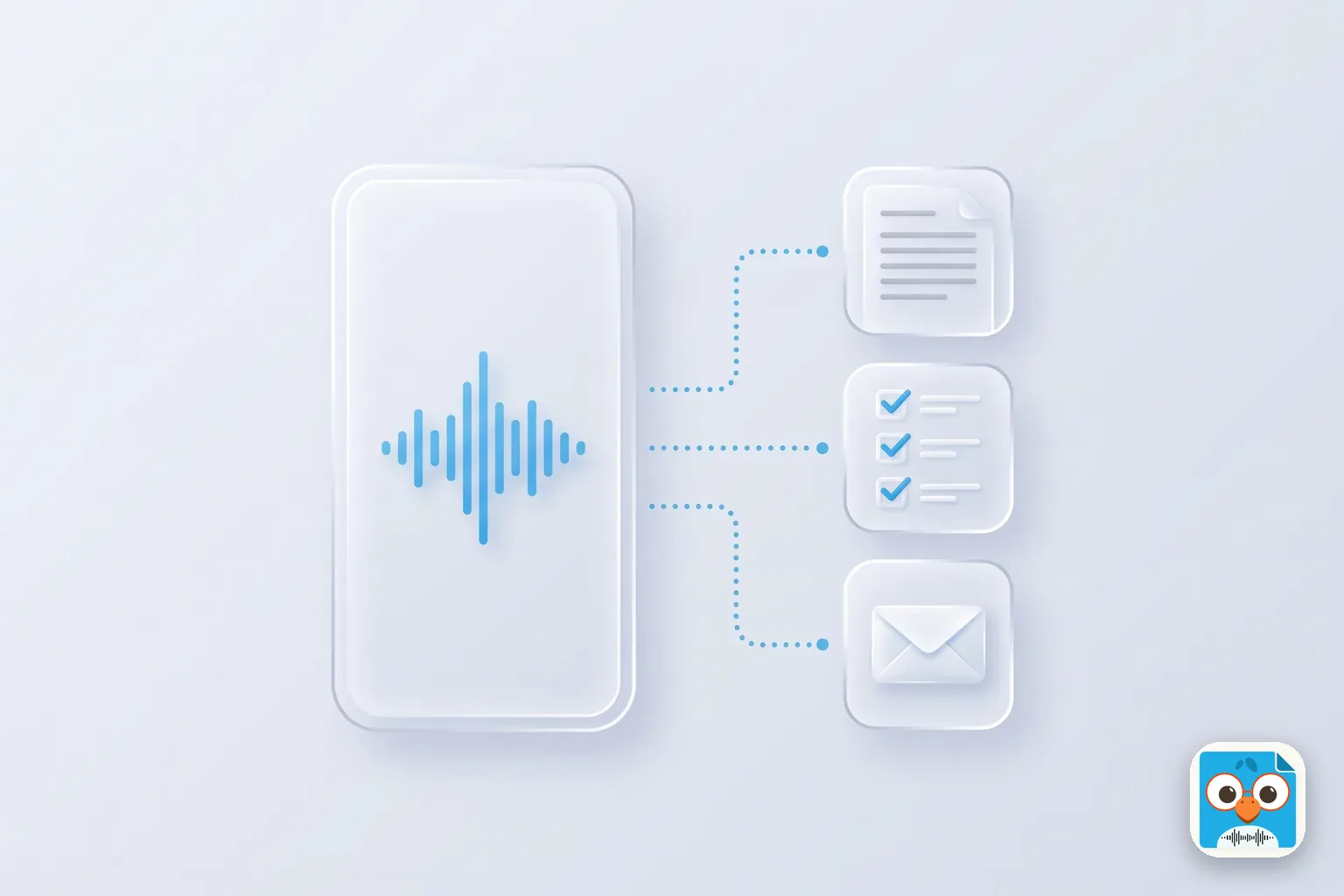
Table of Contents
- 1.Voice notes on iPhone: four ways to record one
- 2.How to record voice notes on iPhone with Voice Memos
- 3.Play back, trim, and organize your voice notes
- 4.Turn a voice note into text on iPhone
- 5.Where voice notes on iPhone are stored, and how to sync and share them
- 6.Which iPhone voice tool for which job
- 7.A voice-note workflow for a day on the move
- 8.Ask before you record
- 9.Voice notes on iPhone: the short version
It's 4:40 PM. Priya, a property manager, has walked six buildings since breakfast. At each one she talked through what she saw into her iPhone: a leaking soffit, a tenant who wants a longer lease, a fence contractor who quoted $1,800.
Now she's in the car with six recordings and one question. What do I do with these?
If you take voice notes on iPhone, you've had that moment. Recording is the easy part. The phone gives you four ways to do it before you install anything. The hard part comes after. You have to find the right note, turn it into text, get it off the phone, and make sure the fence quote ends up in an email instead of dying in a list as "New Recording 14".
This guide covers everything you can do with voice notes on iPhone, checked against Apple's own support pages on September 22, 2026: recording, tidying and organizing, transcripts, storage and sharing, and which tool fits which job. It ends with a workflow to copy for a day of back-to-back conversations.
Voice notes on iPhone: four ways to record one
Before you choose an app, it helps to know what's already on the phone. Apple gives you four voice tools, and each has a different job.
- Voice Memos is the recorder. It lives in the Utilities folder (you can move it to the Home Screen) and records with the built-in microphone, a supported headset, or an external mic. Each recording is an audio file you can edit, transcribe, and share. This is where most voice notes on iPhone end up.
- Audio in Notes records inside a note. Since iOS 18, the Notes app can record audio, transcribe the spoken words, and keep the transcript next to your typed text. Useful when the recording belongs with a document, such as a client file.
- Audio messages in Messages are voice notes you send to someone. They arrive with a transcript in supported languages, and they disappear from your phone 2 minutes after you send or play them unless you tap Keep.
- Dictation on the keyboard turns speech into typed text anywhere you can type, with no audio file. Best for short messages and for filling a form by voice. Our guide to the best dictation app goes deeper on that job.
The first three make a recording. The fourth makes text. Keep that split in mind, because it decides where a note ends up and what you can do with it later.
How to record voice notes on iPhone with Voice Memos
Apple's Voice Memos recording guide is short. Here's the version for someone standing in a car park.
The basic recording
- Open Voice Memos in the Utilities folder, or open Control Center and tap Voice Memos.
- Tap the red record button. Move the phone closer to or farther from what you're recording to adjust the level.
- Tap stop. The file is saved as "New Recording" or, if Location Services is on for the app, the name of your location. Tap the name to rename it.
Tap stop and then Resume to record in parts, and swipe up from the top of the waveform to see more detail while you record. A voice note doesn't have to be one clean take.
An orange dot appears at the top of the screen whenever the microphone is in use. It's Apple's way of showing anyone nearby that a recording is running.
Faster ways to start
On iPhone models with an Action button, you can assign it to Voice Memo in Settings > Action Button. Press and hold, and a recording starts without hunting for the app; Apple's Action button guide lists the option. Silent mode mutes the start and stop tones, which matters in a quiet office.
Recording while you do something else
Voice Memos keeps recording when you go to the Home Screen and open another app, with one rule from Apple: if the other app starts playing audio, Voice Memos stops. So you can open Maps or Calendar mid-note, but not a podcast. On models with the Dynamic Island, the recording shows there so you can tap back to it.
Cleaner audio
In Control Center, tap Voice Memos and choose Voice Isolation to filter out background sound, or Wide Spectrum to keep it (Wide Spectrum isn't on every model). Settings > Apps > Voice Memos also offers Mono, Stereo, or Spatial Audio. For your own thoughts after a meeting, Voice Isolation and Mono are plenty; the other modes are there for musicians and sound work.
Play back, trim, and organize your voice notes
Once you have a few dozen recordings, the useful features are the ones that make them findable and listenable.
Playback options. Open a recording and tap the options button to change the speed, turn on Enhance Recording to reduce background noise and echo, or turn on Skip Silence so playback jumps over gaps. Apple's playback guide notes that these settings stay with that recording and don't change the audio itself.
Trim and replace. Tap the recording, open the edit tools, and drag the yellow handles around the part you want. Tap Trim to keep the selection or Delete to remove it, then choose Save Recording to overwrite or Save as New Recording to keep the original. You can also position the playhead and tap Replace to record over a section. The steps are in Apple's edit or delete guide.
Recently Deleted. Deleted recordings sit in a Recently Deleted folder for 30 days by default (change it in Settings > Apps > Voice Memos > Clear Deleted), so a wrong swipe isn't fatal.
Favorites and folders. Tap Edit above the list, select recordings, then Move to Folder. You can create folders by building, by client, or by week. Marking a recording as a favorite puts it in a Favorites folder automatically, per Apple's organize recordings guide.
Search. The search field looks at titles and, on models that transcribe, the words inside the recordings. That feature changed what a voice note on iPhone is worth.
Turn a voice note into text on iPhone
For years the answer to "can my iPhone transcribe a voice memo?" was no. That changed with iOS 18. Apple's guide to viewing a Voice Memos transcription says transcription is available on iPhone 12 or later, and the page for it first appears in the iOS 18 edition of the iPhone User Guide.
What Apple's transcript gives you
- Live text while recording. Swipe up from the top of the waveform and tap the transcript button to watch the words appear, with the current word highlighted.
- Text after recording. Open the recording, tap the more button, then View Transcript. Select part of it and copy, or choose Copy Transcript for the whole thing and paste it into Mail or a document.
- Search inside recordings. Type a word and the list shows only recordings that contain it, in the title or the transcript. Tap a word in the transcript and the playhead jumps to that moment.
- Older recordings. Recordings made on iOS 17 or earlier are transcribed when you open them, if they include speech.
- Languages. English (all variants), Spanish, Portuguese, Italian, French, German, Japanese, Korean, Simplified Chinese, and Traditional Chinese. Apple says it's not available in every country or region.
The Notes app does the same for audio recorded in a note: a live transcript while recording, tap the text to play from that point, Find in Transcript, and Add Transcript to Note or Copy Transcript. On an Apple Intelligence-enabled iPhone (iPhone 15 Pro or iPhone 16 and later) you can also tap Summary, per Apple's Notes audio guide.
If the recording is an interview rather than a solo note, the transcript needs a correction pass and a quote check. Our guide on how to transcribe an interview covers both.
When the transcript isn't the finish line
A transcript is a wall of words. What Priya needs from her six recordings is a list: three repairs to book, one lease to draft, one quote to approve, one tenant to call back. She also needs an email to the fence contractor, and it would help if it were mostly written before she gets home.
That's the job ParrotNotes was built for. Record in the app, or share an existing Voice Memo into it. Back comes a transcript, an AI summary, the action items pulled out as a list, and a follow-up email drafted from what was said. Speaker identification, on Pro, labels who said what when a recording includes a conversation rather than a solo note.
Language is the other gap. Apple's transcript covers 10 languages and needs the phone's language settings to match. ParrotNotes transcribes in 99+ languages on Pro and translates as it goes. Record a supplier call in Spanish and read it in English, or set your transcript language once and let the app handle a meeting that switches languages mid-sentence.
Take Daniel, a consultant working with a client in Madrid. He records his debrief in Spanish because that's the language the meeting was in. The summary and action items come back in English because that's the language his team reads, and he didn't change a setting between the two.
The free plan gives you 100 minutes of recording a month, an AI summary on every recording, and AI insights such as action items on 5 recordings a month. You can try ParrotNotes free and share your next Voice Memo into it to see the difference between a transcript and a to-do list.
Where voice notes on iPhone are stored, and how to sync and share them
A voice note that lives only on one phone is a liability. Here's where recordings go and how to get them out.
iCloud sync
Turn on Voice Memos in iCloud and your recordings appear on every iPhone, iPad, and Mac signed in to the same Apple Account. The path, from Apple's keep recordings up to date guide, is Settings > [your name] > iCloud > See All, scroll down, then turn on Voice Memos. On a Mac running macOS 15 or later it's System Settings > your name > iCloud > See All > Voice Memos.
Turn it on the day you start using voice notes on iPhone for work, so a recording made in a car park at 4:40 PM is on your Mac before you sit down.
Sharing a recording
Tap a recording, tap the more button, then Share. Apple's share a recording guide adds an Options step: Rendered creates a single .m4a file with effects mixed in, while Editable keeps layers adjustable for musicians. Pick Rendered. Tap Select to share several recordings at once, by AirDrop, Mail, Messages, or any app in the share sheet.
That share sheet is also how a Voice Memo gets into another app. ParrotNotes accepts shared audio files for transcription and AI insights: 3 imports a month on the free plan, unlimited on Pro. Weighing a separate recorder instead of the phone? Our best AI voice recorder comparison works through the first-year cost.
Saving to Files
Recordings export as .m4a, and Save to Files lets you pick a folder in iCloud Drive or on the phone, per Apple's export to Files guide. If your firm keeps client folders in Files, this is how a recording joins them.
Audio messages have their own rules
Audio messages sent in Messages arrive with a transcript. But Apple's audio messages guide is clear that they're deleted from your phone 2 minutes after you send or listen to them, unless you tap Keep or set Settings > Apps > Messages > Expire to Never. Touch and hold an audio message to save it to Voice Memos.
Lena, an executive assistant, used to take instructions from her director as audio messages in the corridor. One Monday she went back for the details of a hotel booking and the message was gone. Now she taps Keep on anything with a number in it, and records the longer briefings in Voice Memos instead. If a voice note matters, don't leave it as an audio message.
Which iPhone voice tool for which job
This is the table Priya needed at 4:40 PM. The Apple facts come from the support pages linked above and the ParrotNotes facts from its pricing page, both checked on September 22, 2026.
| Job | Voice Memos | Notes audio | Messages audio | Dictation | ParrotNotes |
|---|---|---|---|---|---|
| Capture a quick thought | Yes, from the Action button or Control Center | Yes, inside a note | Only if it's for someone else | Yes, as typed text | Yes, with background recording |
| Record while you use another app | Yes, unless that app plays audio | Yes | No | No | Yes, screen on or locked |
| Get a transcript | iPhone 12 or later, 10 languages | iPhone 12 or later, 10 languages | Supported languages; gone in 2 minutes unless kept | The text is the output | Yes, 99+ languages on Pro |
| Get a summary | Writing Tools on Apple Intelligence iPhones | Summary on Apple Intelligence iPhones | No | No | AI summary on every recording, every plan |
| Get action items as a list | No | No | No | No | Yes, 5 recordings a month free, unlimited on Pro |
| Get a follow-up email drafted | No | No | No | No | Yes |
| Ask questions about what was said | No | No | No | No | AI chat |
| Record in one language, read in another | No | No | No | No | Yes, on Pro |
| Know who said what | No | No | No | No | Speaker identification on Pro |
| Same app on Android and Mac | Mac only, via iCloud | Mac only, via iCloud | Apple devices only | Apple devices only | iOS, Android, and macOS |
Read it across and a pattern shows. Voice Memos is the right capture tool for almost everything, and Notes wins when the recording belongs inside a document. ParrotNotes is what you reach for when the voice note has to become a transcript, a summary, and action items, or when it has to cross a language.
A voice-note workflow for a day on the move
Recording is a habit; the workflow is what makes it pay. This one is built for someone who takes voice notes on iPhone between five or six conversations a day and does admin in the car. It has five moments.
1. Before you leave (2 minutes, once). Turn on Voice Memos in iCloud, and set the Action button to Voice Memo or put Voice Memos in Control Center. Then decide the one place your notes will end up: a folder per client in Voice Memos, or a label per client in ParrotNotes. If the app is new to you, getting started with ParrotNotes covers labels and your first recording.
2. Walking out of each meeting (60 to 90 seconds). Start the recording before you reach the car, and say the client name and the date first so the transcript is searchable. Then answer four questions out loud: what did they ask for, what did I promise, what's the number (price, date, quantity), and what's the next step and when? Then stop, and don't tidy it.
3. Before you pull away (30 seconds). If you recorded in Voice Memos, rename the file from "New Recording 14" to the client name. If you recorded in ParrotNotes, the summary and action items are already waiting, so skim them once and correct anything the AI got wrong while the meeting is fresh.
4. End of the day (15 minutes). Work through the day's notes in order and decide, for each one, whether to keep it as audio, copy the transcript into the client file, or turn it into an email. In ParrotNotes this is where the drafted follow-up email earns its keep: read it, edit it, send it.
5. Friday (10 minutes). Search your recordings for the week's open promises ("send", "quote", "call back") and check that each has an owner and a date. Move finished recordings into folders, or archive them.
The same workflow, filled in
Here's how Priya's 2:15 PM stop looks as a spoken debrief. It's an illustration, not a real recording.
Oak Street, Tuesday September 22, meeting with Mr. Alvarez. He asked for a two-year renewal at the current rent. I promised an answer by Friday. The fence contractor quoted $1,800 and needs a yes by Thursday to start Monday. Next steps: check the owner's floor rent tonight, call the contractor tomorrow morning, email Mr. Alvarez on Friday.
Left in Voice Memos, that note is searchable for "Alvarez" and "Friday", and the transcript can be copied into the building's file. Shared into ParrotNotes, it comes back as a three-line summary, three action items with their dates, and a drafted email to Mr. Alvarez that she reads and sends from the car park of the next building.
Neither version required her to type a word.
Ask before you record
The orange dot tells people nearby that the microphone is on, but it isn't a substitute for asking. If a voice note includes someone else's words, say you're recording and why, and stop if they'd rather you didn't. Laws on recording conversations vary by country and by state, and this isn't legal advice.
The habit that sidesteps the question is the one this article recommends anyway: record your own debrief after the meeting, in your own words. It's shorter, it's searchable, and nobody else's voice is in it.
Voice notes on iPhone: the short version
Voice notes on iPhone are more capable than most people think. Voice Memos records from the Action button, keeps going while you use other apps, trims, searches, syncs through iCloud, and transcribes in 10 languages on iPhone 12 or later. Notes keeps a recording and its transcript inside a document. Audio messages are for sending, not keeping.
What none of the built-in tools do is turn the note into a summary, a list of action items, and a follow-up email, or carry it across a language. That's the step ParrotNotes adds, on the phone you already carry, with a free plan that includes 100 minutes of recording a month and an AI summary on every recording.
Record your next debrief, share it in, and see what comes back. Download ParrotNotes free and give your voice notes somewhere to go.
Frequently Asked Questions
Does iPhone have a built-in voice notes app?
Yes. Voice Memos is Apple's recorder and comes with every iPhone, in the Utilities folder. You can also record audio inside the Notes app, send audio messages in Messages, and dictate text with the keyboard microphone. For voice notes on iPhone that you want to keep, edit, and share as audio, Voice Memos is the fit.
Can iPhone transcribe voice notes?
Yes. On iPhone 12 or later with iOS 18 or later, Voice Memos and the Notes app transcribe speech in English, Spanish, Portuguese, Italian, French, German, Japanese, Korean, Simplified Chinese, and Traditional Chinese. For a summary, action items, a drafted follow-up email, or a transcript in another language, share the recording into ParrotNotes.
Where are voice notes stored on iPhone?
Recordings live in the Voice Memos app. Turn on Voice Memos in Settings > [your name] > iCloud > See All and they sync to your iPad and Mac too. To put a copy somewhere else, share the recording and choose Save to Files, which exports it as an .m4a file, or share it into another app such as ParrotNotes.
Can I record a voice note while using other apps on iPhone?
Yes. Voice Memos keeps recording when you go to the Home Screen and open another app, as long as that app doesn't play audio; if it does, Voice Memos stops. ParrotNotes records in the background with the screen on or locked, so the phone can stay in your pocket while you walk to the car.
Related Posts

Sandler Pain Funnel Questions (With a Note-Taking Template)
The 8 Sandler pain funnel questions as Sandler publishes them, what to write down at each one, a note-taking template and a worked call. Copy it free.
Sales Meeting Agenda: Templates for Weekly Team Meetings
Running a weekly sales meeting that produces nothing? Copy four sales meeting agenda templates for field teams, plus a rep prep card and a record-ready run.
RFQ Template for Manufacturers and Distributors
Copy this RFQ template for manufacturers and distributors: a buyer-side request, a supplier quote response, and one worked example filled in on both sides.