
How to Use Voice Typing in Google Docs (and Its Limits)

Sarah Johnson
Writes about field sales, meeting notes and voice-first workflows at ParrotNotes. Every article is reviewed by the ParrotNotes product team before it goes live.
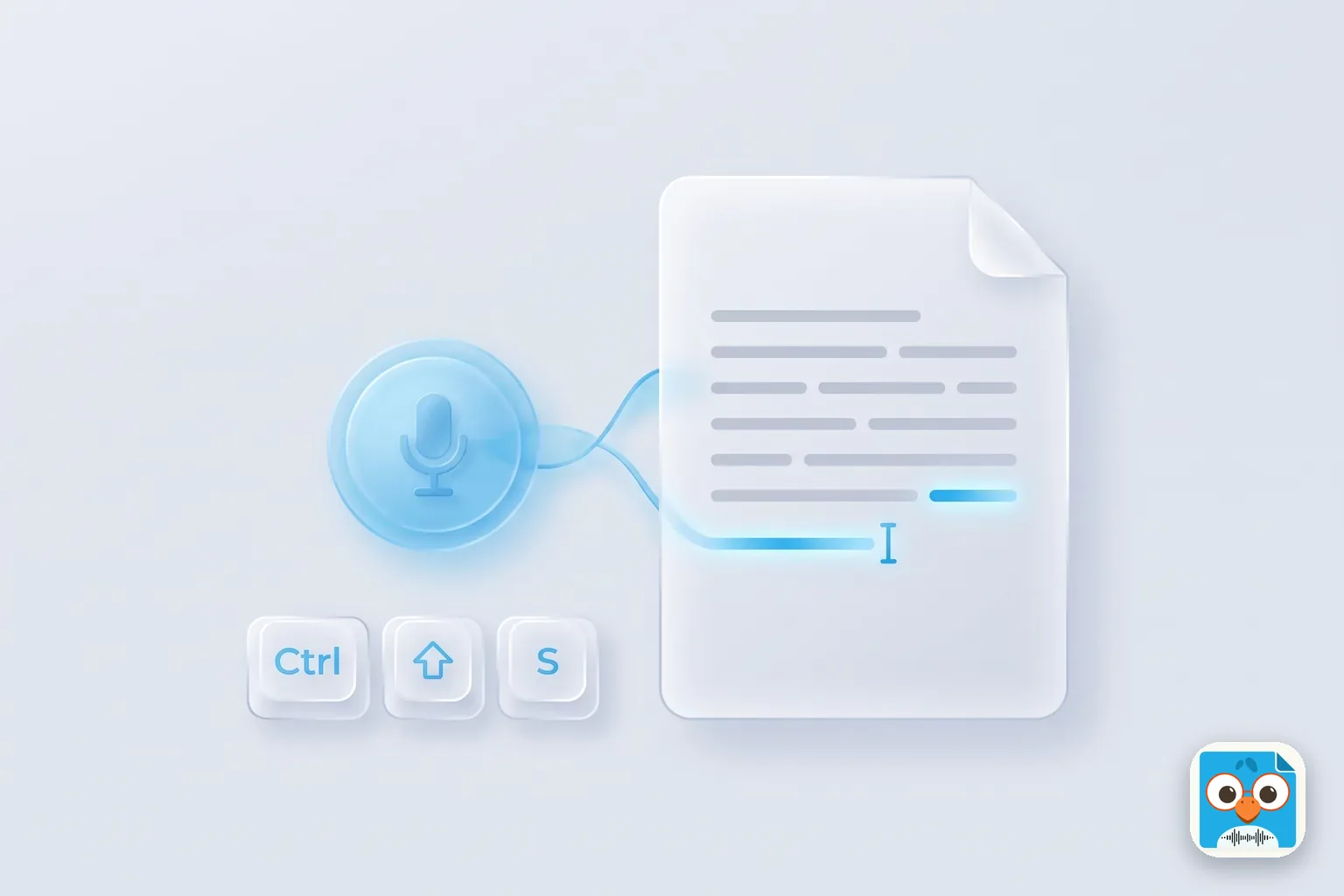
Table of Contents
- 1.How to turn on voice typing in Google Docs
- 2.Google Docs voice typing commands: the cheat sheet
- 3.Tips for cleaner voice typing
- 4.Voice typing in Google Docs on Android and iPhone
- 5.Dictate speaker notes in Google Slides
- 6.Google Docs voice typing not working? Fixes by symptom
- 7.The limits of voice typing in Google Docs
- 8.Start voice typing in Google Docs today
Leah has a proposal due at 5 p.m. and a sore wrist from a morning of typing. She opens the draft in Google Docs, presses Ctrl+Shift+S, and talks through the scope section the way she'd explain it to the client. Ten minutes later she has three rough pages, and a few spots where Docs heard "sealant" instead of "client." (Leah is an illustration, not a real customer.)
That's voice typing in Google Docs: free, already in your browser, and faster than typing for a first draft. It also has limits that most guides skip. The commands only work in English, there's no voice typing menu in the Docs phone app, and it can't turn a recording into text.
This guide covers how to turn it on, every voice command grouped by the job you're doing, how to dictate into Docs from a phone, fixes when the mic won't listen, and an honest table of where it stops. Every step was checked against Google's own help pages on October 31, 2026.
If your words start in a meeting or on the road rather than at a desk, try ParrotNotes free: it records on your phone and gives you a transcript you can paste into any Doc.
How to turn on voice typing in Google Docs
Google's Type and edit with your voice page lists three steps:
- Open a document in a supported browser on your computer.
- Click Tools > Voice typing. A microphone box appears beside the page.
- Click the microphone and speak at a normal volume and pace. Click it again when you're done.
The keyboard shortcut is faster. Google's Docs keyboard shortcuts page lists Ctrl + Shift + S on Windows and ChromeOS, and ⌘ + Shift + S on a Mac, as "Start voice typing."
The first time, your browser asks for permission to use the microphone. Choose Allow, or the microphone won't pick anything up.
Which browsers support Google Docs voice typing?
Many older guides say "Chrome only." Google's help page now lists the latest versions of Chrome, Edge, and Safari. Firefox isn't on the list. The shortcut page still marks Ctrl + Shift + S as a Chrome shortcut, so if the keys do nothing in Edge or Safari, use the Tools menu instead.
Google also explains that your browser runs the speech-to-text service and sends the text to Docs. Google doesn't describe an offline mode, so plan on needing a connection.
Google Docs voice typing commands: the cheat sheet
Voice typing turns what you say into text. Voice commands go further: they format, select, and move around the document without touching the keyboard. Here's the catch Google states plainly: voice commands and spoken punctuation are available only in English, and both your account language and the document language must be English.
The phrases below come from Google's list. Google shows more variations of each one; these are the ones worth learning first.
Punctuation
Say the mark where you want it:
- "Period"
- "Comma"
- "Exclamation point"
- "Question mark"
- "New line"
- "New paragraph"
Google's page doesn't mention automatic punctuation for Docs. Expect to say your periods and commas out loud.
Editing and formatting by voice
| Job | Say |
|---|---|
| Select text | "Select all", "Select paragraph", "Select line", "Select next word", "Deselect" |
| Format | "Bold", "Italicize", "Underline", "Strikethrough", "Uppercase", "Title case" |
| Headings | "Apply heading 1" (through 6), "Apply title" |
| Color | "Text color red", "Highlight", "Highlight [color]" |
| Size and layout | "Increase font size", "Font size 12", "Line spacing double", "Align center", "Increase indent" |
| Remove formatting | "Clear formatting", "Remove bold" |
| Edit | "Copy", "Cut", "Paste", "Delete", "Delete last word" |
| Insert | "Insert link" (then say the URL), "Insert comment" (then say the comment), "Insert page break", "Insert horizontal line" |
Two details save a lot of cleanup. Saying "Delete" on its own removes the word before the cursor. And if Docs mistakes a command for text, say "Undo."
Lists, tables, and moving around
| Job | Say |
|---|---|
| Lists | "Create bulleted list", "Create numbered list" |
| Columns | "Apply 2 columns", "Insert column break" |
| Tables | "Insert table [1–20] rows by [1–20] columns", "Insert row", "Insert column", "Delete table", "Exit table" |
| Move | "Go to end of paragraph", "Go to start of line", "Move to next heading", "Move down [number] lines" |
| Scroll | "Scroll down", "Scroll up" |
| Stop and restart | "Stop listening", "Resume", "Resume with [word or phrase]" |
| Help | "Voice commands list" |
"Resume" sends the cursor to the end of the paragraph. "Resume with" plus a phrase puts it after that phrase, which is handy when you want to add to a sentence in the middle of a page.
Tips for cleaner voice typing
Accuracy depends more on the room and the mic than on the software. Most of these habits come from Google's own troubleshooting advice:
- Talk in short phrases, then glance at the page. Fixing one wrong word is easy. Fixing a five-minute ramble isn't.
- Pause before and after a command. Google says this helps Docs tell "bold" the command from "bold" the word. A small bubble shows what it heard.
- Fix mistakes without stopping. Google suggests moving the cursor to the error and correcting it with the mic still on, then carrying on.
- Use a headset in a noisy room. Google's own fix for "We're having trouble hearing you" is a quieter room, an external mic, or a higher input volume.
- Keep the Docs tab in front. If the mic switches off while you check another window, click it again.
Marcus, an operations consultant, drafts by voice and edits by keyboard every Friday. He dictates his weekly client update in Docs in about six minutes, saying "new paragraph" between each workstream. Then he spends five more with the keyboard, fixing names and adding links. Typing the whole thing used to take him half an hour. (Marcus is an illustration.)
Voice typing in Google Docs on Android and iPhone
Here's where many readers get stuck: the Google Docs app on your phone has no Tools > Voice typing menu. Google's voice typing help page only describes computers and browsers.
You can still dictate into a Doc on your phone. You use the keyboard's microphone instead.
On Android:
- Open the document in the Google Docs app and tap Edit (the pencil).
- Tap where you want the text.
- Tap the microphone at the top of Gboard and speak.
Google's Gboard voice typing page lists the same spoken punctuation ("period", "comma", "new line") as Docs. The Docs formatting commands don't apply, because the keyboard is typing, not Docs. Our guide to Gboard voice typing covers which extra commands each Pixel gets.
On iPhone and iPad:
- Open the document in the Google Docs app and tap Edit.
- Tap where you want the text.
- Tap the microphone on the keyboard and speak. If there's no mic, turn on dictation under Settings > General > Keyboard.
Apple's dictation has its own set of commands. See our list of iPhone dictation commands for punctuation, emoji, and editing by voice.
Either way, the screen stays on and the document open. Fine for a paragraph, awkward for anything longer.
Dictate speaker notes in Google Slides
The same tool works in Google Slides, for speaker notes only:
- Open a presentation in Slides in your browser.
- Click Tools > Dictate speaker notes. The notes panel opens with a microphone box.
- Click the microphone to start, and again to stop.
Google notes that voice commands aren't available in speaker notes.
Google Docs voice typing not working? Fixes by symptom
Find your symptom below. The fixes are from Google's troubleshooting section, plus the browser and language rules above.
| Symptom | Fix |
|---|---|
| No "Voice typing" in the Tools menu | You're in the phone app or an unsupported browser. Open the doc in the latest Chrome, Edge, or Safari on a computer |
| Mic button does nothing | Allow microphone access for docs.google.com in your browser's site settings, then reload the page |
| "We're having trouble hearing you" | Move somewhere quieter, plug in an external mic, or raise the input volume in your system sound settings |
| Mic doesn't work at all | Check it isn't in use by another app (a call, a recorder), check your system settings, and restart the computer |
| Commands get typed as words | Check that both your account language and the document language are English, and pause before and after each command |
| Text appears in the wrong language | Pick your language from the drop-down on the microphone box |
| Ctrl + Shift + S does nothing | Use Tools > Voice typing instead, especially outside Chrome |
Not sure if it's Docs or the mic? Try your computer's own dictation in another app: see dictation on Windows 11 or voice to text on Mac.
The limits of voice typing in Google Docs
Voice typing in Google Docs is built for one person, at a computer, talking into a document that's open in front of them. Inside that job it works well. Outside it, here's where it stops:
- Commands are English only. You can dictate in more than 60 languages (119 language and accent options on Google's list, from Afrikaans to Zulu), but formatting and punctuation commands need English.
- It needs a computer browser. On a phone you fall back to the keyboard mic, without the Docs commands.
- There's no recording. Docs keeps the text, not the audio. If a word came out wrong, there's nothing to play back.
- It can't transcribe a file. You can't upload a voice memo or a meeting recording to Docs voice typing.
- It only hears you, at the document. It isn't built to capture a client across the table, and the tab has to stay open while you talk.
Here's how the three ways of getting speech into a Doc compare:
| Task | Docs voice typing | Phone keyboard mic | Recording app, then paste |
|---|---|---|---|
| First draft at your desk | Best fit, with formatting commands | Works, no Docs commands | Overkill |
| A paragraph on your phone | Not available in the app | Best fit | Works |
| A 5-minute idea while walking | Laptop has to be open | Screen on, short bursts | Phone in pocket, screen off |
| A 45-minute client meeting | Not built for it | Not built for it | Built for it |
| Dictating in Spanish or German | Typing yes, commands no | Depends on keyboard | Depends on the app |
| Turning an old recording into text | Can't | Can't | Built for it |
Record first, paste into Docs later
For the bottom rows, the faster route is to record, transcribe, and paste. Here's that workflow with ParrotNotes. ParrotNotes doesn't type into Google Docs; it gives you text you copy in.
- Record on your phone. Open ParrotNotes on iPhone or Android and tap record. It keeps recording with the screen locked, so the phone can stay in your pocket on a site walk or in the car.
- Talk it through, or record the conversation. Ask permission before you record anyone else.
- Get the transcript and summary. Every recording gets a transcript and an AI summary.
- Copy the text (the free plan exports as text or markdown) and paste it into your Google Doc.
- Tidy it up in Docs, with voice typing if you like, at your desk.
As of October 2026, the free plan includes 100 minutes of recording a month, up to 30 minutes per recording. Pro is $19.99 a month, or $14.99 a month billed annually, with 3,000 minutes a month, recordings up to 3 hours, and transcription in 99+ languages with translation. ParrotNotes runs on iPhone, Android, and Mac. Download ParrotNotes free if that's the gap you keep running into.
Priya, a founder, used to wait until she got back to her laptop to write up investor calls in Docs. By then half the detail was gone. Now she records a two-minute debrief in the car park, pastes the transcript into her running investor notes Doc, and uses voice typing only to add headings. (Priya is a composite.)
Already have a recording? Our free audio to text tool transcribes a file of up to 10 minutes, and the online dictation tool lets you talk, then copy the text into any app. For longer recordings, see the best voice to text app; for emails, how to dictate an email.
Start voice typing in Google Docs today
Here's what to remember:
- Tools > Voice typing, or Ctrl + Shift + S (⌘ + Shift + S on a Mac), in the latest Chrome, Edge, or Safari.
- Say your punctuation. Commands like "new paragraph", "bold", and "delete last word" work in English only.
- On a phone, use the keyboard mic. The Docs app has no voice typing menu.
- Most failures are the mic or the browser. Check site permissions and try Chrome first.
- For meetings and recordings, record first and paste the transcript.
Leah still drafts her proposals by voice. For the client calls behind them, she now records on her phone and pastes the transcript into the Doc before she starts talking. Try ParrotNotes free for the conversations that happen away from your desk.
Frequently Asked Questions
How do I turn on voice typing in Google Docs?
Open the document in a computer browser, then click Tools > Voice typing, or press Ctrl + Shift + S (⌘ + Shift + S on a Mac). Click the microphone that appears, allow microphone access, and start speaking. Click the microphone again to stop.
Does Google Docs voice typing work on Android or iPhone?
Not through the Docs app: it has no voice typing menu. Instead, tap Edit in the document and use your keyboard's microphone, the Gboard mic on Android or the dictation key on iPhone. Spoken punctuation works, but the Docs formatting commands don't.
Why is voice typing not working in Google Docs?
The usual causes are an unsupported browser (use the latest Chrome, Edge, or Safari), microphone access blocked for docs.google.com, another app using the mic, or a noisy room. If commands get typed as words, check that your account and document language are both English.
Does Google Docs voice typing work in other languages?
Yes for dictation: Google lists more than 60 languages, with 119 language and accent options in all. Choose yours from the drop-down on the microphone box. Voice commands and spoken punctuation, though, work only in English, and both your account and document language must be English.
Can Google Docs transcribe an audio file?
No. Voice typing only types what you say into the microphone live. To turn a recording into text, use a transcription tool or app, then paste the transcript into your Doc.
Related Posts
What Is a Punch List? How to Run a Punch List Walk
What is a punch list? The meaning, who makes it, what goes on it, a 12-item sample punch list and a faster way to run the walk. Try ParrotNotes free today.

Real Estate Listing Presentation: What to Include and How to Run It
A listing presentation outline you can copy: what to include, how to run the appointment in the seller's home, how to discuss commission and what to note after.

Pipeline Coverage Ratio: How to Calculate It and What Good Looks Like
Pipeline coverage ratio explained: the formula, a worked example, why 3x depends on win rate and cycle length, and how to fix low coverage. Try it free.