
How to Use Dictation on Windows 11: Shortcut, Commands and Fixes

Sarah Johnson
Writes about field sales, meeting notes and voice-first workflows at ParrotNotes. Every article is reviewed by the ParrotNotes product team before it goes live.
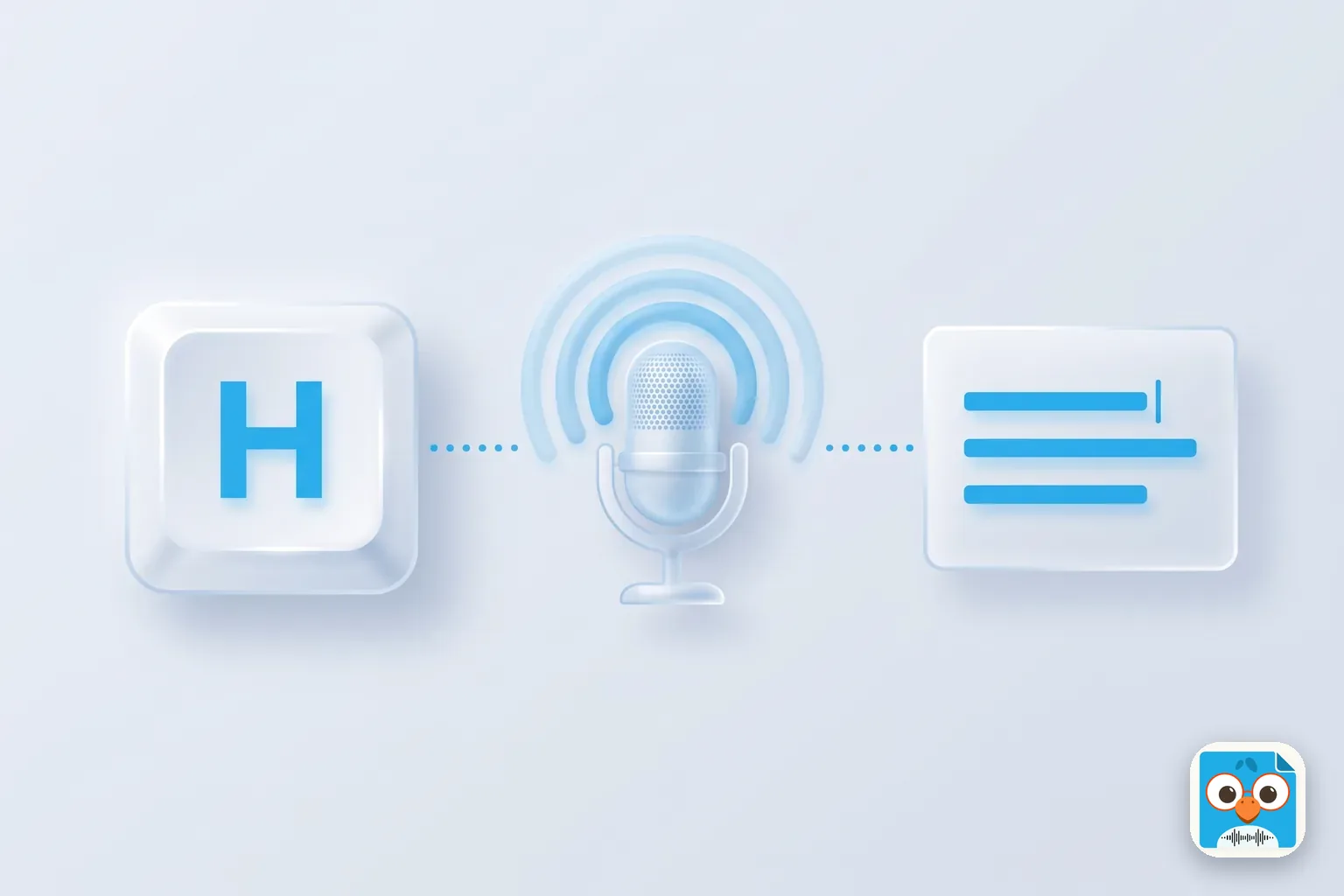
Table of Contents
- 1.The Windows 11 dictation shortcut: Windows key + H
- 2.Windows 11 dictation commands for punctuation and editing
- 3.Voice typing settings worth changing
- 4.Voice typing vs Voice Access vs Word's Dictate
- 5.Windows 11 dictation not working? Fix it by symptom
- 6.Which languages can you dictate in?
- 7.When Windows dictation isn't the right tool
- 8.Start dictating on Windows 11 today
Priya has 20 minutes between two client meetings and a recap email she promised to send "today." She opens Outlook on her Windows laptop, clicks into the message, presses two keys and starts talking. Four minutes later the email is drafted, punctuation and all. (Priya is an illustration, not a real customer.)
That's dictation on Windows 11, and it's already on your PC. You don't need to install anything, and for most people it's the fastest way to get words out of your head and into an email, a document or a chat box.
This guide covers the shortcut, the punctuation and editing commands, the settings worth changing, and which of the three built-in options to use when you're offline. It ends with a table of fixes for when nothing happens after you press the keys. Every step was checked against Microsoft's support pages on October 30, 2026.
The Windows 11 dictation shortcut: Windows key + H
Windows 11 calls its main dictation feature voice typing. Here's how to use it:
- Click where you want the text to go. Any text box works: an email, a Word document, a browser search bar, a Teams chat.
- Press Windows key + H. A small voice typing bar appears with a microphone button.
- Start talking. Speak at a normal pace. Your words appear as you go.
- Say your punctuation ("comma", "period", "new line"), or turn on automatic punctuation (see the settings below).
- Stop by saying "stop listening" or pressing the microphone button on the bar.
On a touchscreen, tap the microphone on the touch keyboard instead. If you prefer the keyboard, Windows key + Alt + H moves you through the voice typing menu.
Microsoft's voice typing page lists three requirements: an internet connection, a working microphone, and your cursor in a text box. The internet part matters, because "voice typing uses online speech recognition, which is powered by Azure Speech services." No connection, no voice typing. There's an offline option further down.
If you mostly dictate emails, our guide on how to dictate an email covers Outlook, Gmail and phone apps step by step.
Windows 11 dictation commands for punctuation and editing
Voice typing understands spoken punctuation. The words below are from Microsoft's English list. Other languages have their own lists on the same page.
| Say | You get |
|---|---|
| "period" or "full stop" | . |
| "comma" | , |
| "question mark" | ? |
| "exclamation mark" | ! |
| "colon" / "semicolon" | : / ; |
| "open quotes" / "close quotes" | " " |
| "open parentheses" / "close parentheses" | ( ) |
| "hyphen" | - |
| "at sign" | @ |
| "dollar sign" / "percent sign" | $ / % |
| "new line" or "new paragraph" | a line break |
And these are the English (United States) editing commands:
| Say | What happens |
|---|---|
| "delete that", "erase that" or "scratch that" | Deletes the last word or phrase you said |
| "select that" | Selects the last word or phrase you said |
| "undo that" or "revert" | Undoes the last change |
| "press Enter", "press Backspace", "press Tab" | Presses that key |
| "press space" | Adds a space |
| "stop listening", "stop dictation" or "pause voice typing" | Turns voice typing off |
A tip that saves a lot of cleanup: say a short phrase, pause, and check it. "Scratch that" only removes the last phrase, so fixing one short sentence is easy and fixing a two-minute ramble isn't.
Voice typing settings worth changing
Press Windows key + H, then select the gear icon on the voice typing bar. Microsoft lists five settings there:
- Voice typing launcher: shows a microphone button when you're in a text box, so you can start dictating with a click.
- Automatic punctuation: lets voice typing add punctuation "based on what you're saying." Turn this on first. You can still say "question mark" when it guesses wrong.
- Filter profanity: masks swear words.
- Default microphone: picks which mic voice typing uses. Useful if you have a headset and a laptop mic.
- Wait time before acting: how long Windows waits before it runs a voice command.
On Copilot+ PCs, voice typing also has fluid dictation, which Microsoft says corrects grammar, punctuation and filler words using on-device models. It works in English and is on by default. It switches itself off in password and PIN fields, and you can undo a correction by saying "revert" or pressing Ctrl + Z.
Voice typing vs Voice Access vs Word's Dictate
Windows 11 gives you three ways to dictate, and they suit different jobs. Here's how they compare, using Microsoft's support pages as of October 2026:
| Voice typing (Win + H) | Voice Access | Dictate in Word | |
|---|---|---|---|
| Works in | Any text box | Any text box, plus voice control of the whole PC | Word for Microsoft 365 |
| Internet | Required (online speech recognition) | Not needed after setup | Required |
| Cost | Free with Windows | Free with Windows 11, version 22H2 or later | Microsoft 365 subscribers only |
| Setup | None | Turn on once, download language files | Sign in to Microsoft 365 |
| Start it | Windows key + H | Alt + Shift + B to wake or sleep | Home > Dictate |
| Languages | More than 30, with regional variants | English (six regions), Spanish, German, French, Italian, Japanese, Chinese | Listed on Microsoft's Word help page |
| Best for | Quick emails and messages | Dictating offline, or controlling your PC hands-free | Long documents in Word |
The short version: use voice typing for everyday dictation. Switch to Voice Access when you're offline or want to run the whole computer by voice. Use Word's Dictate only if you already pay for Microsoft 365 and live in Word.
You may also find old guides pointing you to Windows Speech Recognition. Microsoft's list of deprecated features says it "is deprecated and is no longer being developed" and is being replaced with Voice Access. Skip it.
How to set up Voice Access for offline dictation
Marcus is a property manager who writes up inspection notes on the train home, where the Wi-Fi drops every few minutes. Voice typing keeps cutting out on him. Voice Access doesn't, because once it's set up it runs without a connection. (Marcus is an illustration too.)
To set it up, following Microsoft's Voice Access setup guide:
- Go to Settings > Accessibility > Speech and turn on Voice access, or search for "voice access" in the Start menu.
- Choose your language and select Agree and continue. Windows downloads the language files. This one step needs the internet.
- Confirm your microphone on the setup screen.
- Optional: tick Start voice access after you sign into your PC so it's ready each morning.
To dictate, click into a text box and speak. Say "comma" or "question mark" for punctuation, "correct that" to fix a misheard word, "spell that" to spell it out letter by letter, and "Caps" before a word to capitalize it.
Automatic punctuation is off by default in Voice Access; turn it on from the Voice Access bar under Settings > Manage options.
One thing to know: Voice Access listens for commands as well as text, so it can mistake a sentence for an instruction. Say "dictation mode" to make it treat everything as text, and "default mode" to go back.
Windows 11 dictation not working? Fix it by symptom
Dana, an executive assistant, presses Windows key + H for the first time on a new work laptop. Instead of a microphone, she gets a message: "Voice typing needs access to your microphone." It's a privacy switch, and it takes 30 seconds to fix once she knows where it is. (Dana is an illustration.)
Find your symptom below. The fixes come from Microsoft's voice typing troubleshooting page and its microphone help page.
| Symptom | Fix |
|---|---|
| "Voice typing needs access to your microphone" | Settings > Privacy & security > Microphone, turn on Microphone access |
| Works in some apps but not a desktop program | Same page: turn on Let desktop apps access your microphone |
| "Voice typing isn't available in the current language" | Install a supported language, or press Windows key + Spacebar to switch to one |
| The bar opens but no text appears | Settings > System > Sound, pick your mic under Input, select it and run Start test; raise Input volume if it's quiet |
| Nothing happens offline | Voice typing needs the internet; use Voice Access instead |
| Words come out wrong | Move somewhere quieter, check the language with Windows key + Spacebar, or try a headset |
| Mic doesn't show up at all | Settings > System > Sound > Advanced, run the Input devices troubleshooter; then update or reinstall the audio driver in Device Manager |
| Nothing happens when you press Win + H | Click inside a text box first; voice typing only starts where you can type |
Most failures are one of the first three rows. In a noisy office the built-in laptop mic is often the weak link, which is why Microsoft suggests trying a headset or external mic in two of its fixes.
Which languages can you dictate in?
Voice typing on Windows 11 supports more than 30 languages, including English (Australia, Canada, India, New Zealand, UK and US), Spanish (Mexico and Spain), French (Canada and France), German, Portuguese (Brazil and Portugal), Hindi, Japanese, Korean and Chinese. Microsoft's voice typing page has the full list and a separate command list for each.
Voice Access covers fewer languages: English, Spanish, German, French, Italian, Japanese and Chinese, with regional variants. If you dictate in Hindi or Korean, voice typing is the one to use.
When Windows dictation isn't the right tool
Windows dictation is built for one person typing by voice at a computer. It isn't built for capturing a conversation, or for the ideas you have in the car between meetings when your laptop is in the bag.
That's where we'll be straightforward about ParrotNotes: there's no Windows app. ParrotNotes runs on iPhone, Android and Mac.
You record a client conversation or a voice note on the phone you already carry, and it turns the recording into a transcript, a summary and action items. The free plan includes 100 minutes of recording a month (up to 30 minutes per recording) with an AI summary on every recording.
Ask permission before you record anyone else. If that fits how you work, download ParrotNotes free.
On the PC itself, if you'd rather dictate in a browser tab, our free online dictation tool works in Edge and Chrome with nothing to install. And if you need more than the built-in tools give you, such as custom vocabulary for legal or technical work, our best dictation app roundup and Dragon dictation review cover the paid options. On a Mac, see our guide to voice to text on Mac, and on an iPhone, our list of iPhone dictation commands.
Start dictating on Windows 11 today
Here's what to remember:
- Windows key + H starts voice typing in any text box. It needs the internet.
- Turn on automatic punctuation in the voice typing settings, and use "scratch that" to fix mistakes.
- Use Voice Access when you're offline or want hands-free control of the whole PC.
- Most problems are the microphone: check Privacy & security > Microphone first.
Try it now on your next email. Click into the message, press Windows key + H, and say two sentences. If you'd rather capture the meeting itself instead of writing it up afterwards, ParrotNotes does that from your phone.
Frequently Asked Questions
What is the shortcut for dictation in Windows 11?
Press Windows key + H with your cursor in a text box. The voice typing bar opens and starts listening. Say "stop listening", or press the microphone button, to stop.
Does Windows 11 dictation work offline?
Voice typing (Windows key + H) doesn't, because Microsoft says it uses online speech recognition. Voice Access does: after a one-time language download, it works without an internet connection. It's free on Windows 11, version 22H2 and later.
How do I add punctuation when dictating on Windows 11?
Say the punctuation mark, such as "comma", "period" or "question mark", and say "new line" for a line break. You can also turn on automatic punctuation in the voice typing settings, under the gear icon.
Why is my Windows 11 dictation not working?
The most common causes are microphone access turned off (Settings > Privacy & security > Microphone), an unsupported language (press Windows key + Spacebar to switch), no internet connection, or the cursor not being in a text box. Test your microphone under Settings > System > Sound.
Is Windows 11 voice typing the same as Voice Access?
No. Voice typing is for dictating text and needs the internet. Voice Access lets you dictate and also control Windows by voice, and it works offline after setup. Windows Speech Recognition, the older tool, is deprecated and being replaced by Voice Access.
Related Posts
Too Many Meetings? How to Cut Them Without Losing Alignment
Too many meetings at work? Audit your calendar in one sitting, give each cut meeting a replacement, and check after two weeks that your team is still aligned.
Sales Voicemail Scripts That Get Callbacks
Copy 10 sales voicemail scripts by situation, from first touch to breakup, each timed, plus greeting scripts for reps and a voicemail-and-email sequence.

Sales Talk Track: Examples and a Template
What a sales talk track is, how it differs from a script, plus a one-card template and examples for openers, demos, pricing, objections and next steps.