
Voice Memos and iCloud: How Sync Works and How to Turn It On

Sarah Johnson
Writes about field sales, meeting notes and voice-first workflows at ParrotNotes. Every article is reviewed by the ParrotNotes product team before it goes live.
Table of Contents
- 1.How Voice Memos iCloud sync works
- 2.How to turn on Voice Memos in iCloud
- 3.Before you sync voice memos to iCloud: a 5-step checklist
- 4.What syncs and what doesn't: the Voice Memos iCloud table
- 5.How much iCloud space voice memos use
- 6.Voice Memos not syncing to iCloud? Fixes in order
- 7.When iCloud sync isn't enough
- 8.The short version
Are your voice memos saved to iCloud? Only if one switch is on. With Voice Memos turned on in iCloud settings, every recording you make on your iPhone shows up in the Voice Memos app on your iPad and Mac, as long as they use the same Apple Account. With the switch off, recordings live on the phone that made them and nowhere else.
To turn on Voice Memos iCloud sync on an iPhone or iPad, go to Settings > [your name] > iCloud > See All, then turn on Voice Memos. On a Mac, it's System Settings > [your name] > iCloud > See All. Those are the paths in Apple's iPhone User Guide for iOS 27 and macOS 15 or later, checked on November 13, 2026.
Picture Marcus, a contractor who talks through a 20-minute site walk on his iPhone each morning. At his desk, he opens Voice Memos on his Mac to write up the quote, and the walk is already there. That's sync working. (Marcus is an illustration, not a real customer.)
Below: how sync actually behaves, a checklist to run before you flip the switch, a table of what happens to deletions and storage, and fixes when recordings won't appear. If what you need is the words rather than the audio, ParrotNotes records on iPhone or Android and gives you a transcript and a summary.
How Voice Memos iCloud sync works
iCloud voice memos are a sync, not a folder. Apple says your recordings appear automatically on your Mac, iPhone, iPad and Apple Vision Pro where you're signed in to the same Apple Account. You open them in the Voice Memos app on each device, not in the Files app or iCloud Drive. For the actual file paths, see where voice memos are stored.
Three rules explain almost every surprise:
- One account. Sync only joins devices signed in to the same Apple Account. To get a recording to someone else, you share it.
- Changes go everywhere. Apple's iCloud guide says that when you make a change in one place, you see it everywhere. Rename, trim or delete on the iPhone, and the Mac follows.
- Sync isn't a backup. Because a deletion syncs too, iCloud won't save you from deleting the wrong memo once Recently Deleted has been emptied. Keep your own copy of anything you can't lose.
How to turn on Voice Memos in iCloud
You need the switch on for every device you want in the loop. Each one takes under a minute.
On iPhone or iPad
- Open Settings and tap your name at the top.
- Tap iCloud, then See All.
- Scroll down and turn on Voice Memos.
On a Mac
- Open Voice Memos once. Apple notes that if you've never opened the app, it may not appear in the list.
- Choose Apple menu > System Settings, then click your name in the sidebar.
- Click iCloud, click See All next to Saved to iCloud, and turn on Voice Memos.
Those steps are for macOS 15 or later; older Macs word it differently. Anything you record on the Mac syncs back to the phone the same way. Our guide to Voice Memos on Mac covers editing and exporting there, and our guide on how to record audio on a Mac covers the recording side.
On Apple Vision Pro and Apple Watch
Apple Vision Pro uses the same path as the iPhone. Apple Watch is the odd one: recordings you make on the Watch appear on your other devices, but recordings from other devices don't appear on the Watch. More on that in using Voice Memos on Apple Watch.
Before you sync voice memos to iCloud: a 5-step checklist
Turning sync on is usually painless, but Apple's Community forums hold a steady run of posts like one titled "All of my voice memos suddenly disappeared when I turn on iCloud for voice memos" from February 2022. That poster had just changed Apple ID, tapped Enable, and watched the list empty.
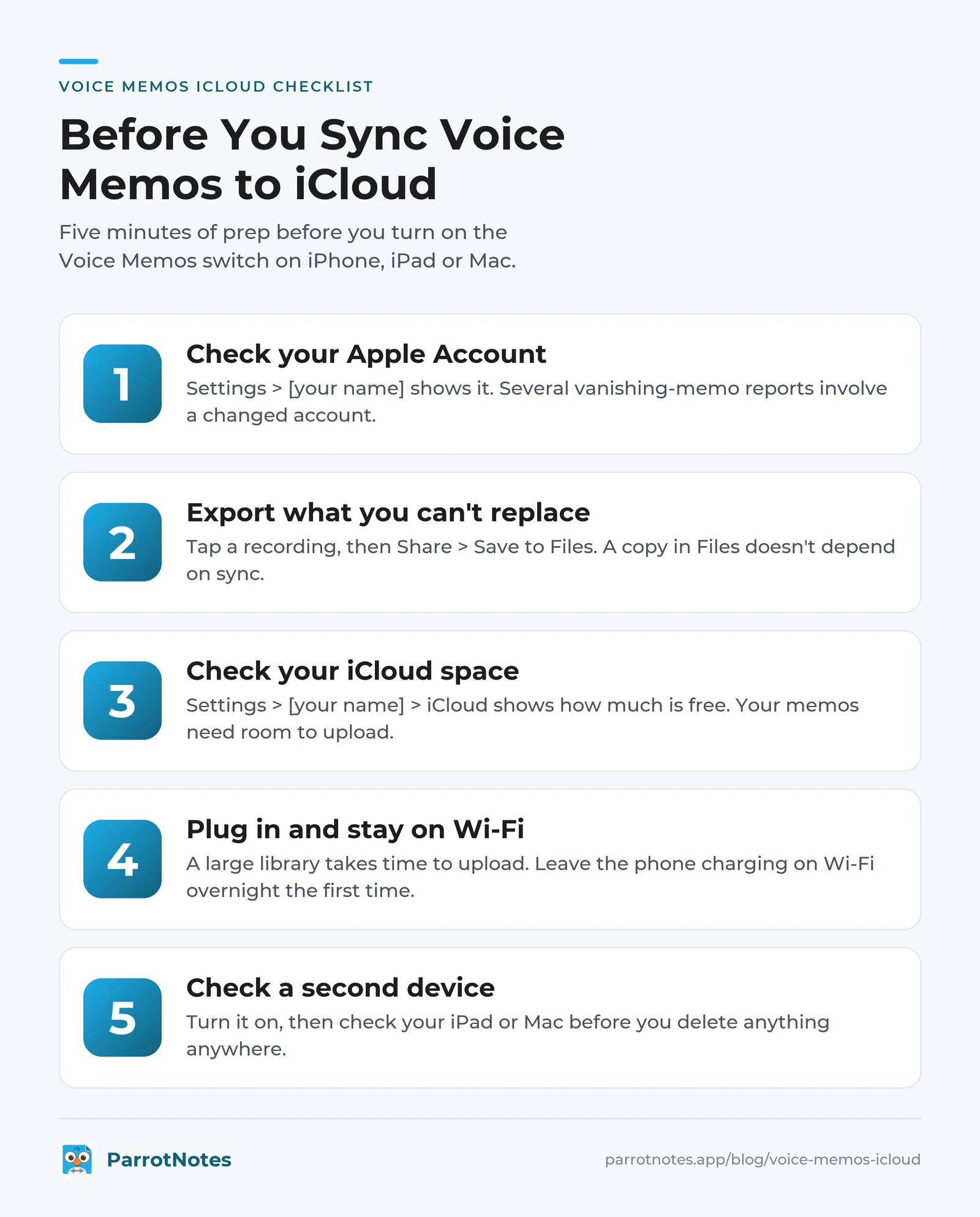
Apple doesn't document why this happens, so treat these as user reports, not a known bug. Still, five minutes of prep cuts the risk:
- Check which Apple Account you're signed in to. Settings > [your name] shows it. Several vanishing-memo reports involve a changed account.
- Export anything you can't replace. In Voice Memos, tap a recording, then Share > Save to Files. A copy in Files doesn't depend on sync.
- Check your iCloud space. Settings > [your name] > iCloud shows how much is free. Your memos need room before they can upload.
- Plug in and stay on Wi-Fi. A large library takes time to upload. Leave the phone charging on Wi-Fi overnight the first time.
- Turn it on, then check a second device before you delete anything anywhere.
Take Lena, who has 300 interview recordings from her master's research on an old iPhone. She saves the 40 she needs for her thesis to Files first, then turns on sync and leaves the phone charging.
The next morning all 300 are on her iPad. If the list had come up empty, she'd still have had the 40 that mattered. (Lena is an illustration.)
What syncs and what doesn't: the Voice Memos iCloud table
Each answer comes from Apple's own pages, checked on November 13, 2026. Where Apple says nothing, we say so.
| Situation | What happens | Source |
|---|---|---|
| You make a new recording | It's saved in iCloud and appears on your iPhone, iPad and Mac | Apple: Make a recording |
| You rename or trim a recording | The change shows on every synced device | Apple: How iCloud keeps information up to date |
| You delete a recording | It moves to Recently Deleted, kept for 30 days by default (Settings > Apps > Voice Memos > Clear Deleted) | Apple: Edit or delete a recording |
| You need a deleted memo back | Apple doesn't say whether Recently Deleted is shared across devices; check it on each one | See recover deleted voice memos |
| You record on Apple Watch | It appears on iPhone, iPad, Mac and Vision Pro; nothing flows back to the Watch | Apple: See your recordings on all your devices |
| A device uses another Apple Account | It doesn't see your recordings; share them instead | Same Apple page |
| You turn sync off on one device | That device stops updating; you may be asked whether to keep a copy | Apple: iCloud guide |
| Your iCloud storage is full | iCloud apps "won't stay up to date across your devices" | Apple: Manage your iCloud storage |
| You're on Windows or iCloud.com | Apple lists no Voice Memos sync for either | Same Apple page; see transfer voice memos to a computer |
Two more details from Apple. On macOS 15.1 or earlier, layered recordings made on supported iPhones don't show up on the Mac. And on privacy, Apple's iCloud data security overview lists Voice Memos as encrypted in transit and on the server by default, and end-to-end encrypted if you turn on Advanced Data Protection.
How much iCloud space voice memos use
Apple gives every account 5 GB of iCloud storage free, shared with photos, backups and everything else. How far that goes depends on the Audio Quality setting in Voice Memos: Compressed (the default) or Lossless.
Apple doesn't publish file sizes, but Gadget Hacks measured a one-minute memo at a little over 500 KB compressed and nearly 3 MB lossless. Using those numbers as a rough guide:
| Recording | Compressed (about 0.5 MB/min) | Lossless (about 3 MB/min) |
|---|---|---|
| One 1-hour meeting | about 30 MB | about 180 MB |
| One hour a week for a year | about 1.6 GB | about 9.4 GB |
| Hours that fit in an empty 5 GB | about 160 | about 27 |
So a weekly one-hour meeting fits in the free tier for years on Compressed, but fills it in about six months on Lossless, before you count a single photo. Your own numbers will differ with the iPhone model and recording mode.
If you do need more room, Apple's iCloud+ plans start at $0.99 a month for 50 GB in the US, then $2.99 for 200 GB and $9.99 for 2 TB (as of November 2026).
Voice Memos not syncing to iCloud? Fixes in order
- Check the switch on both devices under iCloud > See All.
- Check the Apple Account. Both devices must show the same one under Settings.
- Open Voice Memos on the Mac once, then look at its iCloud list again.
- Free up iCloud space. A full iCloud stops syncing outright.
- Turn off Low Power Mode. Apple says it turns off Background App Refresh and pauses some iCloud activity. Charge the phone on Wi-Fi.
- Give it time. A first upload of hundreds of recordings can take hours.
- Restart both devices and check again.
Don't toggle sync off and on as a first move. That's the exact step in many of the vanishing-memo reports. Export your important recordings first if you get that far.
When iCloud sync isn't enough
Voice Memos sync covers Apple devices on one account, and that's it. It falls short in three common cases.
You work across iPhone and Android, or on Windows. Apple lists no Voice Memos sync for Android, Windows or iCloud.com. If you just need a few memos as files, our free voice memo to MP3 converter turns them into a format any computer plays.
You want the text, not the audio. A synced 50-minute recording is still 50 minutes to scan. See how to transcribe a voice memo for the options.
You need the meeting turned into notes. Take Priya, a sales rep with an iPhone, and her manager, who uses a Samsung. After a customer meeting she wants them both looking at the same notes, which iCloud can't do across those phones. ParrotNotes records on either phone and turns the recording into a transcript, a summary and action items, and notes sync across your devices. (Priya is an illustration.)
ParrotNotes' free plan includes 100 minutes of recording a month, up to 30 minutes per recording, with an AI summary on every recording. Pro is $19.99 a month ($14.99 a month billed annually) for 3,000 minutes. Download ParrotNotes free if that's the gap you're trying to close.
The short version
- Voice Memos iCloud sync is one switch per device, under iCloud > See All, on the same Apple Account.
- It syncs edits and deletions too, so it isn't a backup: export what matters before you turn it on.
- At Compressed quality, the free 5 GB holds roughly 160 hours of audio; Android and Windows need something beyond iCloud.
Set the switch on your phone today, then open Voice Memos on your Mac or iPad and watch your recordings arrive.
Frequently Asked Questions
Are voice memos saved to iCloud automatically?
Only when Voice Memos is turned on under Settings > [your name] > iCloud > See All. Then each new recording is saved in iCloud and appears on your other Apple devices that use the same Apple Account. With the switch off, recordings stay on the device that made them.
How do I access voice memos on iCloud from Windows?
You can't through sync. Apple lists Voice Memos sync for Mac, iPhone, iPad and Apple Vision Pro only, with no iCloud.com or Windows version. Save the recordings to iCloud Drive with Save to Files on your iPhone, then download them from iCloud Drive on the PC.
If I delete a voice memo on my iPhone, does it delete on my Mac?
Yes, when sync is on. A change made on one device shows on every synced device. The deleted recording goes to Recently Deleted, which keeps it for 30 days by default, so check there first.
Why aren't my voice memos syncing to iCloud?
The usual causes are the Voice Memos switch being off on one device, two different Apple Accounts, or full iCloud storage. Low Power Mode and a large first upload can also slow things down. Work through the switch, account and storage checks first.
Does Voice Memos sync with Android?
No. iCloud sync for Voice Memos only reaches Apple devices. To share recordings with an Android phone, send the files, or use an app that runs on both iPhone and Android.
Related Posts
Voice Memos on Mac: How to Record, Find and Save Your Recordings
How to use the Voice Memos app for Mac: record, edit, transcribe and save recordings as files, with each step checked on Apple's guide. Updated Nov 2026.
Notta AI Review: Web, Phone App and What the Free Plan Includes
Notta AI review from Notta's own pages and app store listings, checked November 2026: web, iPhone, Android and desktop, plus what the free plan includes.
MeetGeek Review: The AI Meeting Assistant, Its App and Plans
MeetGeek review from its own pages, checked Nov 2026: bot and bot-free capture, the iPhone and Android app, free plan limits and prices. Try ParrotNotes free.