
How to Transcribe a Voice Memo on iPhone and Android

Sarah Johnson
Writes about field sales, meeting notes and voice-first workflows at ParrotNotes. Every article is reviewed by the ParrotNotes product team before it goes live.
Table of Contents
- 1.How to transcribe a voice memo on iPhone with Apple Voice Memos
- 2.How to transcribe a voice memo on a Pixel with Google Recorder
- 3.How to transcribe a voice memo on a Samsung Galaxy with Voice Recorder
- 4.When a transcript isn't enough: the ParrotNotes route
- 5.Which route for which job
- 6.Clean up a raw transcript in five minutes
- 7.Ask before you record
- 8.Get the words, then get the note
Nadia, a consultant, gets back to her car at 5:20 PM with six voice memos on her phone. Each one is a client conversation she talked through on the walk out: a scope change, a budget number, two names she'll never spell right, and a promise to send a proposal by Thursday.
She doesn't need the audio. She needs the words.
If you've ever been in that seat, this guide is for you. It covers how to transcribe a voice memo on the phone you already own: Apple Voice Memos on iPhone, Google Recorder on a Pixel, and Samsung Voice Recorder on a Galaxy. Every step below was checked against Apple's, Google's, and Samsung's own support pages on September 23, 2026.
Then it covers the route for a memo that has to become more than text: a summary, action items, a follow-up email, or a transcript in a different language from the one you spoke. That's the ParrotNotes route. The article ends with a picker table for choosing between them, and a five-minute checklist for cleaning up whatever transcript you get.
The short answer. On iPhone 12 or later, open the memo in Voice Memos, tap the more button, and choose View Transcript or Copy Transcript. On a Pixel, open the recording in Recorder and tap Transcript. On a Galaxy with Galaxy AI, open it in Voice Recorder, tap the Transcript assist icon, then Transcribe. For a summary and action items, record in ParrotNotes or share the memo into it.
One distinction first: this article is about turning a recording into text. Speaking so the words type themselves into an email is dictation, and our guide to the best dictation app covers that. If your memos need to end up as summaries and to-dos rather than transcripts, you can try ParrotNotes free and skip ahead to the ParrotNotes route.
How to transcribe a voice memo on iPhone with Apple Voice Memos
For years, the honest answer to "can my iPhone transcribe a voice memo?" was no. Since iOS 18 it's yes, with two conditions.
What you need
Apple's guide to viewing a Voice Memos transcription states the requirements plainly. Transcription "is available on iPhone 12 or later in English (all variants), Spanish, Portuguese, Italian, French, German, Japanese, Korean, Simplified Chinese, and Traditional Chinese." Apple adds that it's "not available in all countries or regions."
So: an iPhone 12 or newer on iOS 18 or later, and speech in one of those 10 languages. If your phone is older, the ParrotNotes route below runs on any iPhone that can install the app.
See the transcript while you record
- Open Voice Memos (it lives in the Utilities folder) and tap the red record button.
- Swipe up from the top of the waveform, then tap the transcript button. The waveform disappears and the words appear as you speak, with the current word highlighted.
- Tap the waveform button to go back to the waveform, or pause and tap Resume to keep going.
- Tap Done to save.
If a name comes out wrong in the live transcript, say it again, slowly, before you forget.
Get the transcript after you record
- Open Voice Memos and tap the recording you want.
- Tap the more button (the three dots).
- To copy part of it, choose View Transcript, select the text, and tap Copy. To copy all of it, choose Copy Transcript.
- Paste it into Mail, Notes, a document, or a message.
That's how you transcribe a voice memo on iPhone in under a minute. Two extras from the same Apple page are worth knowing. Search: type a word in the Voice Memos search field and the list narrows to recordings that contain it in the title or transcript, and tapping the word jumps the playhead to that moment. Old recordings: Apple says that "if you open a recording made in an earlier version of Voice Memos (iOS 17 or earlier), Voice Memos will transcribe it automatically if it includes recorded speech."
On an iPhone with Apple Intelligence (iPhone 15 Pro or iPhone 16 and later, per the same page), Writing Tools can also summarise the transcript. For everything else Voice Memos does, from trimming to folders to iCloud sync, our guide to voice notes on iPhone covers it, so this article won't repeat it.
On a Mac
If your memos sync through iCloud, Apple's Voice Memos on Mac guide gives the Mac steps: click the recording, click the Transcription button, then select the text, Control-click it, and choose Copy. Older recordings are transcribed automatically when you open them, as on iPhone.
How to transcribe a voice memo on a Pixel with Google Recorder
Google's Recorder app transcribes as it records, on the phone. Google's page on creating a recording says Recorder works "on Pixel 3 and later phones and Pixel Tablet" and records "even if the screen goes to sleep." On privacy, it says that "Recorder sends audio to an on-device Google service or app to transcribe it."
Set the language once
On Pixel 6 and later, Recorder can detect the language you chose. Google's transcription guide gives the steps:
- Open Recorder and tap your user icon.
- Tap Recorder settings.
- Select your transcription language.
- Tap Detect language.
From then on, Recorder recognises that language when you start recording. Google adds one rule: "If you record more than one language in a session, Recorder transcribes the most spoken language." Keep that in mind if your memos switch languages mid-sentence; the ParrotNotes route below handles that case.
Real-time transcription on Pixel 6 and later covers Chinese (Mandarin), six variants of English, French, French (Canada), German, Hindi, Italian, Japanese, Spanish, and Spanish (Latin America). Pixel 3 to 5a get English, French, German, and Japanese.
Record and read the transcript
- Open Recorder and tap Record. Talk.
- Tap Pause, then the stop button, and give the recording a title.
- Open the recording and tap Transcript to switch from the audio view to the text.
- To find a word, tap Search. Recorder shows the moment it was spoken.
Fix a word, transcribe again, or get a summary
To correct a word, touch and hold it in the Transcript view, tap Edit word, type the right one, and tap Save. If the live transcript is poor or in the wrong language, tap More, then Transcribe again, and choose from 42 language and region options, from Bengali to Vietnamese. Google notes that "re-transcribe may process audio files on Google servers," unlike live transcription.
On Pixel 8 and later, a Summarize button appears for recordings between 5 minutes and 1 hour long, in English, Chinese (Mandarin), Hindi, Italian, French, German, and Japanese.
Get the transcript off the phone
Google's save and share page says recordings stay on the phone unless you turn on backup or share them. To move one, touch and hold the recording and tap Share File, then choose Audio or Transcript and pick the app; tap Share Transcript (.txt) for a plain text file; or open the recording, tap More, then Share, then Share transcript to Google Docs.
Share File and then Audio is also how a Pixel memo gets into ParrotNotes. More on that shortly.
How to transcribe a voice memo on a Samsung Galaxy with Voice Recorder
Samsung added transcription to its Voice Recorder app as part of Galaxy AI, under the name Transcript assist. Samsung's Voice Recorder with Galaxy AI page says the features "are available on select phones and tablets running Android 14 with One UI 6.1 or higher." The basic Galaxy AI features Samsung provides are free.
What you need
A Galaxy phone or tablet on One UI 6.1 or later, and speech in a supported language. Samsung lists English (US, India, Great Britain, Australia), Portuguese (Brazil), Spanish (Spain, Mexico, US), Chinese (Simplified, Hong Kong), French (France, Canada), Korean, German, Italian, Japanese, Thai, Polish, Arabic, Hindi, Vietnamese, Russian, and Indonesian. If Voice Recorder isn't on the phone, it's a free download from Google Play or the Galaxy Store.
The steps
- Open Voice Recorder and tap Record. Speak.
- Tap Pause if you need to, or Stop to finish.
- Give the recording a name and, if you like, a category. Tap Save.
- Open the new recording and tap the Transcript assist icon (the four stars) at the top of the screen.
- Tap Transcribe. Galaxy AI shows the transcript.
- Tap Play at the bottom to listen while you read.
Translate, summarise, and send it on
The same four-star icon does two more jobs. Tap it and choose Translate to pick a target language (tap Add languages to download one you don't have). Tap it and choose Summarize for a short summary; Samsung notes that summaries can't be generated for very short transcripts.
To move the text on, tap More options (the three vertical dots) and choose Add to Samsung Notes, or Share and pick Voice file or Text file. Share as a voice file to send the memo into another app, including ParrotNotes.
When a transcript isn't enough: the ParrotNotes route
Go back to Nadia's six memos. All three built-in routes will give her six transcripts. What she wanted at 5:20 PM was shorter: the scope change in two lines, the budget figure, the two names spelled right, "proposal to Thursday" on a list, and the client email mostly written.
A transcript is words. A note is words sorted into what matters. That sorting is what ParrotNotes does, and there are two ways to hand it a memo.
Route A: record the memo in ParrotNotes
This is the route to use when you know the memo is going to become a note, an email, or a to-do. Instead of opening the phone's recorder, open ParrotNotes.
- Tap the microphone button and talk. Recording keeps going with the screen locked, so the phone can sit in a pocket on the walk to the car.
- Say the client name and the date first, so the note is searchable later.
- Tap stop. Once the phone has a connection, ParrotNotes transcribes the recording (transcription runs on Deepgram and needs a connection on every platform, the Mac app included).
- Read the AI summary, which comes with every recording on every plan.
- Open the action items and the drafted follow-up email: 5 AI-powered recordings a month on the free plan, unlimited on Pro.
- Copy the transcript, or share the summary and action items where they need to go.
ParrotNotes is the same app on iOS, Android, and macOS, so the route is the same on an iPhone or a Galaxy. If it's new to you, getting started with ParrotNotes walks through the first recording and labels.
The language case is where this route pulls ahead. Apple's transcript covers 10 languages, Samsung's 16, and Google's live transcript eight. On ParrotNotes Pro, transcription covers 99+ languages, follows a conversation that switches language partway through, and can return the transcript in a different language from the one you spoke.
Picture Mateo, a founder who meets suppliers in Madrid and shares a company with a co-founder in Manchester. He records his supplier debriefs in Spanish, because that's the language the meeting was in, and he set his transcript language to English once, in Settings.
The summary and action items arrive in English, and his co-founder reads them before Mateo has left the car park. That's an illustration, not a case study, but it's the shape of the workflow.
Route B: share a memo you already recorded
You don't have to give up the recorder you're used to. ParrotNotes accepts audio shared from another app (share-to-app transcription on the pricing page): 3 a month on the free plan, unlimited on Pro.
- On iPhone, open the memo in Voice Memos, tap the more button, then Share, and choose ParrotNotes from the share sheet.
- On a Pixel, touch and hold the recording in Recorder, tap Share File, choose Audio, and pick ParrotNotes.
- On a Galaxy, open the transcript's More options in Voice Recorder, tap Share, choose Voice file, and pick ParrotNotes.
- ParrotNotes transcribes the file and returns the summary, and, on an AI-powered recording, the action items and the email draft.
This is the route for last month's memo, or for one you recorded in Voice Memos out of habit and now need as a list. It's also the answer to the old iPhone problem: a phone too old for Apple's transcription can still share a memo into ParrotNotes. Recordings and transcripts are encrypted in transit and at rest; the details are on the security page.
What it costs
The free plan gives you 100 minutes of recording a month (up to 30 minutes per recording), an AI summary on every recording, 5 AI-powered recordings a month, 3 shared or imported files a month, and unlimited written notes. Pro is $19.99 a month, or $14.99 a month billed annually. It adds 3,000 minutes a month, recordings up to 3 hours, unlimited AI-powered recordings and imports, multilingual transcription with translation, speaker identification, and no ads.
Want to see the difference between a transcript and a note? Download ParrotNotes free, record your next debrief in it, and compare the summary with what Voice Memos gives you for the same minute of talking.
Which route for which job
Here's the table Nadia needed in the car. The Apple, Google, and Samsung facts come from the support pages linked above, and the ParrotNotes facts from its pricing page, all checked on September 23, 2026.
| The job | Best route | Why |
|---|---|---|
| Turn a quick memo into text on an iPhone 12 or later | Voice Memos, View Transcript or Copy Transcript | Already on the phone, 10 languages, searchable |
| Turn a quick memo into text on a Pixel | Recorder, Transcript tab | Live transcript on the device, one-word edits, .txt export |
| Turn a quick memo into text on a Galaxy | Voice Recorder, Transcript assist, Transcribe | Built in from One UI 6.1, 16 languages, translate and summarise |
| Transcribe a memo on an iPhone older than the 12 | ParrotNotes, Route A or B | Runs on any iPhone that can install the app |
| Get a summary of the memo on any plan, any phone | ParrotNotes, Route A | AI summary on every recording, free and Pro, iOS and Android |
| Pull the to-dos out as a list with owners | ParrotNotes, Route A or B | Action items extracted automatically (AI-powered recording) |
| Turn the memo into a follow-up email | ParrotNotes, Route A or B | Follow-up email drafted from what you said |
| Memo in a language the built-in app doesn't cover | ParrotNotes Pro | 99+ languages |
| Speak one language, read the transcript in another | ParrotNotes Pro | Set the transcript language once; translation built in |
| A conversation that switches languages mid-sentence | ParrotNotes Pro | Follows the switch; Recorder transcribes the most-spoken language only |
| Ask a question about a memo later ("what was the budget figure?") | ParrotNotes, AI chat | Ask the recording in plain language (on AI-powered recordings) |
| Same app across an iPhone, an Android tablet, and a Mac | ParrotNotes | iOS, Android, and macOS |
Read down the table and a pattern shows. For text on its own, the recorder already on your phone is the fastest route, and it's free. For anything after the text, ParrotNotes is the route, and it's the same route on every phone.
Clean up a raw transcript in five minutes
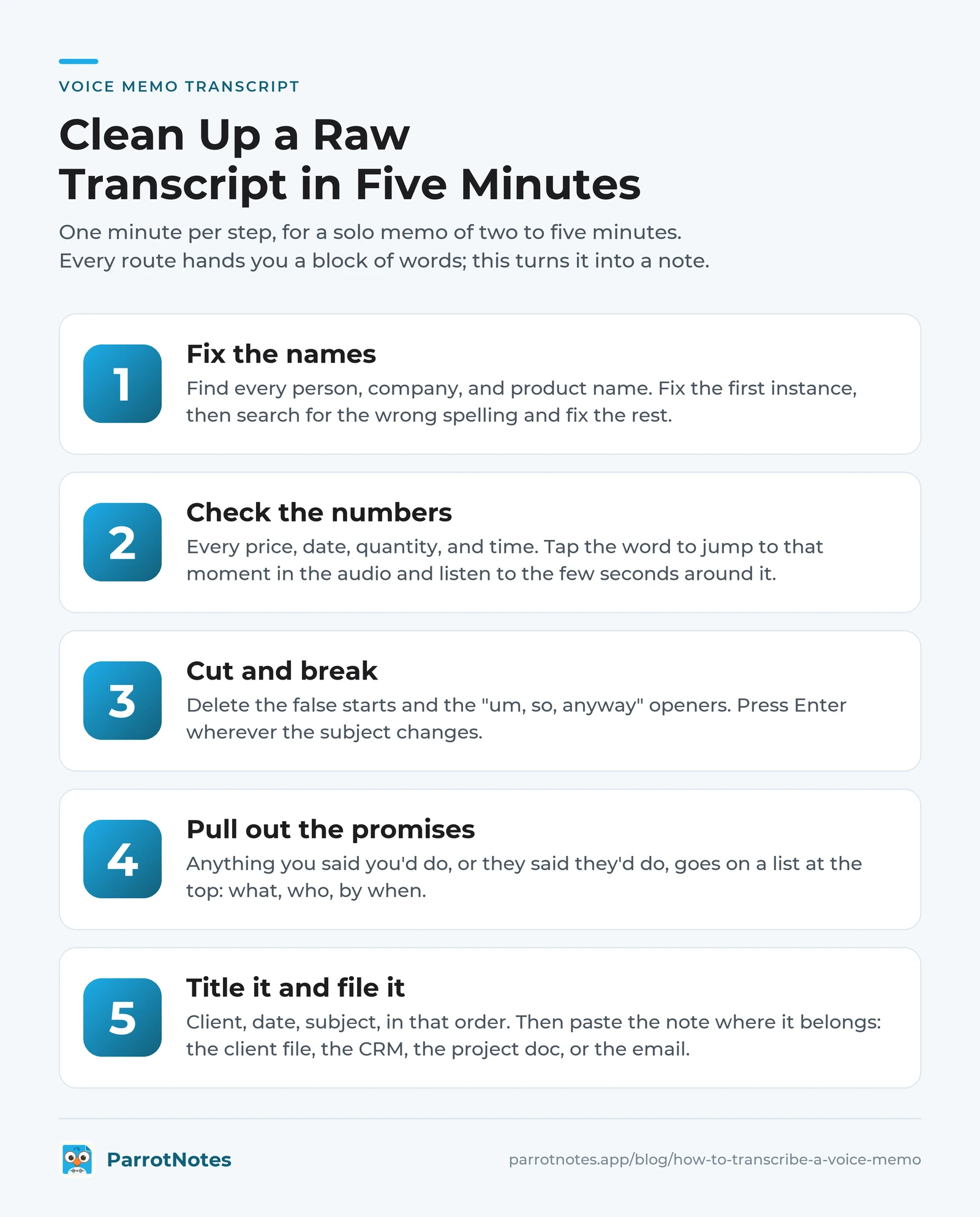
Every route above hands you a block of words. Here's how to turn it into a note you can use, one minute per step. It's built for a solo memo of two to five minutes; a recorded interview needs the longer correction pass and quote check instead.
Minute 1: fix the names. Read the first paragraph and find every person, company, and product name. Fix the first instance, then search the transcript for the wrong spelling and fix the rest. Names are the errors that embarrass you later, so they go first.
Minute 2: check the numbers. Every price, date, quantity, and time. Tap the word in the transcript (Voice Memos, Recorder, and ParrotNotes all jump to that moment in the audio) and listen to the few seconds around it. "Fifteen" and "fifty" sound alike in a car park.
Minute 3: cut and break. Delete the false starts and the "um, so, anyway" openers. Then press Enter wherever the subject changes. A five-minute memo usually has three or four subjects; give each its own paragraph.
Minute 4: pull out the promises. Anything you said you'd do, or they said they'd do, goes on a list at the top of the note: what, who, by when. If ParrotNotes made the note, this list is already waiting as action items; check it against the transcript rather than building it.
Minute 5: title it and file it. Client, date, subject, in that order, so it sorts and searches. Then paste the note where it belongs: the client file, the CRM, the project doc, or the email draft you're about to send.
Grace, an executive assistant, runs this on the briefing memo her director leaves after every board prep call. Minute 1 catches the board member whose surname the transcript spells three ways. Minute 2 catches a date the transcript heard as "the twelfth" when the audio says "the twentieth."
Minute 4 turns four scattered sentences into three dated tasks. Five minutes, and the memo is a note she can act on. The story is invented; the routine is the point.
Three habits that cut the clean-up in half
- Say the header out loud. Start every memo with the client, the date, and the subject. Minute 5 does itself.
- Spell the names. After a name you know the transcript will miss, spell it: "Szymanski, S-Z-Y." Most of Minute 1 disappears.
- Say numbers in two ways. "Fifteen thousand, one five." Minute 2 becomes a glance.
Ask before you record
Every route in this article is built for your own voice: a debrief you record after a conversation, in your own words. If a memo includes someone else's voice, tell them you're recording and why, and stop if they'd rather you didn't. The rules on recording conversations vary by country and by state, and this isn't legal advice. The debrief habit sidesteps the question anyway: it's shorter than the meeting, and nobody else's words are in it.
Get the words, then get the note
Knowing how to transcribe a voice memo stopped being a specialist skill once the phone makers built it in. On an iPhone 12 or later, Voice Memos does it; on a Pixel, Recorder does it as you speak; on a Galaxy with Galaxy AI, Voice Recorder does it with a tap. The steps are above, and they're free.
What none of the built-in routes do is turn the transcript into a note: the summary, the action items with owners and dates, the follow-up email, or a transcript in the language your team reads. That's the ParrotNotes route, and it works the same way on iOS, Android, and macOS.
Here's the short version:
- To transcribe a voice memo you already have, use the recorder on your phone and copy the transcript
- To get a summary, action items, or an email from it, record in ParrotNotes or share the memo in
- To cross a language, use ParrotNotes Pro
- Whatever the route, spend five minutes on names, numbers, breaks, promises, and a title
Nadia's six memos took six minutes to record. Sorting them shouldn't take longer. Download ParrotNotes free, record your next debrief in it, and see what comes back.
Frequently Asked Questions
Can I transcribe a voice memo on my iPhone for free?
Yes. On iPhone 12 or later with iOS 18 or later, Voice Memos transcribes recordings in 10 languages at no cost: open the memo, tap the more button, and choose View Transcript or Copy Transcript. Older recordings are transcribed when you open them. For a summary and action items, share the memo into ParrotNotes; the free plan includes 3 shared files a month.
How do I transcribe a voice memo on Android?
It depends on the phone. On a Pixel (Pixel 3 or later), open the recording in Google Recorder and tap Transcript. On a Samsung Galaxy running One UI 6.1 or later, open it in Voice Recorder, tap the Transcript assist icon, then Transcribe. On any Android phone, ParrotNotes records and transcribes the memo itself and adds an AI summary.
Why isn't there a transcript on my voice memo?
Usually the device, the software, or the language. Apple's transcription needs an iPhone 12 or later and one of 10 supported languages, and isn't available in every region. Samsung's Transcript assist needs One UI 6.1 or later and a supported language. If the memo is in a language the built-in app doesn't cover, ParrotNotes Pro transcribes 99+ languages.
Can I transcribe a voice memo into a different language?
The built-in apps transcribe in the spoken language; Samsung Voice Recorder can translate the transcript afterwards. ParrotNotes Pro lets you set the transcript language once, so a memo spoken in Spanish comes back in English, summary and action items included, and it follows a conversation that switches languages mid-sentence.
Related Posts
Sales QBR: Agenda and Template for Sales Teams
Run a sales QBR that ends in a forecast you believe. Copy a timed 90-minute agenda, a rep's one-page prep template, and a filled-in example, all copy-ready.
How to Build a Sales Playbook From Your Team's Real Calls
Build a sales playbook from your team's real customer meetings: the sections it needs, a six-step method, a template, and one play built from three debriefs.

SaaS Sales: How It Works and How Reps Track Every Conversation
What is SaaS sales? Learn the subscription model, PLG vs sales-led, SDR/AE/CSM roles and the demo-to-renewal cycle, plus a deal log to track every call.