
Speaker Labels in Transcription: What They Are and How to Get Them

Sarah Johnson
Writes about field sales, meeting notes and voice-first workflows at ParrotNotes. Every article is reviewed by the ParrotNotes product team before it goes live.
Table of Contents
- 1.What are speaker labels in transcription?
- 2.How speaker labels are written: one exchange, five formats
- 3.How to get speaker labels: by hand, in Word or Google Docs, or from an app
- 4.Why speaker labels go wrong
- 5.How to fix wrong speaker labels: a six-step pass
- 6.Get the speaker labels right before you quote
"We knew about the valve in March." Nora has the sentence in her notes, and it's the best line of the interview. She had two people across the table at the water utility: the director and the engineer who runs the pumping station.
Which of them said it?
Her phone recorded all 41 minutes. The transcript she got back is one long block of text with no names in it. (Nora and the utility are an illustration, not a real reporter or a real story.)
That's the job of speaker labels in transcription: the name, role, or code at the start of each turn that says who is talking. You can type them by hand, let Word split the recording into "Speaker 1" and "Speaker 2", or use an app that separates the voices and lets you swap the numbers for names.
Here's what the everyday tools do, from each vendor's own help page as read on November 23, 2026:
| Tool | Speaker labels? | What you get |
|---|---|---|
| Word (Microsoft 365), Transcribe | Yes | "Speaker 1," "Speaker 2"; rename one or all |
| Google Docs, voice typing | Not mentioned on Google's page | Plain text; add labels by hand |
| iPhone, Voice Memos | Not mentioned on Apple's page | A transcript you can view and copy |
| Google Pixel, Recorder | Yes, on Pixel 6 and later, US English only | "Speaker 1," "Speaker 2"; rename per paragraph |
| Otter | Yes | "Speaker 1" until you tag a name |
| Zoom cloud recording | Zoom's page describes editing a speaker's name | A VTT file; "Unknown Speaker" can be renamed |
| Microsoft Teams | Yes | The transcript "includes each speaker's name and time stamp" |
| Whisper (open source) | Not in the tool itself | Text and timestamps only |
Recording the interview yourself this week? ParrotNotes records an in-person conversation on your iPhone or Android phone, with the other person's permission, and gives you a transcript and a summary when you stop. The Pro plan adds speaker identification.
What are speaker labels in transcription?
A speaker label is the tag at the start of a turn that tells the reader who is speaking. It can be a name (Nora Whitfield), a role (Interviewer), a code (P07), or a number a machine handed out (Speaker 2).
Software gets there in two steps:
- Speaker diarization works out where one voice stops and another starts. AssemblyAI's documentation describes it as a process that "identifies individual speakers in your audio and labels each segment of the transcript with the speaker." The result is anonymous. Deepgram's engineering blog says diarization "assigns anonymous labels like Speaker 0 and Speaker 1."
- Speaker identification puts a name on each voice. Some tools take it from a meeting sign-in, some learn a voice you've tagged, and some leave the naming to you.
So "Speaker 1" isn't an error. It's a tool that did step one and left step two for you.
How speaker labels are written: one exchange, five formats
The exchange below is invented for this article, and so are the people. Nora Whitfield, a reporter, interviews Alan Pryce, a utility director, and Dana Ruiz, a station engineer. Every version covers the same 30 seconds.
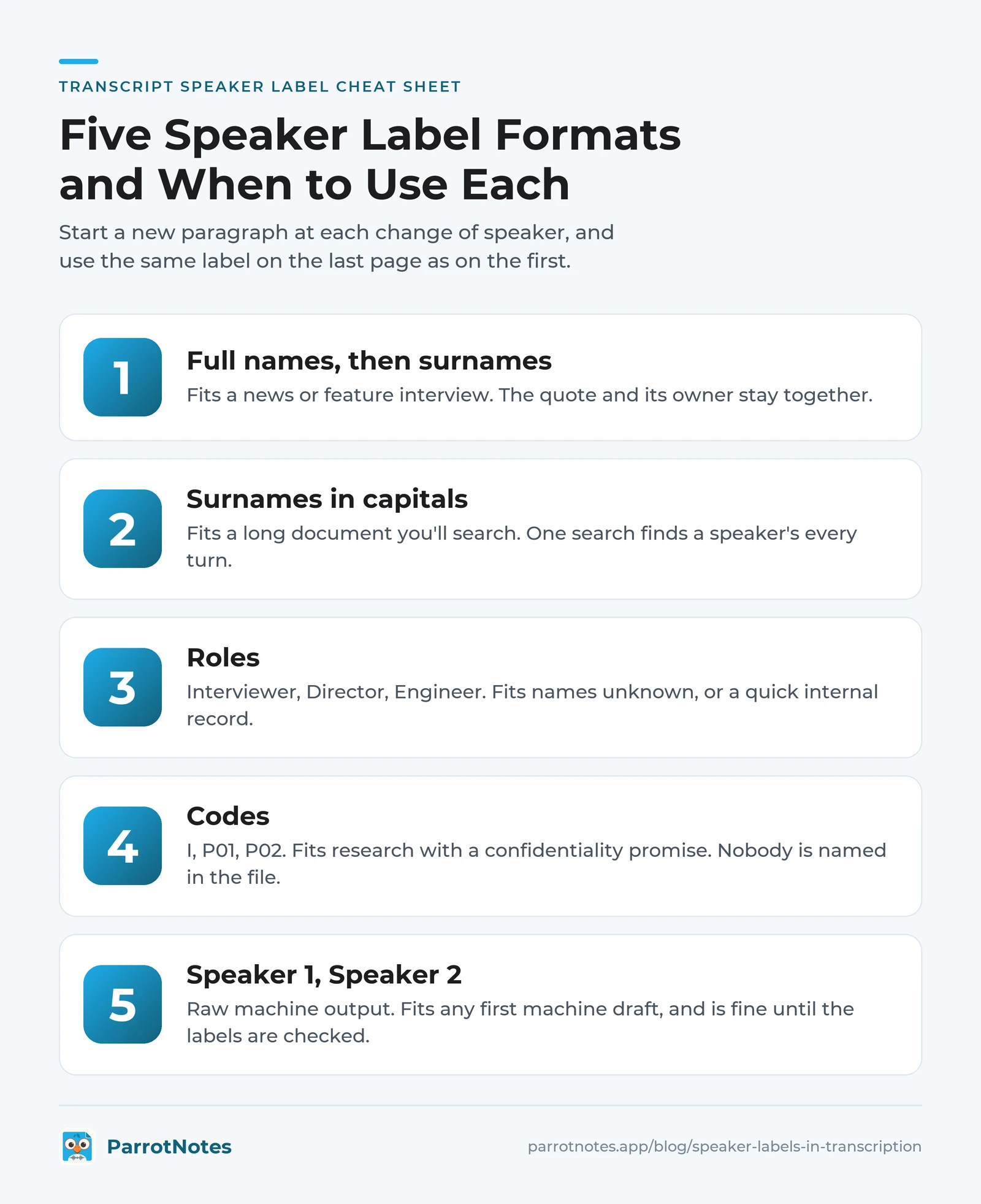
1. Full names, then surnames
Nora Whitfield: When did the utility first know the valve was failing?
Alan Pryce: The inspection report reached my desk in June.
Dana Ruiz: We knew about the valve in March. I flagged it in the station log.
After the first turn, the surname alone will do (Whitfield:). GoTranscript's transcription guidelines say: "Speaker labels must be written in bold, followed by a colon and space."
2. Surnames in capitals
WHITFIELD: When did the utility first know the valve was failing?
PRYCE: The inspection report reached my desk in June.
RUIZ: We knew about the valve in March. I flagged it in the station log.
A search for "RUIZ:" finds every turn by one person.
3. Roles
Interviewer: When did the utility first know the valve was failing?
Director: The inspection report reached my desk in June.
Engineer: We knew about the valve in March. I flagged it in the station log.
Use roles when the names aren't known or don't matter. GoTranscript's examples include "Interviewer", "Interviewee", and "Participant 1".
4. Codes for anonymous research
I: When did the utility first know the valve was failing?
P01: The inspection report reached my desk in June.
P02: We knew about the valve in March. I flagged it in the station log.
Researchers who promise anonymity keep names out of the transcript, and the key that says who P02 is lives in a separate file. Whether to keep every "um" is a separate choice, covered in our guide to verbatim transcription. For tools that label speakers in research interviews, see our comparison of transcription software for qualitative research.
5. Raw machine output
Speaker 1: When did the utility first know the valve was failing?
Speaker 2: The inspection report reached my desk in June.
Speaker 3: We knew about the valve in March. I flagged it in the station log.
This is what Word, Otter, and Pixel Recorder give you before you rename anything. Don't quote from it yet.
Which label format fits which job?
| Your job | Format | Why |
|---|---|---|
| News or feature interview | Full names, then surnames | The quote and its owner stay together |
| Long document you'll search | Surnames in capitals | One search finds a speaker's every turn |
| Names unknown, or a quick internal record | Roles | Clear without guessing at spellings |
| Research with a confidentiality promise | Codes | Nobody is named in the file |
| Any first machine draft | Speaker 1, Speaker 2 | Fine until the labels are checked |
Four rules apply to every format:
- Start a new paragraph at each change of speaker
- Use the same label on the last page as on the first
- Label every turn, even with one speaker. GoTranscript's rule is "Always use a speaker label even if there is only one speaker."
- Mark a guess as a guess. GoTranscript's transcribers add a question mark before the label, as in
?Speaker 3
Style guides disagree on the details. Our transcription guidelines post sets four of them side by side, and the interview transcript examples show labels inside full sample transcripts.
How to get speaker labels: by hand, in Word or Google Docs, or from an app
Menus move, so treat every path below as "as of November 2026".
By hand, in any document
- Say the names on the recording. "This is Nora Whitfield with Alan Pryce and Dana Ruiz, November 23." Now the audio itself holds the key
- Type a short label first. Use N, A, and D while you work
- Break the paragraph at every change of voice
- Swap the short labels for full ones at the end with find and replace
The full typing method is in our guide on how to transcribe an interview.
In Word (Microsoft 365)
Word's Transcribe feature labels speakers for you. Microsoft's Transcribe your recordings page says the service "identifies and separates different speakers and labels them 'Speaker 1,' 'Speaker 2,' etc."
To rename one, hover over a section, choose Edit transcript section, and type the name. Select Change all Speaker [x] before you confirm, and every turn by that voice gets the name.
Microsoft 365 subscribers can transcribe up to 300 minutes of uploaded audio a month, and the page says Transcribe works only in the new Microsoft Edge and Chrome. Our guide to transcribing audio in Word covers which accounts get it.
Already have a typed transcript in Word? Go to Home > Replace (Ctrl+H), type "Speaker 1:" in the first box and "Whitfield:" in the second, and choose Replace All.
In Google Docs
Google Docs has voice typing under Tools > Voice typing. Google's help page for it doesn't mention speakers at all, so plan on adding labels by hand.
Break the text at each change of voice, then use Edit > Find and replace to turn short labels into names. Tick Match case so "A:" doesn't also match the end of a word.
On an iPhone, a Pixel, or in a recorder app
iPhone, Voice Memos. Apple's Voice Memos transcription page says transcription is available on iPhone 12 or later. It says nothing about speaker labels, so expect to add them yourself.
Google Pixel, Recorder. Google's speaker labels page covers Pixel 6 and later, and states that "Speaker labels are available only in US English." Voices are tagged "Speaker 1," "Speaker 2," and so on. To rename one, open Edit speaker labels in the transcript view.
There's a catch. A rename applies to the selected paragraph only: "the same speaker labels in other paragraphs won't change."
Otter. Otter's speaker identification overview explains that a voice it hasn't met shows as Speaker 1 or Speaker 2. Tag it with a name, and Otter learns that voice for later conversations. As of November 2026, Otter's pricing page lists speaker identification on the free Basic plan, with 300 minutes a month, 30 minutes per conversation, and three file imports for the life of the account.
ParrotNotes. Put the phone on the table, ask permission, and press record. Recording carries on with the screen locked, and when you stop you get a transcript and an AI summary. On the Pro plan the app includes speaker identification, and the AI infers who is speaking from name cues in the conversation. So say everyone's name at the start.
What the free plan includes: 100 minutes of recording a month, up to 30 minutes per recording, an AI summary on every recording, 3 audio or video imports a month, and export as text or markdown. Speaker identification isn't part of it.
Pro is $19.99 a month, or $14.99 a month billed annually, with 3,000 minutes a month, recordings up to 3 hours, and export to docx and PDF. The apps run on iPhone, Android, and Mac.
Want to try it on your next interview? Download ParrotNotes free and record a two-minute test first.
From Zoom, Teams, or Whisper
Online meetings have it easier, because people sign in with a name. Microsoft's live transcription page says a Teams transcript "includes each speaker's name and time stamp." Zoom's audio transcript article says you can "hover over Unknown Speaker and click the pencil icon to edit their name."
Our free VTT to text converter turns a Zoom or Teams VTT file into readable paragraphs and keeps the speaker names.
Whisper, OpenAI's free tool, has no speaker labels of its own. Its README lists speech recognition, translation, and language identification, and nothing about speakers. Some apps built on it add their own, as our guide to Whisper transcription apps explains.
Why speaker labels go wrong
Take Marcus, a user researcher (an illustration). He interviews a married couple about their banking app at their kitchen table. The transcript puts the husband's complaint about fees under the wife's label, because she'd said "Yeah" a second earlier. His report nearly quotes the wrong customer.
Automatic labels fail in predictable places. AssemblyAI's documentation names them:
| Where labels swap | What the docs say | What to do |
|---|---|---|
| Short replies ("Yeah", "Right") | For best results, "each speaker should have at least 30 seconds of continuous speech" | Check every one-word turn |
| Two people talking at once | "Overlapping speech between speakers can reduce diarization accuracy" | Replay every stretch of crosstalk |
| Voices that sound alike | "the model may have difficulty distinguishing between them" | Lean on the spoken names and your notes |
| Noise and echo | They "can interfere with speaker separation" | Sit close to the phone, away from the café machine |
More voices make it harder. Deepgram's post says accuracy "usually drops as speaker count rises." With six or more people, use seat codes and a note-taker's log, as our focus group transcription guide explains.
How to fix wrong speaker labels: a six-step pass
Do this once the words are right, and before any line goes inside quotation marks.
- Make a key. Listen to the first minute and write down who Speaker 1, 2, and 3 are
- Rename in one go. Use Change all in Word, a tag in Otter, or find and replace with the colon included
- Check the hotspots. Go to every interruption, one-word reply, laugh, and overlap, and listen
- Split merged turns. If two voices share a paragraph, break it where the voice changes
- Mark what you can't settle. Write
?Ruizand add a timestamp, so the next listener can jump to it - Replay every quote you'll use. If the label and the voice disagree, the audio wins
Back to Nora. She searches for "March," finds the line under Speaker 3, and replays eight seconds. It's the engineer's voice, right after the director said June. She renames Speaker 3 to Ruiz and has her quote, with the right name on it.
One habit comes before all of this: ask before you record, and get the "yes" on tape. Recording rules differ by state and country.
Our overview of one-party consent states explains the basics, and the Reporters Committee for Freedom of the Press keeps a state-by-state recording guide. This is general information, not legal advice.
Get the speaker labels right before you quote
Speaker labels in transcription do one thing: they keep each sentence attached to the person who said it. Pick a format and hold it from the first page to the last.
Let Word, a Pixel, Otter, or your recorder app do the first split, then check the short replies and the crosstalk yourself. And replay every quote before a name goes next to it.
For the next interview you record in person, start with the phone you already carry. Try ParrotNotes free on your iPhone or Android phone, say everyone's name at the start, and have the transcript ready to check before you're back at your desk.
Frequently Asked Questions
What is a speaker label in transcription?
A speaker label is the name, role, or code at the start of each turn in a transcript that shows who is speaking, such as "Whitfield:", "Interviewer:", or "Speaker 2:". Each change of speaker starts a new paragraph with its own label.
What is the difference between speaker diarization and speaker identification?
Diarization separates the voices in a recording and gives each an anonymous tag like Speaker 1. Identification puts a real name on each voice. Many tools only do the first step, which is why transcripts arrive with numbers that you rename yourself.
How do I add speaker labels in Word?
With a Microsoft 365 subscription, Word's Transcribe feature labels voices as Speaker 1 and Speaker 2. Edit a section, type the name, and select the option to change all of that speaker's labels. In a typed transcript, use Home > Replace to swap short labels for names.
Does iPhone Voice Memos label speakers?
Apple's Voice Memos transcription page, read in November 2026, describes viewing and copying a transcript on iPhone 12 or later and doesn't mention speaker labels. Plan to add them by hand, or record with an app that separates speakers.
Related Posts
User Interview Platforms Compared: Panels, Recording and Transcripts
User interview platforms compared by job: recruiting panels, session recording and transcripts, with prices checked in November 2026. Try ParrotNotes free.
Transcription Software for Qualitative Research: Options Compared
Qualitative research transcription software compared: NVivo, ATLAS.ti, MAXQDA, Otter, Rev, Sonix, offline apps and a phone app. Prices checked November 2026.
Toolbox Talk: How to Run One in Ten Minutes and Keep a Signed Record
Run a toolbox talk in ten minutes: a minute-by-minute format, a sign-in sheet to copy, and what OSHA and state rules say about keeping the signed record.