
How to Record Audio on Android

Sarah Johnson
Writes about field sales, meeting notes and voice-first workflows at ParrotNotes. Every article is reviewed by the ParrotNotes product team before it goes live.
Table of Contents
- 1.Which app to use to record audio on Android
- 2.How to record audio on a Google Pixel
- 3.How to record audio on a Samsung Galaxy
- 4.How to record audio on other Android phones
- 5.How to record internal audio on Android
- 6.Checklist: clean audio on an Android phone
- 7.Record audio and get notes with an app
- 8.Recording other people: ask first
- 9.Conclusion
Here's how to record audio on Android: open the recorder app that came with your phone and tap the red Record button. On a Google Pixel it's called Recorder. On a Samsung Galaxy it's Voice Recorder, often inside the Samsung folder. On other phones, search your app drawer for "recorder"; if nothing comes up, install a recorder from Google Play.
That covers sound from the room: a meeting, a lecture, an interview, an idea on a walk. Sound playing inside the phone (a video, a game, a voice note) needs a different tool, the screen recorder, which we cover below.
Dev sells HVAC service contracts in Phoenix. His Tuesday walkthrough with a facilities manager ran 40 minutes across three buildings: unit ages, a roof access problem, and a budget that resets in January.
He typed notes on his Android phone between rooms and missed half of it. The next week he hit Record before the walk and kept the phone in his shirt pocket. (Dev is an illustration, not a real customer.)
This guide goes phone by phone, with steps taken from Google's and Samsung's help pages, checked on November 7, 2026. You'll also get a checklist for clean sound and a way to turn the recording into notes.
Which app to use to record audio on Android
Find your phone, then jump to its section.
| Your phone | Built-in app | Where to find it | Extras |
|---|---|---|---|
| Google Pixel 3 or later, Pixel Tablet | Recorder | App drawer | Live transcript, speaker labels on Pixel 6+, keeps recording with the screen off |
| Samsung Galaxy | Voice Recorder | Samsung folder or app drawer | Standard and Interview modes; Transcript assist on Android 14 with One UI 6.1+ on select models |
| OnePlus, Xiaomi, OPPO, Motorola and others | Varies ("Recorder", "Sound Recorder") or none | Search the app drawer for "record" | Depends on the brand |
| Any Android phone, for sound playing on the phone | Screen record | Quick Settings tiles | Records device audio with or without video |
None of these record both sides of a phone call. Call audio is locked down on Android, so follow our separate guide to recording a phone call on Android for that.
How to record audio on a Google Pixel
Pixel phones come with Google's Recorder app. Google's help page says it works on the Pixel 3 and later and on the Pixel Tablet.
- Open Recorder.
- Tap Record. A "Currently recording" notification appears.
- Tap Pause to stop for a moment, then Resume to carry on.
- Tap Save when you're done, then tap the title to rename the recording.
According to Google, recording continues when the screen goes to sleep, and a single recording can run up to 18 hours. So you can lock the phone and put it face down on the table.
Transcript, search and backup on Pixel
While you record, Recorder writes a transcript on the phone. Tap the Transcript tab to read along, or search later for a word someone said. On the Pixel 6 and later, speaker labels split the text by who is talking.
If you sign in with a Google account and turn on backup, recordings also appear at recorder.google.com. Without an account, they stay on the phone. Be careful with Delete: Google says a deleted recording is removed from every synced device and from the website. Our Google Recorder app guide goes through every setting.
How to record audio on a Samsung Galaxy
Galaxy phones have Samsung's Voice Recorder. Samsung says it's preinstalled on most of its phones, sometimes inside the Samsung folder. If it's missing, it's free in Google Play and the Galaxy Store.
- Open Voice Recorder.
- Tap the menu, then Settings > Recording mode, and pick Standard or Interview. Go back to the main screen.
- Tap the red Record button. Tap the bookmark icon to mark an important moment.
- Tap Pause for a break, then record again to resume.
- Tap Stop, type a name, pick a category and tap Save.
Your recordings are under the menu > All recordings.
Standard or Interview mode?
Standard captures balanced sound from around the phone. Samsung suggests it for meetings, lectures and voice memos. Interview uses the top and bottom microphones and filters out other sound. Lay the phone flat between two people facing each other, one at each end.
Turn it into text with Transcript assist
On select Galaxy phones running Android 14 with One UI 6.1 or later, Galaxy AI adds Transcript assist. Open a saved recording, tap the four-star icon, then Transcribe. The same icon offers Translate and Summarize. Samsung's Galaxy AI page lists 16 supported languages, including English, Spanish, German, Hindi and Arabic.
The transcript stays inside Voice Recorder. To get it out, tap the three dots > Share > Text file, or Add to Samsung Notes. Our Samsung Voice Recorder guide covers sharing, folders and storage in more depth.
How to record audio on other Android phones
OnePlus, Xiaomi, OPPO, Motorola and other brands each ship their own software, so the recorder's name and place change from phone to phone. Some phones don't include one at all.
- Swipe up to open the app drawer.
- Type record in the search bar. Look for "Recorder", "Sound Recorder" or "Voice Recorder".
- Open it and tap the red button.
If nothing turns up, install a recorder from Google Play. Google's own Recorder app is for Pixel phones only, so pick another app. Our roundup of voice recorder apps with transcription compares the main free options for Android.
How to record internal audio on Android
"Internal audio" means sound the phone itself is playing: a webinar in the browser, a video, a voice note in a chat app. A voice recorder can't capture it cleanly, because it only listens through the microphone. Use Android's built-in screen recorder instead.
- Swipe down from the top of the screen twice to open Quick Settings.
- Tap Screen record. If it isn't there, tap Edit (the pencil) and drag the tile in.
- Turn on audio. Depending on your phone, choose device audio, microphone, or both.
- Tap Start. Recording begins after a short countdown.
- To stop, swipe down and tap the screen recorder notification.
You'll get a video file. If you only need the sound, the free screen recording to MP3 converter pulls the audio out in your browser. Some apps block screen recording for copyright reasons, so you may get silence from streaming services.
Checklist: clean audio on an Android phone
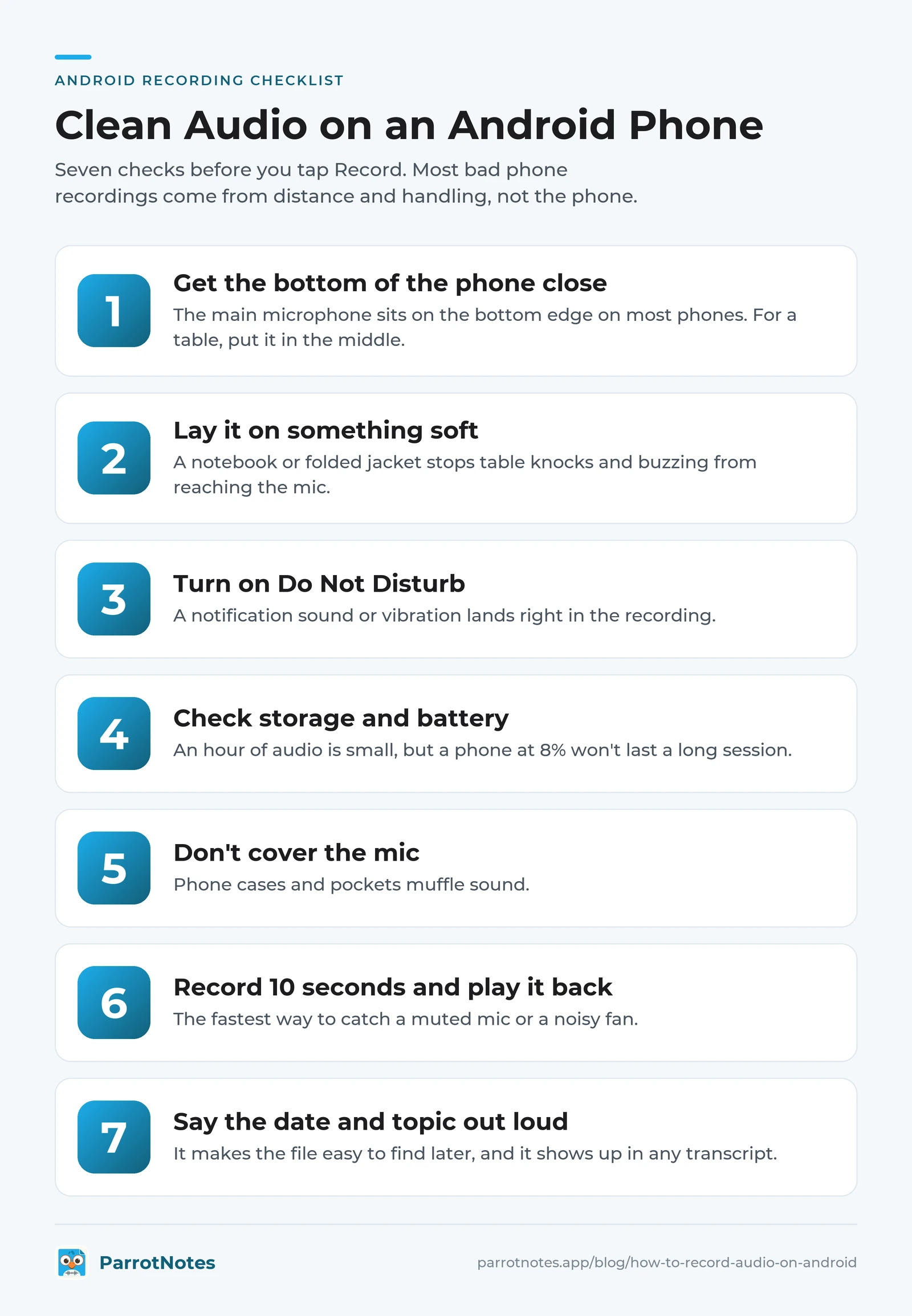
Most bad phone recordings come from distance and handling, not the phone. Before you tap Record, run through these seven points.
- Get the bottom of the phone close. The main microphone sits on the bottom edge on most phones. For one speaker, keep it within about an arm's length; for a table, put it in the middle.
- Lay it on something soft. A notebook or folded jacket stops table knocks and buzzing from reaching the mic.
- Turn on Do Not Disturb. A notification sound or vibration lands right in the recording.
- Check storage and battery. An hour of audio is small, but a phone at 8% won't last a long session.
- Don't cover the mic. Phone cases and pockets muffle sound. Shirt-pocket recording works for your own voice, less so for others.
- Record 10 seconds and play it back. It's the fastest way to catch a muted mic or a noisy fan.
- Say the date and topic out loud at the start. It makes the file easy to find later, and it shows up in any transcript.
Ana, a second-year nursing student, recorded a 90-minute pharmacology lecture from row 12 with her Galaxy in her bag. The playback was mostly rustle.
For the next lecture she sat in row 3, laid the phone on her notebook with the bottom edge toward the lecturer, and switched on Do Not Disturb. Every drug name came through. (Ana is an illustration, not a real customer.)
Record audio and get notes with an app
A built-in recorder gives you a file. If the reason you're recording is to know what was said and what to do next, a recording app with AI notes saves the replay.
ParrotNotes is a recorder for Android and iPhone that turns each recording into a transcript and an AI summary. Here's what it does for this exact job:
- Record with the screen off. Recording carries on when the phone is locked or you switch apps.
- Summary on every recording, even on the free plan, with key points and action items on up to 5 recordings a month.
- Search across every transcript for a name, a number or a date.
- Import recordings you already have, such as a file from Voice Recorder (3 imports a month on the free plan).
The free plan gives you 100 minutes of recording a month, up to 30 minutes per recording, with ads. Pro is $19.99 a month (or $14.99 a month billed yearly) and raises that to 3,000 minutes a month, up to 3 hours per recording, with every AI feature, follow-up email drafts and 99+ languages. Prices are from the ParrotNotes pricing page, checked November 7, 2026.
Back to Dev. After the next walkthrough, ParrotNotes gave him a summary with the three unit ages, the roof access issue and the January budget date. He pasted it into his CRM before he reached the truck.
Download ParrotNotes free and try it on your next recording.
Already have a recording and don't want to install anything? The free audio to text tool transcribes a file in the browser. For voice memos from either phone, see how to transcribe a voice memo.
Recording other people: ask first
Recording a lecture or your own ideas is simple. Recording a conversation with other people can bring consent laws into play. In the US, some states let one person in the conversation consent, while others require everyone's consent. Our list of one-party consent states shows which is which. Outside the US, rules vary by country.
The easy habit: say you're recording before you start, and keep the phone in plain view. Many schools also have rules on recording lectures, so check the course policy. This is general information, not legal advice.
Conclusion
How to record audio on Android comes down to one tap once you know your phone's app:
- Pixel: Recorder, with a live transcript and recording with the screen off.
- Samsung: Voice Recorder, in Standard or Interview mode, with Transcript assist on newer models.
- Other phones: search the app drawer for "record", or install a recorder from Google Play.
- Sound playing on the phone: use the screen recorder with audio on.
- Before you record: phone close, on something soft, Do Not Disturb on, quick test.
Pick the meeting, lecture or walk you have coming up this week and record it with your built-in app. If you want the summary and action items without replaying the file, get ParrotNotes free for Android.
Frequently Asked Questions
How do I record just audio on my Android phone?
Open the recorder app that came with your phone and tap Record. It's called Recorder on a Google Pixel and Voice Recorder on a Samsung Galaxy. On other phones, search the app drawer for "record", or install a recorder from Google Play.
Does Android have a built-in voice recorder?
Most Android phones do, but the app depends on the maker. Pixel phones have Google's Recorder (Pixel 3 and later) and most Samsung phones have Voice Recorder. Some other brands include a Recorder or Sound Recorder app, and some include none.
How do I record internal audio on my Android phone?
Use the built-in screen recorder. Swipe down twice to open Quick Settings, tap Screen record, turn on audio and choose device audio, then tap Start. You get a video file, which you can convert to an audio file afterwards.
How do I record external audio on my Android phone?
Use your voice recorder app, which records through the phone's microphone. For better sound, point the bottom edge of the phone toward the speaker, put it on something soft, and turn on Do Not Disturb. For louder rooms, a USB-C or Bluetooth microphone helps.
Can I keep recording audio on Android with the screen off?
Yes, with most recorder apps. Google says Pixel's Recorder keeps going when the screen sleeps and shows a "Currently recording" notification. ParrotNotes also records with the screen locked. Don't swipe away the recording notification.
Related Posts
Best Talk to Text App for iPhone and Android
The best talk to text app for your phone: Apple Dictation and Siri on iPhone, Gboard and Gemini on Android, with free plans compared and a voice phrase sheet.
How to Use Speech to Text on iPhone
Turn on speech to text on iPhone in 3 steps, dictate in any app, switch languages, turn it off, and record when the mic stops. Checked on iOS 27, Nov 2026.
How to Record Calls on Samsung
Samsung call recording, step by step: record or auto record calls, find the files, get Galaxy AI transcripts, or turn it all off. Checked November 2026.