
External Microphone for iPhone: What Works for Recording Meetings and Interviews
Sarah Johnson
Writes about field sales, meeting notes and voice-first workflows at ParrotNotes. Every article is reviewed by the ParrotNotes product team before it goes live.
Table of Contents
- 1.Can you use an external microphone with an iPhone?
- 2.Which external microphone for iPhone fits your port
- 3.Which iPhone apps accept an external microphone
- 4.External microphone for iPhone settings that matter
- 5.Which type of mic for a meeting or an interview
- 6.A six-step microphone check before you record
- 7.External microphone not working on iPhone: fixes
- 8.From clean audio to notes: where ParrotNotes fits
- 9.Conclusion: choosing an external microphone for iPhone
Picture Priya, a freelance reporter, interviewing a bakery owner in a busy café. She clips a small mic to his collar, plugs it into her iPhone and records 40 minutes. Back home, the recording is all espresso machine. The iPhone had used its own microphone the whole time. (Priya is a composite, not a real person.)
Here's the short answer. An external microphone for iPhone works when three things line up: the plug matches the port (USB-C on iPhone 15 and later, Lightning on iPhone 14 and earlier), the recording app accepts the mic, and the mic is selected as the input. On iOS 26 or later you can check that last part yourself: open Control Center, tap the app's button at the top, then tap Input.
You already know a mic near the speaker beats a phone across the table. The hard part is knowing which mic will talk to your phone at all. This guide covers the connection types, the apps that accept an external mic, the settings that matter and a six-step check to run before you record.
It isn't a "best mic" ranking, and nobody here tested products. Steps come from Apple's support pages and product details from the makers' published specs, checked on November 12, 2026.
Can you use an external microphone with an iPhone?
Yes. Apple's Voice Memos guide says you can record with "the built-in microphone, a supported headset, or an external microphone." Apple's USB-C page for iPhone also lists microphones among the devices the port connects to.
If the recording has to become notes, the app matters as much as the mic. ParrotNotes records in-person meetings on your iPhone and turns them into a transcript and a summary.
Which external microphone for iPhone fits your port
Start with the port. Apple says iPhone 15 and later models have a USB-C connector. iPhone 14 and earlier models have Lightning.
| Mic type | iPhone 15 and later (USB-C) | iPhone 14 and earlier (Lightning) |
|---|---|---|
| USB-C mic | Plugs straight in | Needs the maker's MFi-certified USB-C to Lightning cable |
| USB-A mic or audio interface | Needs a USB-C to USB-A adapter | Needs Apple's Lightning to USB Camera Adapter or Lightning to USB 3 Camera Adapter |
| 3.5 mm mic (clip-on, shotgun) | USB-C to 3.5 mm headphone jack adapter, plus a TRRS plug | Lightning to 3.5 mm headphone jack adapter, plus a TRRS plug |
| Wireless kit with a receiver | Receiver with a USB-C plug | Receiver with a Lightning plug or the maker's Lightning adapter |
| Bluetooth mic or AirPods | No plug. Works only in apps that support Bluetooth input | Same |
Whatever the route, you pick the mic in the same place on iOS 26 or later: Control Center, the app's button, Input.
USB-C microphones (iPhone 15 and later)
This is the simplest route: a mic with a USB-C plug goes straight into the phone. Apple adds one warning: "Devices and cables that aren't compliant with the USB-C standard might not work as expected."
For stereo in Voice Memos, Apple says to use "an external stereo microphone or audio interface that works with iPhone" and to look for accessories marked Made for iPhone or Works with iPhone.
Lightning (iPhone 14 and earlier)
A mic with a Lightning plug connects directly. For a USB mic, Apple's page on USB-A camera adapters lists "Audio/MIDI interfaces and devices" among the things that work with its Lightning to USB Camera Adapters.
Power is the catch. If you see the alert "attached accessory uses too much power," Apple's fix is a powered USB hub, or the Lightning to USB 3 Camera Adapter, which has its own Lightning port for a charger.
3.5 mm microphones and TRRS adapters
Many clip-on and camera mics end in a 3.5 mm plug. Current iPhones have no headphone jack, so you need Apple's USB-C or Lightning headphone jack adapter first. Then count the black bands on the mic's plug.
RØDE's cable and adaptor guide puts it this way: "two bands = TRS, three bands = TRRS." Phones use TRRS, the plug on headphones with a built-in mic. Put a TRS mic into a TRRS input and, RØDE says, the contacts "won't properly align." The fix is a TRS-to-TRRS adapter, such as RØDE's SC4, or a mic sold with a TRRS plug.
One honest gap: Apple describes its headphone jack adapters for headphones and speakers, and doesn't promise microphone input from every mic. Test this route before you rely on it.
Bluetooth microphones and AirPods
Bluetooth surprises people, because the app decides. With iOS 26, Apple added what it calls studio-quality audio recording for AirPods 4 and AirPods Pro 2. Its announcement names the Camera app, Voice Memos, dictation in Messages and compatible third-party apps, and Apple's tech specs list the feature for AirPods Pro 3 too. For other apps, Apple's developer session on audio recording describes high-quality Bluetooth recording as something each app opts in to. So the same AirPods can appear as an input in one app and not in the next.
Wireless mic kits follow the same pattern. DJI says its Mic Mini transmitter can connect to a phone over Bluetooth, and that support "depends on the compatibility" of the app and the phone's operating system. The plug-in receiver is the route that doesn't rely on that.
Which iPhone apps accept an external microphone
As of November 2026, this is what Apple and the makers document:
- Voice Memos. Apple names the external microphone as a supported input.
- Camera. Apple names it for AirPods recording on iOS 26 or later.
- Any app or website that records, on iOS 26 or later. Apple's guide to improving audio says you can "choose an input source for recording audio in a specific app or website."
- The mic maker's own app. Shure lists its MOTIV apps for the MV88 USB-C, and RØDE lists RØDE Capture.
For any other recorder there's no public list to trust. The tap test further down settles it in seconds.
External microphone for iPhone settings that matter
There's no "external microphone" switch in the Settings app. Four settings do the work.
1. Select the input (iOS 26 or later)
- Plug in or pair the mic.
- Open the app you'll record in.
- Open Control Center.
- Tap the button for your app at the top.
- Tap Input, then select the mic.
Apple's page on Mic Modes gives the same route during a call or recording, next to Audio Input.
2. Set the recording mode in Voice Memos
Go to Settings > Apps > Voice Memos > Recording Mode. Choose Stereo for a stereo mic, or Mono for a single clip-on mic. Our guide to recording audio on iPhone covers the other Voice Memos options.
3. Check the Mic Mode
Voice Isolation filters background sound, and Apple describes it as prioritizing your voice. Apple's pages don't say how it treats an external mic or people sitting farther away. For a group, record a short test in Standard and in Voice Isolation and keep the one that sounds better. See our guide to Voice Isolation on iPhone.
4. Set the level by distance
Voice Memos has no gain slider. Apple's instruction is to "move the microphone closer to or farther from what you're recording."
Which type of mic for a meeting or an interview
The rule behind every mic choice is distance: the closer the mic is to a mouth, the more voice and the less room it records.
| Situation | Type that fits | Why |
|---|---|---|
| One-on-one interview in a noisy place | Two clip-on mics, wired or wireless | Each voice gets a mic a hand's width away |
| Meeting of four or more around a table | The iPhone in the middle of the table, or one table mic | A clip-on mic mostly hears the person wearing it |
| Walking a site or a shop floor | Wireless clip-on mic with a windscreen | Your hands stay free and the mic stays close |
| Your own voice notes | AirPods or one clip-on mic | Nothing to set up |
Take Daniel, a sales manager who wore one clip-on mic in his weekly pipeline meeting. The recording had his voice clearly and six colleagues as a murmur. The next week he put the iPhone in the middle of the table instead. (Daniel is a composite too.) Our guide to recording a meeting on iPhone covers phone placement.
One example of a maker's stated specs, as of November 2026: the RØDE Wireless Micro has two clip-on transmitters and a receiver sold in a USB-C or a Lightning version.
Recording the meeting is half the job. Try ParrotNotes free to get the transcript and summary without replaying the audio.
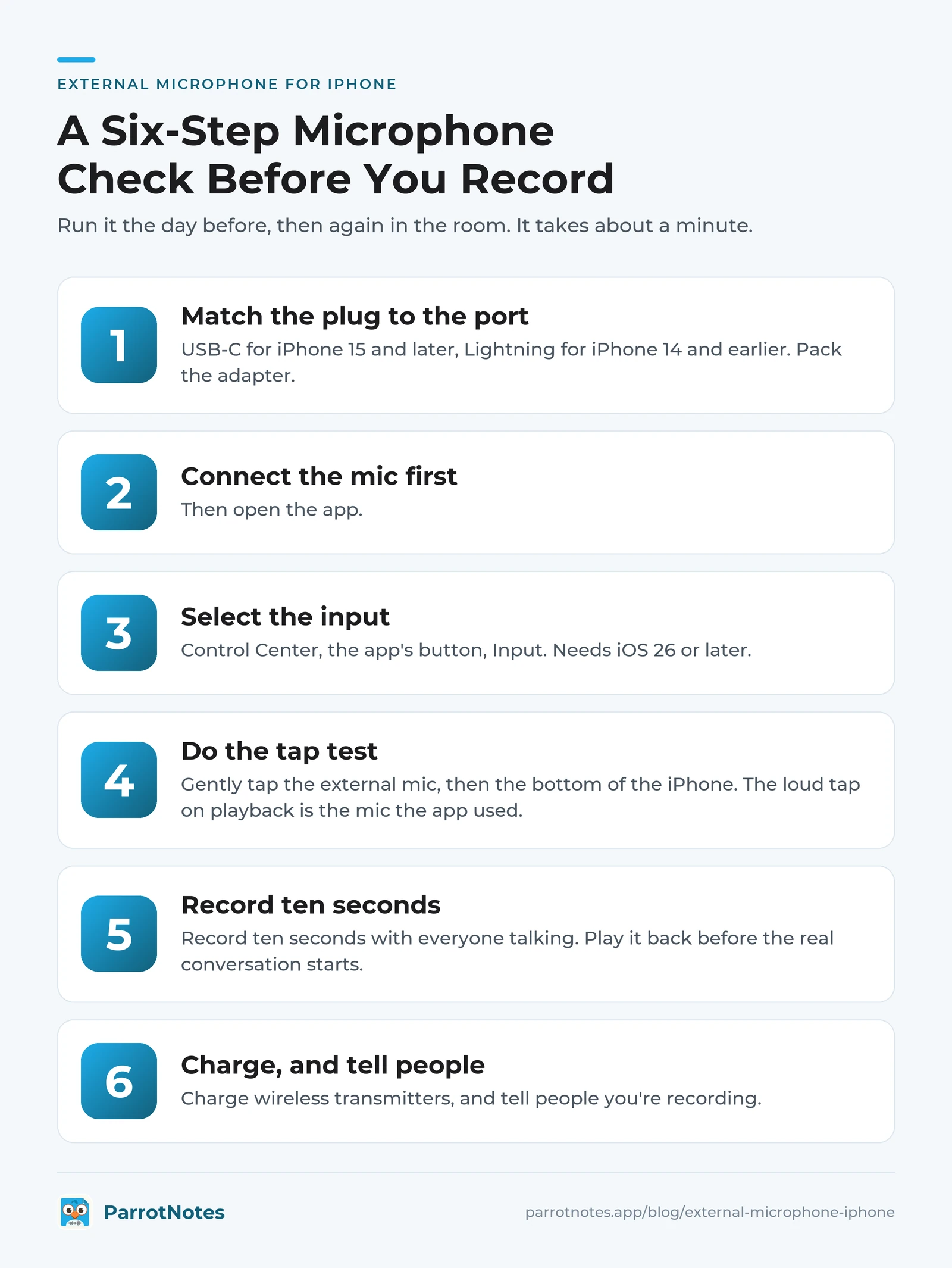
A six-step microphone check before you record
Run this the day before, then again in the room. It takes about a minute.
- Match the plug to the port. USB-C for iPhone 15 and later, Lightning for iPhone 14 and earlier. Pack the adapter.
- Connect the mic first, then open the app.
- Select the input. Control Center, the app's button, Input.
- Do the tap test. Start recording and gently tap the external mic, then the bottom of the iPhone. On playback, the loud tap tells you which microphone the app used.
- Record ten seconds with everyone talking. Play it back before the real conversation starts.
- Charge wireless transmitters, and tell people you're recording. Consent rules vary by place. Our guide to one-party consent states explains the U.S. rules as general information, not legal advice.
Want to see the signal first? Our free microphone test shows a live level in the browser and records a few seconds.
External microphone not working on iPhone: fixes
| What you see | Likely cause | Fix |
|---|---|---|
| Recording sounds the same as before | The built-in mic is still the input | Control Center > app button > Input. Update iOS if the option is missing |
| "Attached accessory uses too much power" | The USB mic draws too much from a Lightning iPhone | Powered USB hub, or the Lightning to USB 3 Camera Adapter with a charger |
| 3.5 mm mic records silence | A TRS plug in a TRRS input | TRS-to-TRRS adapter, or a mic with a TRRS plug |
| Bluetooth mic is missing in one app | The app doesn't support that Bluetooth input | Use the plug-in receiver, the maker's app or another recorder |
| USB-C mic isn't recognized | Cable or device isn't compliant with the USB-C standard | Try the maker's own cable or another adapter |
From clean audio to notes: where ParrotNotes fits
A better mic gives you a cleaner file. It doesn't give you notes. That's the part ParrotNotes does. It records in-person meetings and interviews on your iPhone, keeps recording with the screen locked, then gives you a transcript, a summary and action items. Transcription needs an internet connection, and ParrotNotes doesn't capture phone-call audio.
The free plan includes 100 minutes of recording a month (up to 30 minutes per recording), an AI summary on every recording, 5 AI-powered recordings a month and 3 audio or video imports a month. Pro is US$19.99 a month, or US$14.99 a month billed annually, with 3,000 minutes a month and up to 3 hours per recording.
We don't publish a list of microphones checked with ParrotNotes, so run the tap test in it before an important meeting. The other route is to record in Voice Memos with your mic, then import the file. For the interview side, see how to record an interview.
Conclusion: choosing an external microphone for iPhone
- Port first. USB-C on iPhone 15 and later, Lightning on iPhone 14 and earlier.
- 3.5 mm mics need a TRRS plug and a headphone jack adapter. Three bands, not two.
- Bluetooth depends on the app. A plug-in receiver doesn't.
- Select the input in Control Center, then run the tap test and a ten-second recording.
Back to Priya. Before her next interview she plugged in the clip-on mic, opened Control Center, tapped Input and saw the iPhone's own microphone still selected. She switched it, tapped the mic and heard the tap on playback. When your next conversation needs to end as notes and not only as audio, download ParrotNotes free.
Frequently Asked Questions
How do I use an external microphone on an iPhone?
Plug it into the port (USB-C on iPhone 15 and later, Lightning on iPhone 14 and earlier), using an adapter if the plug doesn't match. Then, on iOS 26 or later, open the app you'll record in, open Control Center, tap the app's button at the top, tap Input and select the mic. There's no microphone switch in the Settings app.
Why is my iPhone not recognizing my external microphone?
The usual causes are a TRS plug in a TRRS input, a USB mic that draws too much power from a Lightning iPhone, a cable that isn't compliant with the USB-C standard, or an app that doesn't support the mic. Check Input in Control Center first, then run a tap test.
Can I use AirPods as a microphone for recording on iPhone?
Yes. With iOS 26 or later, Apple lists studio-quality audio recording for AirPods 4, AirPods Pro 2 and AirPods Pro 3 in Camera, Voice Memos and compatible third-party apps. Other apps have to add support themselves.
Do I need an external microphone to record a meeting on iPhone?
Not always. For a group around a table, the iPhone in the middle of the table often does better than one clip-on mic, which mostly hears the person wearing it. An external mic helps most in one-on-one interviews and noisy places.
Related Posts
Best Voice Memos Apps for Android
Android has no app called Voice Memos. Compare the best voice memos app for Android by phone: Pixel, Samsung and free Play Store picks. Checked Nov 2026.
Temi Transcription Review: Pricing, Accuracy Claims and the Phone App
Temi transcription reviewed from Temi's own pages, as of November 2026: $0.25 a minute, accuracy claims, the Rev link and the phone app. Try ParrotNotes free.
Riverside Transcription Review: What the Free Tool and Paid Plans Include
Riverside transcription reviewed from Riverside's own pages, as of November 2026: free tool limits, languages, export formats and plans. Try ParrotNotes free.