
How to Transcribe a Zoom Recording (Cloud, Local or Free)

Sarah Johnson
Writes about field sales, meeting notes and voice-first workflows at ParrotNotes. Every article is reviewed by the ParrotNotes product team before it goes live.
Table of Contents
- 1.First, which kind of Zoom recording do you have?
- 2.How to transcribe a Zoom recording in the cloud
- 3.Turn the VTT file into readable text
- 4.Save the live meeting transcript instead
- 5.How to transcribe a Zoom recording to text free (local files)
- 6.Ask before you record
- 7.What to do with the transcript
- 8.The short version
Dana is a freelance consultant. Her Thursday client call ran 28 minutes on Zoom, she hit Record, and afterwards she went looking for the transcript. There wasn't one. The recording sat in a folder on her laptop, and Zoom's web portal had nothing for her. (Dana is a composite, not a real person.)
That's the most common surprise when you try to transcribe Zoom recording files. Zoom does make transcripts, but only for one kind of recording, on paid plans, with a setting switched on before the meeting.
This guide shows you which kind of recording you have and the fastest way to get text from each one: Zoom's own audio transcript, the live meeting transcript, and a free route for files saved to your computer. Every Zoom fact comes from Zoom's help center and pricing page as they read on November 1, 2026, with links to each article.
One disclosure: ParrotNotes publishes this blog and makes the free tools mentioned below. ParrotNotes doesn't join or record Zoom calls. If most of your conversations happen in person, try ParrotNotes free for those.
First, which kind of Zoom recording do you have?
Zoom saves recordings in two places. A cloud recording lives in your Zoom account online. A computer recording (often called a local recording) is saved as files on your own device. Any plan, Basic included, can make one. Which one you made decides everything else.
| Your situation | What Zoom gives you | Fastest way to text |
|---|---|---|
| Cloud recording, paid plan, audio transcript on | A VTT transcript next to the video | Download it, then turn the VTT into clean text |
| Cloud recording, but the transcript setting was off | No transcript for that meeting | Download the M4A audio, then use the free local-file route |
| Computer recording, any plan | MP4 and M4A files, no transcript | The free local-file route below |
| Free Basic account | Computer recording only, meetings up to 40 minutes | The free local-file route |
| Meeting still running, paid plan | A live transcript you can save as a TXT file | Save the live meeting transcript |
| Spoken in Spanish, German or another language | Cloud transcript defaults to English | Change Language on the transcript, or pick the language in the converter |
| File longer than 10 minutes | Not a Zoom limit | Split it into parts, or import it into the ParrotNotes app |
Built from Zoom support articles KB0065911, KB0064927, KB0085682 and zoom.us/pricing, read November 1, 2026.
How to transcribe a Zoom recording in the cloud
Zoom's built-in option is the Zoom audio transcript. It needs "a Pro, Business, Education, or Enterprise account with cloud recording enabled," per Zoom's setup article. On November 1, 2026, Pro cost $16.99 per user a month ($14.16 billed annually) and Business $21.99 ($18.33 billed annually), according to Zoom's pricing page.
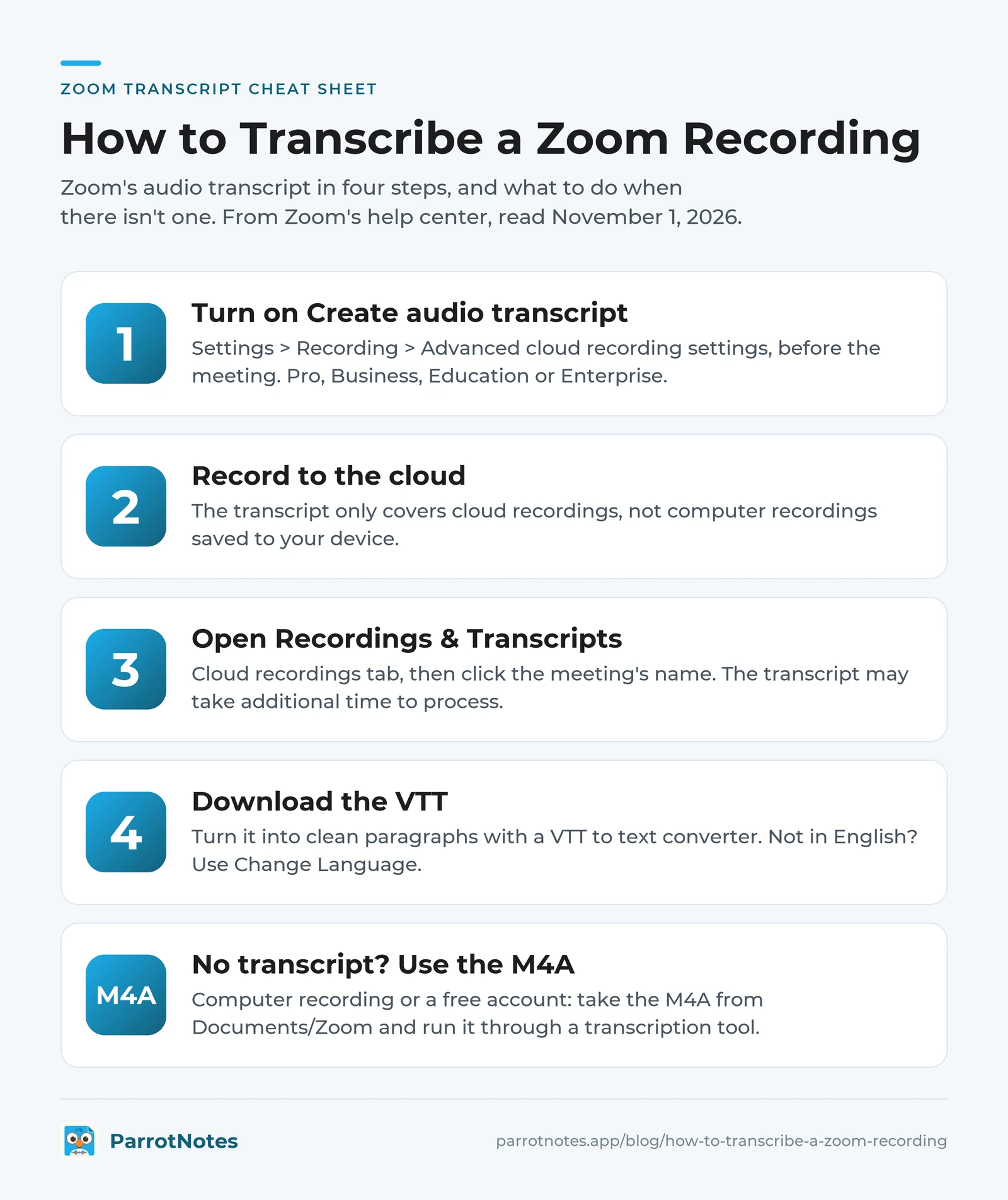
Turn on Create audio transcript
Do this before the meeting. Zoom says "You cannot enable or disable audio transcription while in a meeting or webinar."
- Sign in to the Zoom web portal and open Settings, then the Recording tab.
- Check that Cloud recording is on.
- Under Advanced cloud recording settings, tick Create audio transcript.
- Click Save.
If the option is greyed out, your admin has locked it. Admins find the same setting under Admin Center > Settings > Recording & Transcript, for the whole account or for a group.
Then record the meeting to the cloud, not to your computer. The transcript only covers cloud recordings: "It does not apply to computer recordings saved to your device."
Find and download the transcript
The transcript arrives after the recording, and Zoom notes it "may take additional time to process." To open it, per Zoom's audio transcription article:
- Sign in to the web portal and click Recordings & Transcripts.
- Open the Cloud recordings tab and click the meeting's name.
- The transcript appears as a separate VTT file in the list. Download it, or click the video thumbnail to read it next to the playback.
In the playback view you can fix a misheard word with the pencil icon, and rename an "Unknown Speaker." Each section carries a timestamp.
Change the transcript language
Zoom's help pages disagree here. The setup article says "Audio transcription only supports English." The newer audio transcription article lists 19 languages, including Spanish, French, German, Portuguese, Japanese and Arabic, and says transcripts "are generated in English" by default.
If your meeting wasn't in English, hover over the transcript file, click Change Language, pick the language and save. Zoom then reanalyzes the audio.
Turn the VTT file into readable text
A VTT file is a caption file. Open it in a text editor and there's a timestamp line above every few words. Hard to read. Harder to paste into an email.
Our free VTT to text converter turns a Zoom transcript into clean paragraphs, drops the timestamps and keeps the speaker names. It runs in your browser with no account. If you'd rather keep a time stamp per paragraph, pick that option instead.
Raj, an executive assistant at a 40-person firm on Zoom Business, does this every Monday (a composite example). The leadership meeting records to the cloud with the transcript on.
By 11:00 he has the VTT, runs it through the converter and pastes the clean text into the minutes template. Nobody replays the hour to type it up.
Save the live meeting transcript instead
There's a second Zoom feature that people mix up with the first. Meeting transcript shows the words live, during the meeting, and lets you save them as a file, per Zoom's meeting transcript article.
- It needs a Pro, Business or Enterprise account, with Meeting transcript turned on under Settings > Meeting > In Meeting (Advanced) (KB0085675).
- The host starts it from More > Transcript. Participants can click Request transcription.
- During the meeting, open the Transcript panel and click Save transcript. Zoom saves a .TXT file to Documents/Zoom on your computer.
It only works while the meeting is running, so it can't help with a recording you already have.
How to transcribe a Zoom recording to text free (local files)
This is Dana's case, and the case for anyone on a free Basic account. Zoom won't transcribe a computer recording, so you take the file to a transcription tool.
Step 1: Find the files
After the meeting ends, Zoom converts the recording on your computer. Don't close the laptop until it finishes: Zoom's computer recording article warns that closing it "will interrupt the conversion process." The files land in Documents/Zoom, in a folder named after the meeting (C:\Users[Username]\Documents\Zoom on Windows, /Users/[Username]/Documents/Zoom on a Mac), per Zoom's recordings article.
Inside you'll find, per Zoom's file formats article:
- video[number].mp4: the audio and video
- audio[number].m4a: the audio only
- chat.txt: the meeting chat, if it was saved
Use the M4A. It holds the same words as the video and is far smaller. If you recorded to the cloud without the transcript setting, download the audio-only (M4A) file from the meeting's page in Recordings & Transcripts, or the MP4 if no audio file was saved.
Step 2: Split it into parts of 10 minutes or less
Our free Audio to Text Converter takes files up to 10 minutes and 100 MB, and a free ParrotNotes account gets 3 files a month. Longer calls need splitting first.
Here's Dana's 28-minute call as a worked example:
| Part | Runs from | Length |
|---|---|---|
| 1 | 0:00 to 10:00 | 10 minutes |
| 2 | 10:00 to 20:00 | 10 minutes |
| 3 | 20:00 to 28:00 | 8 minutes |
Open the M4A in the free MP3 splitter, which works in your browser, takes M4A files up to 100 MB and 30 minutes, and splits by a fixed length. Set 10:00 per part and download the three parts as MP3s. The waveform shows quiet stretches as a flat line, so if a cut lands mid-sentence, type your own cut times at a nearby pause instead.
Need only one stretch of the call? The audio trimmer keeps a single section, also in your browser without uploading the file.
Step 3: Transcribe each part
- Open the Audio to Text Converter and drop in part 1.
- Pick the language spoken, or leave it on Auto-detect.
- Sign in with Google, Apple or an email code. You get a transcript and a short summary, saved to your free account.
- Repeat for parts 2 and 3, then paste the three transcripts together in order.
Dana's three parts use exactly her three free files for the month. The web tool doesn't add speaker labels or timestamps, so she adds names where it matters.
Only have the MP4? The video to text converter accepts MP4, WebM and MPEG video up to 10 minutes, or the video to audio converter pulls the sound out in your browser first.
Longer or regular recordings
Splitting makes sense for the odd call. If you transcribe Zoom files every week, the ParrotNotes app imports audio and video files: the free plan includes 3 imports a month, and Pro has no monthly cap.
Pro is $19.99 a month, or $14.99 a month billed annually, per parrotnotes.app/pricing on November 1, 2026. The transcript lands next to your phone recordings with a summary and action items. Download ParrotNotes free to try it with one file.
Ask before you record
Tell everyone on the call that you're recording and why, and wait for a yes. Zoom shows a recording indicator, but people miss it, and it isn't the same as asking.
US federal law (18 U.S.C. § 2511(2)(d)) allows recording when you're "a party to the communication," but some states require every party's consent, and calls often cross state or country lines. Our guide to one-party consent states has the state-by-state detail. This isn't legal advice.
What to do with the transcript
A raw transcript is long. Most people need three things from it: what was decided, who does what, and by when.
- Paste the clean text into our free meeting minutes generator for a first draft of the minutes (free account, 5 generations a month).
- If you only want a recap and the meeting is still on Zoom, Zoom's AI summary is a separate feature with its own settings. Our guide to the Zoom AI Companion meeting summary covers how it works and its limits.
- For meetings that happen across a table rather than on Zoom, see AI meeting notes without a bot.
- For other recordings, our guides cover how to transcribe a YouTube video and how to transcribe audio in Word with Microsoft 365.
The short version
To transcribe a Zoom recording, start with where it was saved. Cloud recording on a paid plan: switch on Create audio transcript before the meeting, download the VTT afterwards and clean it up. Computer recording or a free account: take the M4A from Documents/Zoom, split it into parts of 10 minutes or less, and run them through the free converter. Either way, ask before you hit Record.
Dana now records client calls to her laptop on purpose. The M4A goes through the splitter and converter the same afternoon, and she sends the client a recap before the end of the day.
And if your best conversations happen in a client's office rather than a Zoom window, download ParrotNotes free. You get 100 minutes of recording a month, with an AI summary on every recording.
Frequently Asked Questions
Does Zoom automatically transcribe recordings?
Only cloud recordings on a Pro, Business, Education or Enterprise account, and only if Create audio transcript was on before the meeting. Zoom doesn't transcribe computer (local) recordings, and free Basic accounts can't record to the cloud.
Where is my Zoom recording transcript?
In the Zoom web portal: Recordings & Transcripts > Cloud recordings, then click the meeting. The transcript is a separate VTT file in the list, and it may appear a while after the recording.
Can I transcribe a Zoom recording for free?
Yes. Take the M4A audio file from Documents/Zoom, split it into parts of 10 minutes or less, and upload them to the free ParrotNotes Audio to Text Converter. A free account covers 3 files a month.
Why is there no transcript for my Zoom recording?
The usual reasons: it was a computer recording, the transcript setting was off when the meeting started, your account is on Basic, or the transcript is still processing. The setting can't be turned on during a meeting.
Can Zoom transcribe a recording in Spanish or German?
Zoom's audio transcription article lists 19 languages, including Spanish and German. Transcripts are generated in English by default; use Change Language on the transcript file and Zoom reprocesses the audio.
How do I open a Zoom VTT transcript?
Any text editor or word processor opens it, but you'll see timestamps throughout. Convert it to clean paragraphs with a VTT to text converter first.
Related Posts
Warm Calling vs Cold Calling: What Changes and When Each Works
Warm calling vs cold calling: what changes on the call, a five-question warmth test, six warm-call openers, and when a cold call is still the right move.
TurboScribe Review: Free Plan, Limits and Alternatives
TurboScribe review from its own pages, checked November 2026: free plan limits, the $10 Unlimited plan, safety, fine print, alternatives. Try ParrotNotes free.
How to Transcribe Audio in Word: Upload or Record
How to transcribe audio in Word: upload or record, which accounts and devices have Transcribe, the 300-minute limit, fixes for a missing button, and an example.