
How to Record a Zoom Meeting on Mac

Sarah Johnson
Writes about field sales, meeting notes and voice-first workflows at ParrotNotes. Every article is reviewed by the ParrotNotes product team before it goes live.
Table of Contents
- 1.How to record a Zoom meeting on Mac: pick your route
- 2.Record a Zoom meeting on Mac with the desktop app (free)
- 3.Where are Zoom recordings saved on a Mac?
- 4.Cloud recording on a Mac (paid plans)
- 5.Recording a Zoom meeting on Mac when you're not the host
- 6.Mac checklist before you press Record
- 7.After the meeting: turn the file into notes
- 8.The short version
Dev pressed Shift-Command-5 on his MacBook Air, recorded a 50-minute Zoom call with a supplier, and played it back that evening. He could see every face. He could hear only himself. (Dev is a composite, an illustration rather than a real person.)
His Mac wasn't broken. A Mac screen recording takes your microphone, not the sound coming out of Zoom, unless the Mac runs a recent enough macOS. So the reliable answer to how to record a Zoom meeting on Mac is Zoom's own button.
Here's the short answer. Open the Zoom desktop app for Mac, start the meeting as host, click Record, then Record on this Computer. It works on the free Basic plan, and the file lands in Documents/Zoom in your home folder. If you aren't the host, the host has to allow it first.
This guide covers each step of how to record a Zoom meeting on Mac, the macOS permission that quietly blocks it, where the file goes in Finder, cloud recording on paid plans, and what happens when you're not the host. Every Zoom and Apple fact comes from their support pages as they read on November 13, 2026. We didn't run a hands-on test; the menu names are Zoom's and Apple's own.
On a phone or Windows PC? Our general guide on how to record a Zoom meeting covers those.
One disclosure: ParrotNotes publishes this blog. Our Mac app records what your Mac's microphone hears, such as a meeting in the room; it doesn't join or record Zoom calls. For Zoom, use Zoom's recording, as below.
How to record a Zoom meeting on Mac: pick your route
Find your row first. The last column is the Mac setting that has to be on.
| You are | Zoom plan | What works on a Mac | Where the file goes | macOS permission needed |
|---|---|---|---|---|
| Host | Basic (free) | Computer recording in the desktop app | Documents/Zoom on your Mac | Files and Folders for Zoom |
| Host or co-host | Pro, Business or higher | Computer or cloud recording | Your Mac, or Zoom's cloud | Files and Folders (computer recording only) |
| Participant | Any | Computer recording once the host clicks Allow Record | Your Mac | Files and Folders for Zoom |
| Anyone, outside Zoom | Any | Mac screen recording (Shift-Command-5 or QuickTime) | Your desktop, by default | Screen & System Audio Recording, plus macOS 27 Golden Gate for other people's voices |
Built from Zoom's articles on computer recording, cloud recording and macOS permissions, and Apple's screen recording article, read November 13, 2026.
The first three rows send Zoom's recording notice to everyone in the call. The last one doesn't, which matters later.
Record a Zoom meeting on Mac with the desktop app (free)
Zoom calls this computer recording. It needs a Basic (free) account or higher and the Zoom desktop app for macOS; the browser version won't do it. Here are Zoom's steps:
- Open the Zoom app on your Mac and start the meeting as the host.
- Click Record in the meeting controls toolbar. If it's hidden, look under More.
- Choose Record on this Computer if a menu appears.
- Stop or pause from the same controls, or end the meeting.
Click Participants at any time to see who's recording.
If there's no Record button
The setting may be off on your account. In the Zoom web portal, click your profile picture, then Settings, the Recording tab, and under General turn on Record to computer files (Zoom's enabling article). If the toggle is greyed out, your company's Zoom admin has locked it.
The Mac setting that blocks it: Files and Folders
On a Mac, Zoom also needs macOS's permission to write files. Zoom's macOS permissions article says the Files and Folders access is what lets Zoom "share files in chat and record locally."
To check it, open the Apple menu, then System Settings, Privacy & Security, and click Files and Folders. Find Zoom and make sure its access is on. While you're there, check Microphone too: without it, your own voice is missing from the file.
Where are Zoom recordings saved on a Mac?
When the meeting ends, Zoom converts the recording, then opens the folder for you. By default, Zoom recordings on a Mac are saved in:
/Users/[your name]/Documents/Zoom
In Finder, that's Documents, then Zoom, then a folder named after the meeting and its date. Inside, you'll find video[number].mp4 for the video and audio[number].m4a for the sound only.
Three Mac habits keep the file safe:
- Leave the lid open until the folder opens. Zoom warns that sleeping or restarting the computer can interrupt conversion, and an interrupted file may not be recoverable. Plug in the charger for long calls.
- Keep the folder on the Mac's own drive. Zoom's article advises against saving to a cloud-syncing folder, an external drive or network storage. If Documents syncs to iCloud Drive on your Mac, that's worth knowing before a long recording.
- Need each voice separately? In the desktop app, open Settings, the Recording tab, and turn on Record a separate audio file for each participant. Each track lands in an Audio Record folder, named after the person.
To pick a different folder, open the desktop app's Settings, then Recording, and change the location there. The label differs a little between app versions.
Need a hand finding other Mac audio files? Our guide to how to record audio on a Mac covers Voice Memos, QuickTime and GarageBand.
Cloud recording on a Mac (paid plans)
Cloud recording needs a licensed user on a Pro, Business or Enterprise plan. It's handy on a Mac with a small drive, because nothing is written to it. Here are Zoom's steps:
- Sign in to the Zoom desktop app and start the meeting as host or co-host.
- Click More in the meeting controls, then the Record icon.
- Click Record to the cloud.
- To stop, click Record, then Stop recording.
Zoom says cloud recordings "generally take about 2 times the duration recorded to process," occasionally up to 24 hours. You can close the lid straight away. The file appears in the web portal under Recordings & Transcripts.
As of November 13, 2026, Zoom's pricing page lists Pro at $16.99 per user a month ($14.16 billed annually) and Business at $21.99 ($18.33 billed annually), with 10 GB of cloud recording per license. Basic meetings run up to 40 minutes.
Recording a Zoom meeting on Mac when you're not the host
Mei is a freelance designer on a client's Zoom every Monday, and the Record button never shows up for her. Her Mac and her own Zoom plan don't matter there. Only the host can start a computer recording by default. (Mei is a composite too.)
Ask for Allow Record
The host opens Participants, clicks More next to your name, and clicks Allow Record. You get a notification, and you can then record to your Mac as above. The host can take it back with Forbid Record.
A host who gets this request often can set it up once. In the web portal, under Who can request host permission to record?, they can let internal participants, external participants or chosen domains ask, and even auto-approve the requests (Zoom's settings).
Mei sent her client a two-line chat message before Monday's call. The client clicked Allow Record, and the file was in her Documents/Zoom folder by lunchtime.
Why a Mac screen recording isn't the same thing
You can screen record a Zoom call with Shift-Command-5 or QuickTime Player's File > New Screen Recording. Two limits make it a poor stand-in.
First, the sound. Apple's article says the Include System Audio option, which captures the voices coming out of Zoom, works only in macOS 27 Golden Gate or later. On older macOS, the recording takes your microphone only, just as Dev found. You'll also need to turn the app on under Privacy & Security, then Screen & System Audio Recording.
Second, consent. Zoom's notification article says it "will always notify meeting participants" when a meeting is recorded through Zoom. A Mac screen recording sits outside Zoom, so nobody sees that notice. If you use one, say so out loud and get everyone's OK first; if the host says no, respect it and take notes instead.
Rules differ by place. US federal law allows recording when you're a party to the call, but some states require everyone's consent. Our guide to one-party consent states covers the state rules. This is general information, not legal advice.
Mac checklist before you press Record
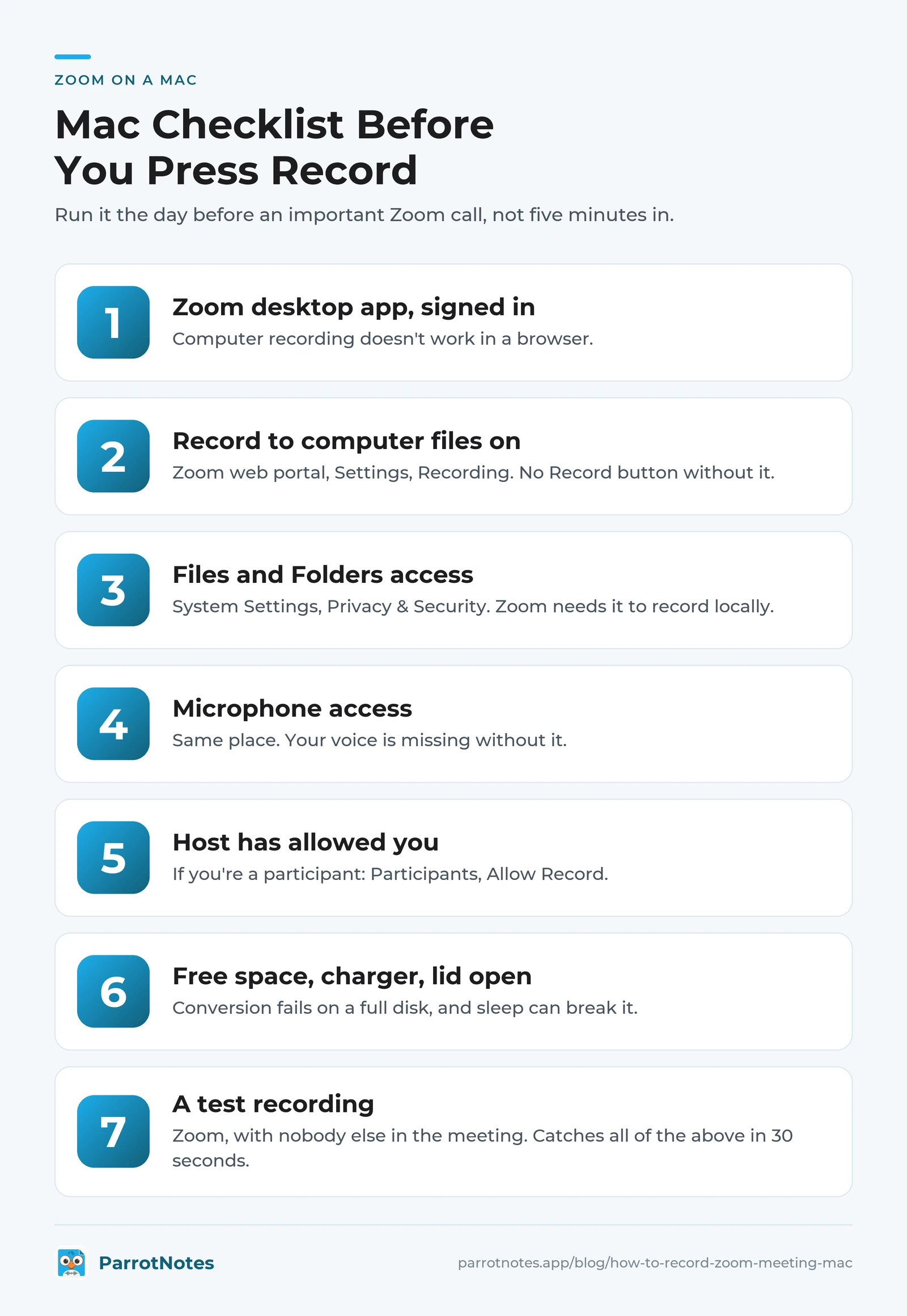
Run this the day before an important call, not five minutes in:
| Check | Where on the Mac | Why |
|---|---|---|
| Zoom desktop app installed and signed in | Applications | Computer recording doesn't work in a browser |
| Record to computer files on | Zoom web portal, Settings, Recording | No Record button without it |
| Zoom has Files and Folders access | System Settings, Privacy & Security | Zoom needs it to record locally |
| Zoom has Microphone access | System Settings, Privacy & Security | Your voice is missing without it |
| Host has allowed you (if you're a participant) | Participants, Allow Record | Only the host records by default |
| Free space on the drive | System Settings, General, Storage | Conversion fails on a full disk |
| Charger plugged in, lid open until the folder appears | Your desk | Sleep can break conversion |
| A test recording | Zoom, with nobody else in the meeting | Catches all of the above in 30 seconds |
If your mic sounds faint in the test, the free Microphone Test checks it in your browser.
After the meeting: turn the file into notes
A video file is hard to search. Our guide on how to transcribe a Zoom recording covers Zoom's own transcripts and free routes. For a quick transcript of the audio[number].m4a file, try the free M4A to text tool. Made a screen recording instead? The screen recording to MP3 converter pulls the sound out of the .mov file.
Want notes rather than raw text? ParrotNotes turns a recording into a transcript, an AI summary and action items. You can import the Zoom audio file you just saved (Free includes 3 audio or video imports a month), and the ParrotNotes Mac app records your in-person meetings through the microphone. Try ParrotNotes free.
As of November 2026, Free gives you 100 minutes of recording a month, up to 30 minutes each, with an AI summary on every recording. Pro is $19.99 a month, or $14.99 a month billed annually, for 3,000 minutes a month and recordings up to 3 hours (ParrotNotes pricing).
Back to Dev. On his next supplier call he clicked Record in the Zoom app instead of Shift-Command-5. Both voices were in the file, the supplier saw Zoom's notice, and Dev got his notes out of it with ParrotNotes before the next meeting.
The short version
- Free and easy: Zoom desktop app, Record, Record on this Computer. Works on the Basic plan.
- Find the file: Documents/Zoom in your home folder, as an MP4 and an M4A.
- Check the Mac: Zoom needs Files and Folders and Microphone access in Privacy & Security.
- Not the host: ask for Allow Record.
- Screen recording: other people's voices only on macOS 27 Golden Gate or later, and no Zoom notice, so ask first.
Frequently Asked Questions
Can you record a Zoom meeting on a Mac for free?
Yes. A free Basic account can record to your Mac in the Zoom desktop app: click Record, then Record on this Computer. Basic meetings run up to 40 minutes. Cloud recording needs a paid plan.
Where are Zoom recordings saved on a Mac?
By default in /Users/[your name]/Documents/Zoom, in a folder named after the meeting. You get video[number].mp4 and audio[number].m4a. You can change the folder in the desktop app's Settings, under Recording.
Why can't I record a Zoom meeting on my Mac?
Usually one of three reasons: you aren't the host and haven't been given Allow Record, Record to computer files is off in the web portal, or Zoom doesn't have Files and Folders access in System Settings, Privacy & Security.
Why does my Mac screen recording of Zoom have no sound from others?
Shift-Command-5 and QuickTime record your microphone. Apple says the Include System Audio option, which captures the call's sound, needs macOS 27 Golden Gate or later. Zoom's own Record button captures everyone on any supported Mac.
Can I record a Zoom meeting on a Mac without the host knowing?
Don't. Zoom's recording notifies everyone, and a screen recording doesn't, so recording secretly can break consent laws in some places. Ask the host for Allow Record or tell everyone before you start.
Related Posts
Voice Memos on Mac: How to Record, Find and Save Your Recordings
How to use the Voice Memos app for Mac: record, edit, transcribe and save recordings as files, with each step checked on Apple's guide. Updated Nov 2026.
Voice Memos and iCloud: How Sync Works and How to Turn It On
How Voice Memos iCloud sync works on iPhone, iPad and Mac: how to turn it on, what happens to deletions and storage, and fixes when memos won't sync. Nov 2026.
Notta AI Review: Web, Phone App and What the Free Plan Includes
Notta AI review from Notta's own pages and app store listings, checked November 2026: web, iPhone, Android and desktop, plus what the free plan includes.