
How to Send a Voice Memo on iPhone

Sarah Johnson
Writes about field sales, meeting notes and voice-first workflows at ParrotNotes. Every article is reviewed by the ParrotNotes product team before it goes live.
Table of Contents
- 1.How to send a voice memo on iPhone from the Voice Memos app
- 2.How to send a voice memo in Messages or Mail on iPhone
- 3.The best way to send a voice memo on iPhone, by file size
- 4.Will your voice memo fit? A two-step size check
- 5.What to do when a voice memo is too big to send on iPhone
- 6.Sending a voice memo to an Android phone
- 7.When the other person only needs the words
Dana walks a client's warehouse with her iPhone recording. By the time she reaches the car she has a 40-minute voice memo, and the client wants it today. She taps Share, picks Mail, and hits send. Then she wonders whether it will arrive at all. (Dana and the other people in this guide are illustrations, not real customers.)
Here's the short answer on how to send a voice memo on iPhone: open the Voice Memos app, tap the recording, tap the more button (the three dots), tap Share, then pick Messages, Mail, AirDrop or another app. A short memo is that simple. Long ones are where people get stuck, so this guide also covers the size limits of each route and what to do when a file is too big.
Every step and limit below comes from Apple's and Google's own support pages, checked on November 9, 2026. We didn't run a device test for this article, so button names are Apple's wording.
Voice Memos is free and built into your iPhone, and nothing here needs a paid app. If what you really need is to send the words rather than the audio, ParrotNotes can help, and we'll cover that near the end.
How to send a voice memo on iPhone from the Voice Memos app
This is the route to use for almost everything. Apple's guide to sharing a recording lists these steps:
- Open the Voice Memos app. It lives in the Utilities folder.
- Tap the recording you want to send, then tap the more button.
- Tap Share.
- Tap Options and choose a file type (see below).
- Choose a sharing option, such as Messages, Mail or AirDrop.
- Select or enter a recipient, then send.
Rendered or Editable?
The Options screen trips people up, and the choice is easy. Rendered makes one .m4a file with all effects and layers mixed in. That's the one to pick when you're sending a memo to a person. Editable lets someone with a compatible device and software update adjust the effects and layers, so it only suits people working on the audio with you.
Send several voice memos at once
Tap Select above the list of recordings, then tap each memo you want. Tap the share button, tap Options, choose Rendered or Editable, and pick how to send them.
Before you send, give the memo a real name. Apple's default is "New Recording" or your location, which tells the other person nothing. Tap the recording, tap the name and type a new one.
How to send a voice memo in Messages or Mail on iPhone
Both apps work from the same share sheet. Pick Messages and the memo lands in a text conversation as an attachment. Pick Mail and it opens a new email with the memo attached.
One thing causes real confusion here. Recording inside Messages is a different feature from sending a voice memo.
Audio message or voice memo file?
Messages has its own recorder: in a conversation, tap the plus button, tap Audio, and start speaking. It's handy for a quick reply, but Apple's audio message guide says the recording is deleted from the conversation on your iPhone two minutes after you send or listen to it, unless you tap Keep.
Two settings fix that:
- Keep them all: go to Settings, tap Apps, tap Messages, tap Expire under Audio Messages, then tap Never.
- Save one as a memo: touch and hold the audio message, then tap Save to Voice Memos. From there you can send it like any other recording.
Use a voice memo when the recording matters or runs longer than a quick reply. Use an audio message when it doesn't.
The best way to send a voice memo on iPhone, by file size
Here's what each route allows, as stated on each vendor's page on November 9, 2026. If a page gives no number, the table says so rather than guessing.
| Route | Stated size limit | Who can get it | The catch |
|---|---|---|---|
| Messages, memo attached | None published by Apple | iPhone and other Apple devices over iMessage; others over RCS or SMS/MMS | Non-Apple delivery depends on the carrier |
| AirDrop | None published on Apple's guide | Nearby iPhone, iPad or Mac | Devices must start within 30 feet, with Wi-Fi and Bluetooth on |
| iCloud Mail | 20 MB per message | Anyone with email | Larger needs Mail Drop |
| iCloud Mail with Mail Drop | 5 GB | Anyone with email | Download link expires after 30 days |
| Gmail | 25 MB in attachments | Anyone with email | Larger files become a Google Drive link |
| iCloud Drive link | None published on Apple's guide | Anyone you give the link | Moving the file breaks the link |
The sources are Apple's iCloud limits page, Apple's Mail Drop page, Google's Gmail attachment page and Apple's AirDrop guide.
Will your voice memo fit? A two-step size check
Apple doesn't publish how many megabytes a minute of Voice Memos takes, and it can change with your settings, so measure your own. This takes about a minute.
Step 1: find the size. In Voice Memos, tap the recording, tap Share, then choose Save to Files. Then in the Files app, touch and hold the file and choose Get Info. Recordings only show up in Files once you save a copy; our guide to where voice memos are stored explains why.
Step 2: do the sum. Divide the size by the minutes to get your rate. Then divide the limit by your rate.
A worked example with made-up numbers: a 10-minute memo that reads 12 MB is 1.2 MB a minute. At that rate, about 16 minutes fits in iCloud Mail's 20 MB (20 ÷ 1.2) and about 20 minutes fits in Gmail's 25 MB (25 ÷ 1.2). Anything longer needs one of the fixes below. Remember that the limit covers the whole message, so a chain of memos in one email adds up.
What to do when a voice memo is too big to send on iPhone
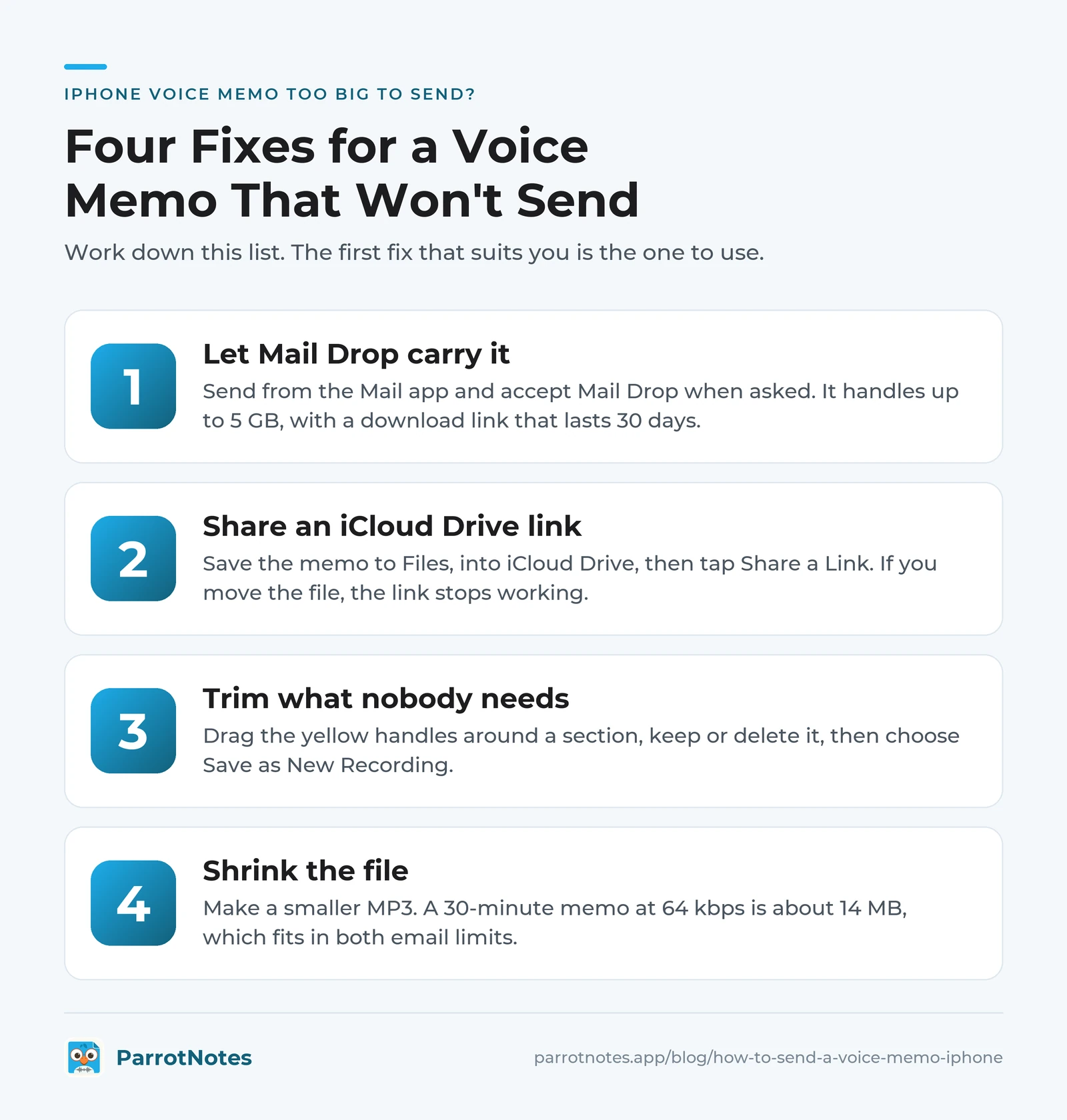
Work down this list. The first fix that suits you is the one to use.
1. Let Mail Drop carry it
If you're sending from the Mail app and the message is over your provider's limit, Apple says Mail will ask you to send the attachment with Mail Drop. Say yes. It handles up to 5 GB, and it doesn't count against your iCloud storage.
The other person gets a download link that lasts 30 days. Apple also warns that the recipient's email app might have a smaller limit, so if it bounces, try a link instead.
That's how Dana's story ends. Mail offers Mail Drop, she accepts, and the client gets a link rather than a bounced email. She adds "link expires in 30 days" to the message so nobody loses it.
2. Share an iCloud Drive link
Save the memo to Files, into iCloud Drive. Apple's iCloud Drive steps: touch and hold the file, tap the share button, tap the menu under the title, then tap Share a Link. You can limit it to the people you choose, or allow anyone with the link.
Apple notes two catches. The link includes the file's name, so rename anything confidential first. And if you move the file, the link stops working.
3. Trim what nobody needs
Long silences and the walk back to the car add up.
Tap the recording, open its edit screen, tap the trim button, and drag the yellow handles around a section. Then choose whether to keep or delete that selection. Apple's editing guide offers Save as New Recording, which leaves the original as it was. Pick that one.
4. Shrink the file
An .m4a is already compact, but speech doesn't need much quality. Our free audio compressor makes a smaller MP3 in your browser, and it doesn't upload the file. It takes up to 100 MB and 30 minutes. Sizes follow directly from the bitrate:
| MP3 bitrate | 1 minute | 10 minutes | 30 minutes |
|---|---|---|---|
| 32 kbps | about 0.2 MB | about 2.4 MB | about 7 MB |
| 64 kbps | about 0.5 MB | about 5 MB | about 14 MB |
| 128 kbps | about 1 MB | about 10 MB | about 29 MB |
So a 30-minute memo at 64 kbps fits comfortably in both email limits, and at 128 kbps it fits neither. If the problem is the format rather than the size, the voice memo to MP3 converter changes the file type the same way.
Sending a voice memo to an Android phone
Apple's message types page says messages to non-Apple phones go as RCS or SMS/MMS, in green bubbles. RCS needs iOS 18 and a carrier that supports it, and availability varies by region and carrier. Apple lists photos, videos and links for RCS, but doesn't state a limit or say how an audio file arrives.
So don't count on a long memo arriving over green bubbles. Email or a link is the safer route, because it doesn't depend on the carrier.
Picture Marco, who sends a 15-minute site walkthrough to a colleague on a Galaxy. The text sits there looking sent, and an hour later his colleague says nothing came through. He sends it from Gmail instead, and the file arrives in one message. If your colleague can't open the .m4a, send an MP3.
When the other person only needs the words
A manager often wants the three decisions, not a 20-minute recording. Text is tiny and goes anywhere.
On iPhone 12 or later, Voice Memos can do this for free. Apple's transcription guide says to tap the recording, tap the more button and choose Copy Transcript, then paste it into a message or an email. It works in 10 languages and isn't available in every region. Our guide on how to transcribe a voice memo has the full steps, and voice memo to text compares the fastest routes.
For a summary and action items, share the memo into ParrotNotes from the same share sheet. ParrotNotes doesn't deliver your audio to anyone, so it isn't a replacement for the routes above. It turns a memo into a transcript and a summary you can paste into the email instead.
The free plan includes 100 minutes of recording a month (up to 30 minutes each), an AI summary on every recording, 5 AI-powered recordings and 3 shared or imported files a month. Pro is $19.99 a month, or $14.99 a month billed annually.
Say Ana records a 20-minute debrief after a client meeting. Instead of attaching it, she shares it into ParrotNotes, copies the summary and action items into her email, and keeps the recording in case anyone asks. You can try ParrotNotes free with your next memo.
Now you know how to send a voice memo on iPhone, how to check whether it fits, and what to do when it doesn't. Name it, pick Rendered, and send it the shortest way that fits.
Frequently Asked Questions
How do I send a voice memo from my iPhone?
Open Voice Memos, tap the recording, tap the more button (the three dots), then tap Share. Tap Options and choose Rendered, then pick Messages, Mail, AirDrop or another app and choose your recipient.
Why won't my voice memo send?
Usually it's too big for the route you chose. iCloud Mail stops at 20 MB per message unless you use Mail Drop, and Gmail turns attachments over 25 MB into a Google Drive link. Try Mail Drop, an iCloud Drive link, or a smaller MP3.
How do I send a large voice memo on iPhone?
Send it from the Mail app and accept Mail Drop when asked, which handles up to 5 GB with a link that lasts 30 days. You can also save it to Files and share an iCloud Drive link, trim it, or compress it to a smaller MP3.
What file type is an iPhone voice memo?
Sent with the Rendered option, it's a single .m4a file. The Editable option keeps effects and layers for someone on a compatible device and software update, and isn't needed for ordinary sending.
Can I send a voice memo to someone with an Android phone?
Yes. Email is the most dependable way, or send a link. Messages to Android go over RCS or SMS/MMS, which depend on your carrier, and Apple doesn't state a limit for audio files there. If they can't open the .m4a, convert it to MP3 first.
Is an audio message the same as a voice memo?
No. An audio message is recorded inside Messages and is deleted from the conversation on your iPhone two minutes after you send or listen to it, unless you tap Keep. A voice memo is a file saved in the Voice Memos app until you delete it.
Related Posts
Best Wispr Flow Alternatives for iPhone, Android and Mac
The best Wispr Flow alternative for iPhone, Android, Mac and Windows, with each free plan and price checked November 2026. Try ParrotNotes free for voice notes.
Where Are Voice Memos Stored on iPhone and Mac?
Where are voice memos stored on iPhone and Mac? iCloud, Files, the Mac folder path and Recently Deleted, with sources for each macOS version. Find yours now.
VOMO AI Review: Features, Free Plan and Limits
VOMO AI review from its own pages, checked November 2026: the one-time free minutes, the $99.99 Pro, iPhone, Android, limits, safety. Try ParrotNotes free.