
How to Record a Teams Meeting (and Get the Transcript)

Sarah Johnson
Writes about field sales, meeting notes and voice-first workflows at ParrotNotes. Every article is reviewed by the ParrotNotes product team before it goes live.

Table of Contents
- 1.How to record a Teams meeting in four steps
- 2.Can you record a Teams meeting? Who can and who can't
- 3.How to record a Teams meeting automatically
- 4.Where Teams saves the recording, and when it expires
- 5.How to get the transcript of a Teams meeting
- 6.Consent: everyone gets a notice, but that isn't the whole job
- 7.When there's no Teams call to record
- 8.The short version
Maya is an executive assistant, and every Monday at 9:00 she sits in on a leadership meeting on Teams. Last quarter the CFO asked her, three weeks after a meeting, exactly what was agreed about the hiring freeze.
Her notes said "freeze, revisit Q3." The recording would have said much more, if anyone had pressed Record. (Maya is a composite, an illustration rather than a real person.)
You may already know how to record a Teams meeting, or at least where the button is. The hard part is everything around the button: who is allowed to press it, where the file goes, how long it stays, and how to get a transcript you can actually use.
This guide gives the steps on desktop and phone, then answers those questions in one table. Every Teams fact comes from Microsoft's own support and Learn pages as they read on November 1, 2026, linked in each section. We didn't run a hands-on test; the menus below are Microsoft's wording.
One disclosure: ParrotNotes publishes this blog. Our app doesn't join Teams calls. It records meetings in a room on your phone, so it appears near the end for meetings that never happen on Teams. If that's most of your week, you can try ParrotNotes free now.
How to record a Teams meeting in four steps
Microsoft's Record a meeting in Microsoft Teams page gives these steps for the desktop app:
- Start or join the meeting.
- Select More actions (the three dots) and then Record in your meeting controls.
- Choose your spoken language and what to record. For sound only, pick Audio only from the "Choose what to record" menu.
- Select Confirm. Everyone in the meeting gets a notice that recording has started.
Only one person can record a meeting at a time. If you leave, the recording keeps going, and it stops on its own when everyone has left. If someone forgets to hang up, Teams ends the file and starts a new one every four hours until the last person leaves.
On the Teams mobile app
On a phone, select More options and then Start recording in the meeting controls. To stop, go back to More options and select Stop recording.
Stop the recording
On desktop, select More actions and then Recording. You can stop the recording and the transcript together, or stop only the transcript and keep recording.
Can you record a Teams meeting? Who can and who can't
Yes, if three things line up. You need a licence that includes recording, your IT admin's recording policy has to be on, and you must be in the same organization as the meeting. Microsoft lists the qualifying licences as Office 365 Enterprise E1, E3, E5, F3, A1, A3, A5, M365 Business, Business Premium, and Business Essentials.
Guests, people from other organizations, and anonymous attendees can't record. This table puts the rules from six Microsoft pages side by side, read November 1, 2026:
| Your situation | Can you start recording? | Where the file lands | Who can download the transcript | When it expires |
|---|---|---|---|---|
| Organizer, work or school account | Yes, if the recording policy is on | Your OneDrive, Recordings folder | You and co-organizers, by default | 120 days by default (admins can change it; A1 at most 30) |
| Attendee in the same organization | Yes, unless the organizer limited it | The organizer's OneDrive, not yours | Only if the organizer allows downloads | Same as the organizer's setting |
| Guest or attendee from another organization | No ("Only people in this org can start recording") | Organizer's OneDrive | You can't see it afterwards unless it's shared with you | Organizer's setting |
| Channel meeting member | Yes, with the policy on | The channel's SharePoint site, Recordings folder | Follows the channel's SharePoint permissions | Admin's setting |
| Personal account with Microsoft 365 Personal, Family, or Premium | Yes, any participant with the subscription | Linked in the meeting chat | Not covered on Microsoft's page; captions only | 30 days after it's saved |
| Teams Free, no subscription | No; Microsoft lists recording only for subscribers | n/a | n/a | n/a |
Sources: Record a meeting, storage and permissions, expiration policy, live transcription, Teams Free recordings, and I can't record a meeting. Checked November 1, 2026.
The second row surprises people. Microsoft's Learn page says the file saves to the organizer's OneDrive "even if the organizer didn't attend." So if Maya records her boss's meeting, the file lives in her boss's OneDrive, and her boss controls the download.
Why the Record button is greyed out
Hover over the lock icon and Teams tells you why. Microsoft's troubleshooting page lists the messages:
- "Only people in this org can start recording": you're a guest or external attendee.
- "Unavailable for this meeting due to organization policy": your IT admin has recording off for you.
- "Unavailable because the meeting organizer has disabled recording for this meeting": check the meeting options.
- "Only meeting organizer and co-organizer can start recording": the organizer narrowed who can record. That choice needs Teams Premium or a Copilot licence.
- "Unavailable because Copilot is turned off for this meeting": turning Copilot off turns off recording and transcription too.
Tom is a supplier's account manager who joins his customer's weekly Teams call as a guest. His Record button shows the first message every week. The fix isn't a setting on his side; he asks the host to record and share the file with him afterwards. (Tom is also a composite.)
How to record a Teams meeting automatically
If you organize a recurring meeting, you don't have to remember the button. Open the meeting in your Teams calendar, select Meeting options, then Recording & transcription, and turn on Record and transcribe automatically. Microsoft's page says recording and transcription then "start automatically when the meeting begins."
The option switches off if "Who can record and transcribe" is set to No one. Your admin's policy still applies, so if recording is blocked for you, auto-record won't override it.
Where Teams saves the recording, and when it expires
For a normal scheduled or ad hoc meeting, the file goes to the organizer's OneDrive, in a folder called Recordings, and a link appears in the meeting chat. For a channel meeting it goes to the channel's SharePoint site. For a 1:1 or group call it goes to the OneDrive of whoever selected Record. Plan for size: Microsoft puts a one-hour recording at about 400 MB.
Now the part most guides skip. On work and school accounts, Microsoft's expiration policy page says "Meeting recordings and transcripts have a default expiration time of 120 days." Your admin can change it, and A1 accounts top out at 30 days.
When the date arrives, the file moves to the recycle bin. On a work or school account, the recycle bin empties itself after 93 days unless your admin changed that.
Jordan leads a sales operations team and recorded a quarterly review in January. In June a director asked for the pricing discussion.
The recording had expired in May and been purged, so Jordan rebuilt the decision from three people's memories. (Jordan is a composite too.)
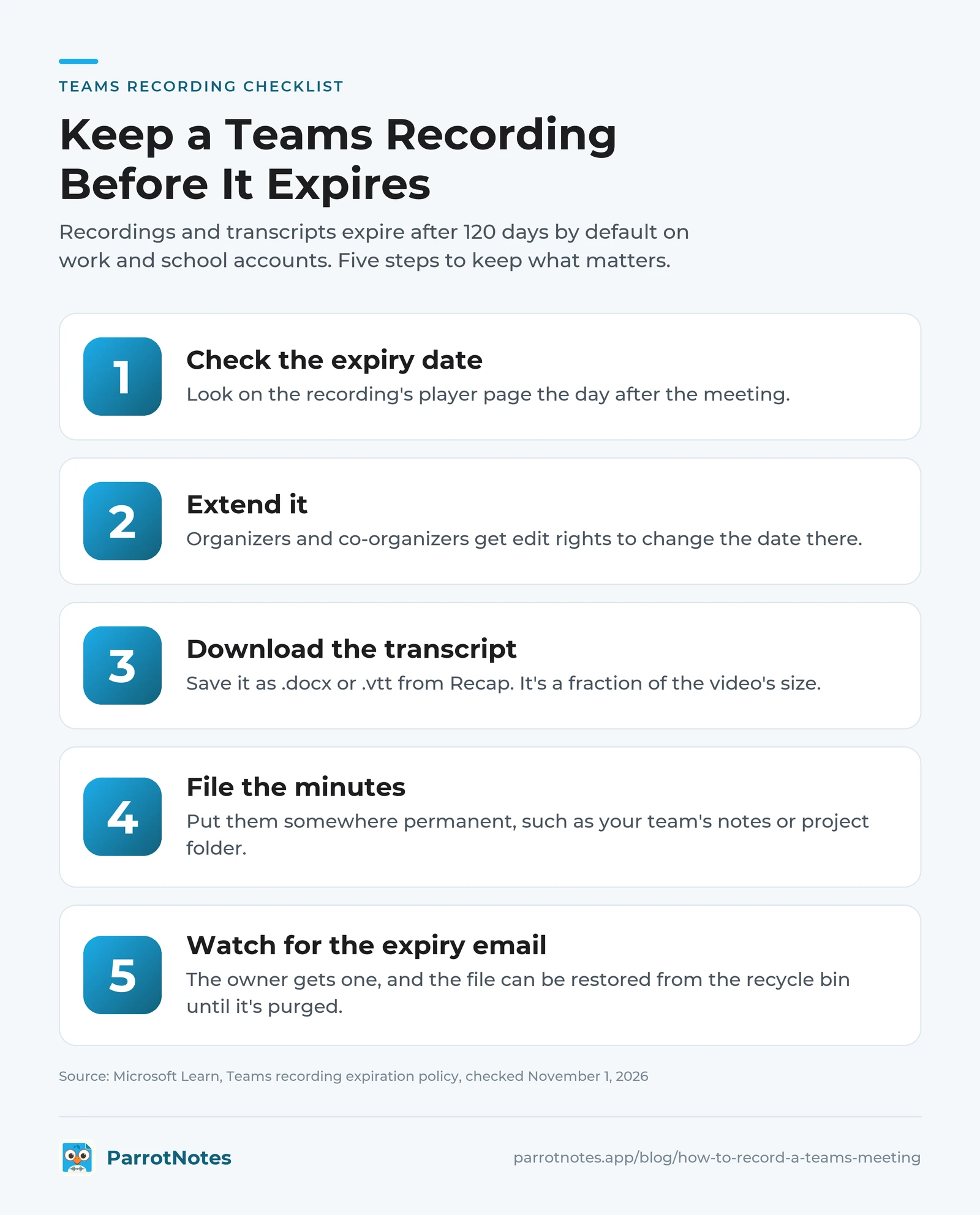
Keep it before it expires: a five-step checklist
- Check the expiry date on the recording's player page the day after the meeting.
- Extend it if you're the organizer or a co-organizer; you get edit rights to change it there.
- Download the transcript as .docx or .vtt (see the next section). It's a fraction of the video's size.
- File the minutes somewhere permanent, such as your team's notes or project folder.
- Watch for the expiry email. The owner gets one, and the file can still be restored from the recycle bin until it's purged.
How to get the transcript of a Teams meeting
You get a transcript for free with the recording. Microsoft's live transcription page says recording a meeting also starts transcription. To transcribe without recording, select More actions, then Transcribe, confirm the spoken language, and select Confirm.
After the meeting, go to Chat, open the meeting, and select Recap and then Transcript. Select the arrow next to Download and choose .docx or .vtt. Organizers and co-organizers can download by default; others need permission. Attendees from another organization can follow the live transcript but can't open it afterwards.
A .vtt file is full of timestamps. Paste it into our free VTT to text converter to get clean paragraphs. Then turn it into minutes with the meeting minutes generator, or follow our guide on how to take meeting minutes.
If your company has Copilot seats, Copilot can write AI notes from that transcript. Our guide to Copilot meeting notes covers the licence and settings it needs.
Consent: everyone gets a notice, but that isn't the whole job
Teams tells everyone when recording or transcription starts. Your admin can go further: Microsoft's recording policy page describes a setting that requires participants "to give their explicit consent to be recorded or transcribed."
A banner isn't the same as permission under every law, though. Say at the start of the meeting that you're recording and why, especially with people outside your company or in other states and countries. Our overview of one-party consent states covers the US basics. This isn't legal advice.
When there's no Teams call to record
Plenty of meetings never touch Teams: the board meeting around a table, the one-on-one in your manager's office, the site walk-through. There's no Record button in a room.
That's where ParrotNotes fits. Set your phone on the table, tell everyone you're recording, and tap record. When you stop, you get a transcript, an AI summary, action items, and a drafted follow-up email. Our guide on how to record a meeting on iPhone covers where to put the phone in different rooms.
Two honest limits. ParrotNotes doesn't join or record Teams calls, so in a Teams meeting, Teams' own recording is the right tool. The same goes for Google's calls: our guide on how to record a Google Meet covers which plans can record.
And if you can't record a Teams meeting, ask the organizer; don't work around the notice. If the organizer shares the recording with you, you can import the file into ParrotNotes for a summary and action items. Free includes 3 audio or video imports a month and Pro is unlimited (per parrotnotes.app/pricing, November 2026).
ParrotNotes Free gives you 100 minutes of recording a month, up to 30 minutes per recording, with an AI summary on every one. Pro is $19.99 a month, or $14.99 a month billed annually, for 3,000 minutes and recordings up to 3 hours.
Got a meeting in a room this week? Download ParrotNotes free and record it with everyone's OK.
The short version
How to record a Teams meeting comes down to four clicks: More actions, Record, pick what to record, Confirm. The details around it decide whether you still have it in a month:
- You need a licence, an admin policy that allows it, and a seat in the same organization. Guests can't record.
- The file goes to the organizer's OneDrive, even when someone else pressed Record.
- Recordings and transcripts expire after 120 days by default on work accounts, and 30 days on personal accounts.
- The transcript downloads as .docx or .vtt from Recap, and is the part worth keeping.
- Tell people you're recording, whatever the banner says.
Maya now turns on auto-record for the Monday meeting and downloads the transcript every Tuesday. When the CFO asks again, she searches a file instead of her memory. For the meetings that happen in a room, ParrotNotes is free to try.
Frequently Asked Questions
Can you record a Teams meeting if you're not the host?
Yes, if you're in the same organization as the meeting, have a licence that includes recording, and the organizer hasn't limited recording to organizers or presenters. Guests and people from other organizations can't record. The file still saves to the organizer's OneDrive.
Does Teams notify people when you record?
Yes. Microsoft's support page says "When you start recording a meeting, everyone will be notified automatically." Teams' own recording always shows that notice, and admins can also require each participant's explicit consent.
Where do Teams recordings go?
For scheduled and ad hoc meetings, the organizer's OneDrive Recordings folder, with a link in the meeting chat. Channel meetings save to the channel's SharePoint site, and 1:1 or group calls to the OneDrive of whoever selected Record.
How long are Teams recordings kept?
On work and school accounts the default is 120 days for recordings and transcripts, which admins can change; A1 accounts are capped at 30 days. Recordings made with a personal Microsoft 365 account expire 30 days after they're saved. Expired files go to the recycle bin first.
How do I download the transcript of a Teams meeting?
Open the meeting in Chat, select Recap and then Transcript, and use the arrow next to Download to choose .docx or .vtt. Organizers and co-organizers can download by default; other attendees need permission.
Related Posts
Warm Calling vs Cold Calling: What Changes and When Each Works
Warm calling vs cold calling: what changes on the call, a five-question warmth test, six warm-call openers, and when a cold call is still the right move.

TurboScribe Review: Free Plan, Limits and Alternatives
TurboScribe review from its own pages, checked November 2026: free plan limits, the $10 Unlimited plan, safety, fine print, alternatives. Try ParrotNotes free.
How to Transcribe Audio in Word: Upload or Record
How to transcribe audio in Word: upload or record, which accounts and devices have Transcribe, the 300-minute limit, fixes for a missing button, and an example.