
AirPods Live Translation: How It Works and Which Phones Support It

Sarah Johnson
Writes about field sales, meeting notes and voice-first workflows at ParrotNotes. Every article is reviewed by the ParrotNotes product team before it goes live.
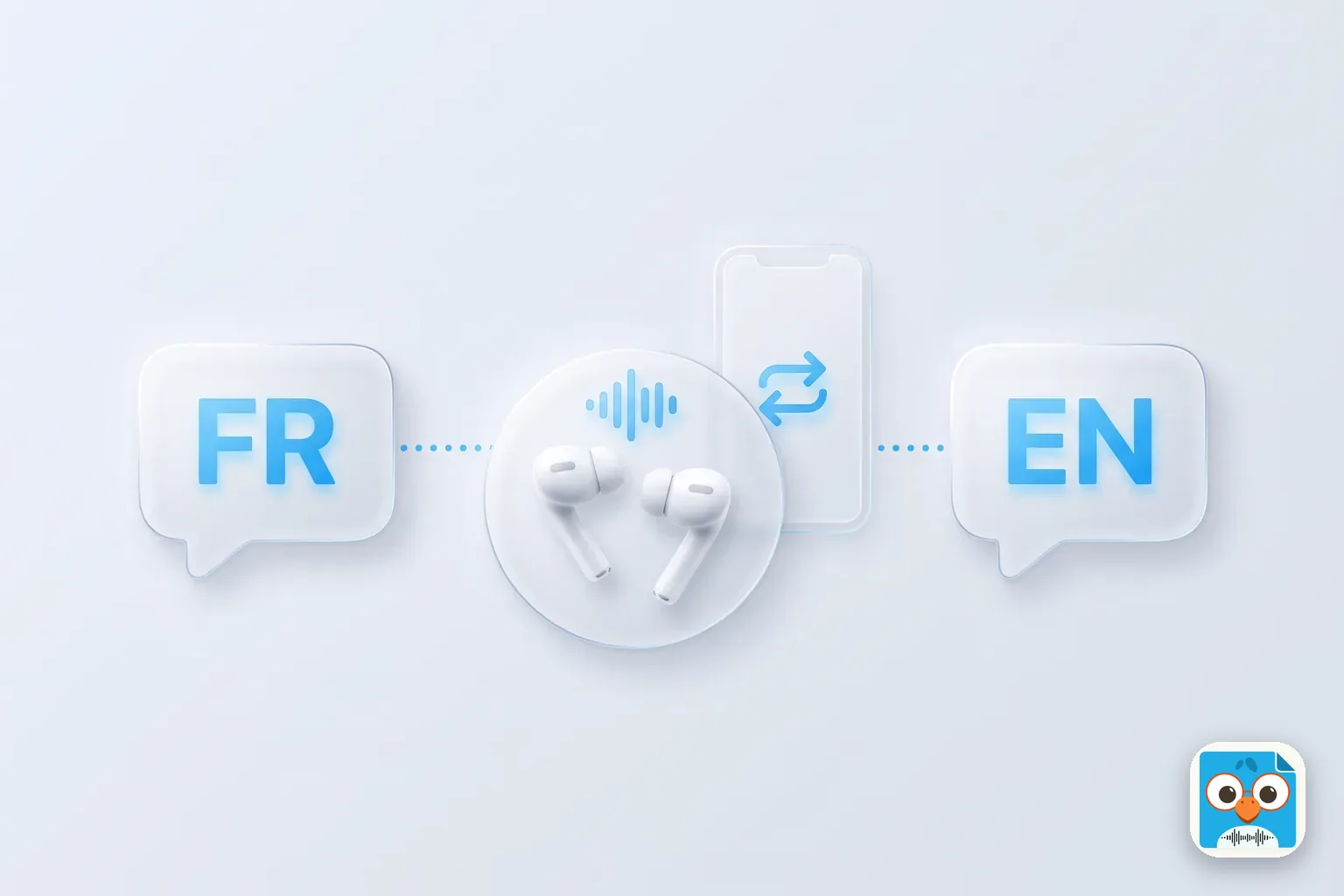
Table of Contents
- 1.Which AirPods and iPhones support Live Translation?
- 2.AirPods Live Translation languages and regions
- 3.How to set up and use AirPods Live Translation
- 4.Live Translate on iPhone without AirPods: Messages, Phone and FaceTime
- 5.Live Translation compatibility matrix (November 2026)
- 6.Where AirPods Live Translation falls short
- 7.When you need the conversation afterwards: record it, then translate the transcript
- 8.The bottom line
Picture Ana at a pharmacy counter in Lyon. The pharmacist is explaining a dosage in fast French, and Ana's school French ran out two sentences ago. She presses both AirPods stems and hears the explanation in English. (Ana is an illustration, not a case study.)
That's AirPods Live Translation, and it's real, but it only works with the right pair of AirPods on the right iPhone. The short answer, as of November 2026: you need AirPods Pro 2, AirPods Pro 3, AirPods 4 with Active Noise Cancellation, AirPods 5 or AirPods Max 2, paired with an iPhone 15 Pro or later running iOS 26 with Apple Intelligence turned on. It does not work with Android phones.
Below: which models qualify, which languages work where, how to turn it on, and how Live Translate works on iPhone in Messages, Phone and FaceTime. Then what to do when you need the conversation afterwards. Every requirement comes from Apple's own support pages, checked on November 10, 2026.
Which AirPods and iPhones support Live Translation?
Apple's Live Translation with AirPods support page lists three things you need at the same time.
Supported AirPods (as of November 2026):
- AirPods Pro 3
- AirPods Pro 2
- AirPods 4 with Active Noise Cancellation (AirPods 4 without ANC is not on the list)
- AirPods 5 (both models)
- AirPods Max 2
Not supported: AirPods 1, 2 and 3, the first AirPods Pro, AirPods 4 without ANC and the original AirPods Max. So if you searched for "AirPods 3 live translation", the answer is no.
Supported iPhones: iPhone 15 Pro, iPhone 15 Pro Max, and iPhone 16 models or later. These are the iPhones that run Apple Intelligence, and Apple Intelligence has to be switched on.
Software: iOS 26 or later on the iPhone, the latest AirPods firmware, and Apple's Translate app installed.
Android phones: AirPods Live Translation runs on the iPhone, not inside the earbuds, so an Android phone can't use it even with Pro 3s in your ears. On Android, Google Translate's Conversation mode is the usual route instead.
The three-question check
Answer these three in order. A "no" anywhere means it won't work yet.
- Is your iPhone a 15 Pro, 15 Pro Max or any iPhone 16 or newer? Check in Settings > General > About > Model Name.
- Is it on iOS 26 or later, with Apple Intelligence on? Settings > General > Software Update, then Settings > Apple Intelligence & Siri.
- Are your AirPods one of the five models above, on current firmware? With them connected, tap your AirPods' name in Settings to see the model and firmware version.
AirPods Live Translation languages and regions
Apple's iOS feature availability page lists these languages for Live Translation with AirPods, as of November 10, 2026:
- English (US, UK)
- French (France)
- German (Germany)
- Italian
- Japanese
- Korean
- Portuguese (Brazil)
- Spanish (Spain)
- Mandarin Chinese (Simplified and Traditional)
Two regional limits matter:
- European Union. AirPods Live Translation launched later in the EU. In its November 4, 2025 announcement, Apple said the delay came from "the additional engineering work needed to comply with the requirements of the Digital Markets Act" and that it would reach the EU the following month. Apple's current requirement pages list no EU exclusion.
- China mainland. The feature availability page marks Simplified Mandarin as not available in China mainland, and Apple's Apple Intelligence requirements page says Apple Intelligence features don't currently work on devices bought there or with a China mainland Apple Account.
Apple still labels AirPods Live Translation as beta in Settings and warns that the translation comes from generative models, so the output "may be inaccurate".
How to set up and use AirPods Live Translation
Apple notes the language download can take a few minutes, so do the setup on Wi-Fi before you travel.
- Put your AirPods in and connect them to your iPhone.
- Download both languages. Open Settings, tap your AirPods' name, then Languages under Translation (tap Live Translation (Beta) first if you don't see it). Download the other person's language and your own. Apple's AirPods User Guide says that once they're downloaded, processing happens on your iPhone.
- Pick the pair in the Translate app. Tap Live at the bottom, then set Their Language and Your Language.
- Start Live Translation. Use whichever is handiest: press and hold the stems on both AirPods at once (on AirPods Max 2, the listening mode button), say "Siri, start Live Translation", tap Start Translation in the Translate app's Live tab, tap Translate in Control Center, or set the iPhone's Action button to Translate.
- Listen, then reply. The AirPods play the translation of what the other person says, and starting Live Translation turns on Adaptive Audio if it was off. Speak your reply, then show them the transcript in the Live tab or tap Play so your iPhone speaker reads the translation aloud.
- Stop by tapping the X in the Translate app.
In a noisy room, Apple suggests holding the iPhone closer to the speaker so its microphones help. If the other person also has supported AirPods and an iPhone 15 Pro or later, and has Live Translation running, each of you hears the other in your own language.
Live Translate on iPhone without AirPods: Messages, Phone and FaceTime
The same Live Translation feature works on iPhone without any AirPods, inside three of Apple's apps. Apple's Use Live Translation on iPhone page gives these steps, as of November 2026.
Messages. Open a conversation, tap the person's name at the top and turn on Automatically Translate, then choose the language. As you type, the translation appears. The other person receives your translation and your original, and their replies arrive in your language.
Phone calls. During a call, tap More, then Live Translation, choose the language and tap Start Translation. Both people are told the call is being translated. The other person hears a spoken translation of what you say, and you can read an on-screen transcription. The call switches to speaker unless you're on headphones.
FaceTime. During a call, tap More, then Live Translation, choose the language and tap Start Translation. Translated live captions appear as both of you speak.
All three need the same Apple Intelligence iPhone (15 Pro or later) and iOS 26.
Live Translation compatibility matrix (November 2026)
Here is the one table we couldn't find anywhere else: the four places Live Translation runs, side by side. Compiled from Apple's support pages 121115, 123185 and the feature availability page on November 10, 2026.
| Where | What you need | Languages (beyond the core nine*) | What you get |
|---|---|---|---|
| AirPods (in person) | Supported AirPods + iPhone 15 Pro or later, iOS 26 | Core nine only | Spoken translation in your ears, transcript in the Translate app |
| Phone app (calls) | iPhone 15 Pro or later, iOS 26 | Core nine only | Spoken translation for the other caller, on-screen transcription |
| FaceTime | iPhone 15 Pro or later, iOS 26 (also iPad and Mac with Apple Intelligence) | Core nine only | Translated live captions |
| Messages | iPhone 15 Pro or later, iOS 26 (also iPad, Mac, and Apple Watch paired to one) | Adds Danish, Dutch, Norwegian, Swedish, Turkish, Vietnamese, plus more regional English, French, German, Portuguese and Spanish | Translated text as you type and as replies arrive |
*Core nine: English, French, German, Italian, Japanese, Korean, Portuguese (Brazil), Spanish (Spain) and Mandarin Chinese, with the regional limits in the languages section above.
The takeaway: if your conversation is in Dutch or Turkish, you can text it with Live Translation but you can't yet hear it through your AirPods.
Where AirPods Live Translation falls short
Live Translation is built for understanding in the moment, and it does that job well. It's weaker at three things.
- Accuracy you can rely on later. Apple itself says to check important information. Names, dates and numbers are the usual casualties.
- Noise. In a loud room the AirPods' microphones struggle; Apple's fix is to hold the iPhone closer to the speaker.
- A record. The Live tab shows the transcript while you're in the conversation. It isn't built to be a filed, searchable record of a meeting you'll need next week.
Think of Marco, a contractor in Miami walking a client through a kitchen remodel quote in Spanish while her English-speaking husband listens on AirPods. The husband follows along fine. Two weeks later, they disagree about whether "the cabinets" included installation, and nobody can find what was said. (Marco is an illustration.) Live translation answered "what is he saying?", not "what did we agree?"
When you need the conversation afterwards: record it, then translate the transcript
ParrotNotes does not do live earbud translation or face-to-face, real-time translation. What it does is the other half: you record the conversation on your phone, and it gives you a transcript in the language you choose, plus a summary.
- Ask first. Tell everyone you're recording. Consent rules vary by place, and our guide to one-party consent states explains them as general information, not legal advice. Never record someone secretly.
- Record the conversation in ParrotNotes on your iPhone or Android phone. Recording keeps going with the screen locked. Our guide to recording a conversation on iPhone covers placement and settings.
- Get it in your language. On ParrotNotes Pro, set your transcript language once in Settings. It transcribes 99+ languages, follows a conversation that switches between them, and writes the transcript in your language. Pro is $19.99 a month, or $14.99 a month billed annually, with 3,000 minutes of recording a month. The free plan has 100 minutes a month with an AI summary on every recording, but translation is a Pro feature.
Already have a recording? Our free audio file translator takes a file up to 10 minutes, shows the transcript in the original language, and translates it into English or 19 other languages. For the full method, including how to check names and numbers, see how to translate audio to English.
Back in Lyon, Ana's AirPods got her through the pharmacy. For the landlord meeting where she signs a lease, she'd want a recording and a transcript she can reread. If that's you, download ParrotNotes free and try it on your next conversation, then move to Pro when you need the translation.
The bottom line
AirPods Live Translation needs supported AirPods, an iPhone 15 Pro or later on iOS 26, and Apple Intelligence. It covers nine core languages and doesn't work with Android. It's for understanding in the moment.
Before your next trip, run the three-question check, download your languages on Wi-Fi, and test it once at home with a friend. If the conversations that matter are meetings, interviews or quotes, get ParrotNotes so there's a transcript waiting when the conversation ends. For interviews in particular, our guide to transcribing a foreign-language interview walks through the details.
Frequently Asked Questions
Which AirPods have Live Translation?
As of November 2026, Apple lists AirPods Pro 2, AirPods Pro 3, AirPods 4 with Active Noise Cancellation, AirPods 5 and AirPods Max 2, each on the latest firmware. AirPods 3, the first AirPods Pro, AirPods 4 without ANC and the original AirPods Max are not supported.
Does AirPods Live Translation work on Android?
No. The translation runs on an Apple Intelligence iPhone (iPhone 15 Pro or later on iOS 26), not in the earbuds, so AirPods connected to an Android phone can't use it.
Do AirPods Pro 2 get Live Translation?
Yes. AirPods Pro 2 support Live Translation with the latest firmware, when paired to an iPhone 15 Pro or later running iOS 26 with Apple Intelligence turned on.
Does AirPods Live Translation need the internet?
Apple says you download the languages first, and after that processing happens on your iPhone. Download both languages on Wi-Fi before you travel.
Can I save an AirPods Live Translation conversation?
The Translate app's Live tab shows a transcript while you talk, but it isn't built as a lasting record. If you need the conversation later, ask permission, record it, and translate the transcript afterwards with a tool like ParrotNotes Pro or a free audio file translator.
Related Posts
Whisper Memos Review: The iPhone Voice-to-Email App
Whisper Memos review from its own pages and App Store listing, checked Nov 2026: price, free trial, Apple Watch, Meeting mode and 4 alternatives compared.
Transkriptor Review: Pricing, Free Trial and Limits
Transkriptor review, November 2026: every plan price, the cost per hour of audio, what the 90-minute free trial transcribes, and the cancellation fine print.
TicNote Review: Mobvoi's AI Recorder, Plans and Limits
TicNote review from Mobvoi's own pages, checked Nov 10, 2026: five devices, 600 free minutes, Pro plans, year-one cost, TicNote vs PLAUD. Try ParrotNotes free.