
Google Translate Conversation Mode: How to Use It

Sarah Johnson
Writes about field sales, meeting notes and voice-first workflows at ParrotNotes. Every article is reviewed by the ParrotNotes product team before it goes live.
Table of Contents
- 1.What Google Translate conversation mode is now
- 2.How to use Google Translate conversation mode on iPhone
- 3.How to use Google Translate conversation mode on Android
- 4.Which mode to use: a chooser for six situations
- 5.Does conversation mode work offline?
- 6.Before the conversation: a five-step setup checklist
- 7.When conversation mode isn't enough: talks you need to keep
- 8.Conversation mode not working? Quick fixes
- 9.Make the next conversation easier
Picture a pharmacy counter in Mexico City. Maya has a fever, a phone at 40% battery, and no Spanish. The pharmacist has no English. (Maya is an illustration, not a real traveller.) What gets them through the next three minutes is Google Translate conversation mode, if Maya knows where Google has moved it.
Here is the short answer. In the Google Translate app on iPhone or Android, tap Live translate at the bottom, choose Conversation, set your two languages, and take turns speaking. The app hears which language is being spoken, translates it, and reads the translation out loud. The app is free, with no paid plan to unlock it.
You may remember a "Conversation" button with an "Auto" toggle. Older guides still describe it, but Google's current help pages put conversation translation inside Live translate. Below you'll find how to use Google Translate for conversation on each phone, and a table of which mode fits which situation. Then come the offline limits (tighter than most people assume) and a checklist to run before you need it.
Live translation helps you understand each other in the moment. Google's live translate help page doesn't describe any way to save the session for later. If the conversation is long or matters later, like a contractor's quote or a school meeting, record it (with permission) in ParrotNotes and get the transcript afterwards.
All steps and limits below come from Google's Translate help pages as of November 2026. Menus can change with app updates.
What Google Translate conversation mode is now
Google added live conversation translation to the Translate app on August 26, 2025, first for users in the U.S., India and Mexico, in more than 70 languages. Google says the app switches between the two languages using cues like pauses, accents and intonation, so nobody taps a button between turns. In March 2026 Google expanded live translate to France, Germany, Italy, Japan, Spain, Thailand and the U.K., on both iPhone and Android.
Inside Live translate, Google's help page lists four modes plus one view:
- Conversation: translations play out loud on the phone speaker or headphones. You take turns speaking.
- Listening: translations play in your headphones (or with the phone to your ear) while someone else talks.
- Text only: translations appear on screen with no audio.
- Custom settings: you pick text only, speaker, or headphones.
- Face to face: a split screen. Each person sees the transcription and translation in their own language on their half.
That's the whole map. Conversation mode is the one most people mean when they search for it.
How to use Google Translate conversation mode on iPhone
The iPhone steps come from Google's iPhone and iPad help page:
- Update the Google Translate app from the App Store. Google says to keep it on the latest version.
- Open the app. If you want to use headphones, connect them first.
- Tap the Live translate icon at the bottom.
- Choose Conversation and select your two languages.
- Start talking, then hand the floor to the other person. Tap any part of the text to hear it again.
- Tap Speak to pause or resume, and Back at the top to finish.
Two iPhone details matter. Listening mode is greyed out until headphones are connected. And the first time, iOS asks for microphone access: allow it, or nothing gets heard.
Using AirPods? Apple's own AirPods Live Translation is a separate feature with its own model list, and we cover it in its own guide.
How to use Google Translate conversation mode on Android
The Android steps from Google's Android help page are almost the same:
- Update Google Translate from Google Play.
- Open the app and connect headphones if you want them.
- At the bottom, tap Live translate.
- Pick Conversation and your languages.
- Take turns speaking. Tap any text to hear the translation again.
- Tap Speak to pause or resume, and Back to exit.
For the split screen, tap the Face to face icon. Each half shows one person's language, so you can lay the phone flat between you. Tap Close to leave it.
Android has one useful extra. The session keeps running when you switch apps, minimize Translate, or lock the screen. You can check a map mid-conversation without starting over.
Which mode to use: a chooser for six situations
Conversation is not always the right pick. This table maps common situations to the mode that fits, based on how Google describes each one.
| Situation | Best mode | Why |
|---|---|---|
| Asking a pharmacist or shopkeeper a few questions | Conversation | Short turns; the speaker reads each answer out loud |
| Sitting across a table from someone (a host family, a landlord) | Face to face | Each person reads their own half; no passing the phone |
| A tour guide or a talk you only need to follow | Listening (with headphones) | You hear the translation privately; they keep talking |
| A quiet place: a waiting room, a library, a late-night taxi | Text only | No audio playing out loud |
| A longer explanation you want to keep, like repair instructions | Transcribe, then Save transcript | Google's Transcribe mode saves the text; find it later under Menu > Saved transcripts |
| A meeting you'll need to quote or act on (a quote, a school meeting) | Record it, translate afterwards | Live text scrolls away; a recording gives you a full transcript to check |
Take Dev, a homeowner in Texas whose plasterer speaks Spanish. (Dev is an illustration, not a real customer.) For the five-minute walk-through, Conversation mode is fine. But the plasterer's estimate covers three rooms, two kinds of finish and a price for each. Dev uses Transcribe so the explanation is saved, then checks the numbers by text message the next day.
Does conversation mode work offline?
Mostly, no. A Google Translate offline conversation is possible only on a few phones, and this is the part older guides get wrong.
Google's help page says offline live translation "is currently only available for Pixel 9, 10, and 11 users." On those phones you can download these languages for live translation, each paired with English:
- Italian, Spanish, French, German, Portuguese
- Hindi, Russian, Swedish, Japanese, Indonesian
To download one, tap Download in the language picker. Languages marked Live & Text work for both live and text translation.
On an iPhone, or an Android phone that isn't a Pixel 9, 10 or 11, plan on needing a data connection for conversation mode. The general offline download page covers translating "without an internet connection" after a download. It says nothing about speech or conversation working offline. Downloaded languages still help as a fallback: you can type a sentence and show the screen.
Before the conversation: a five-step setup checklist
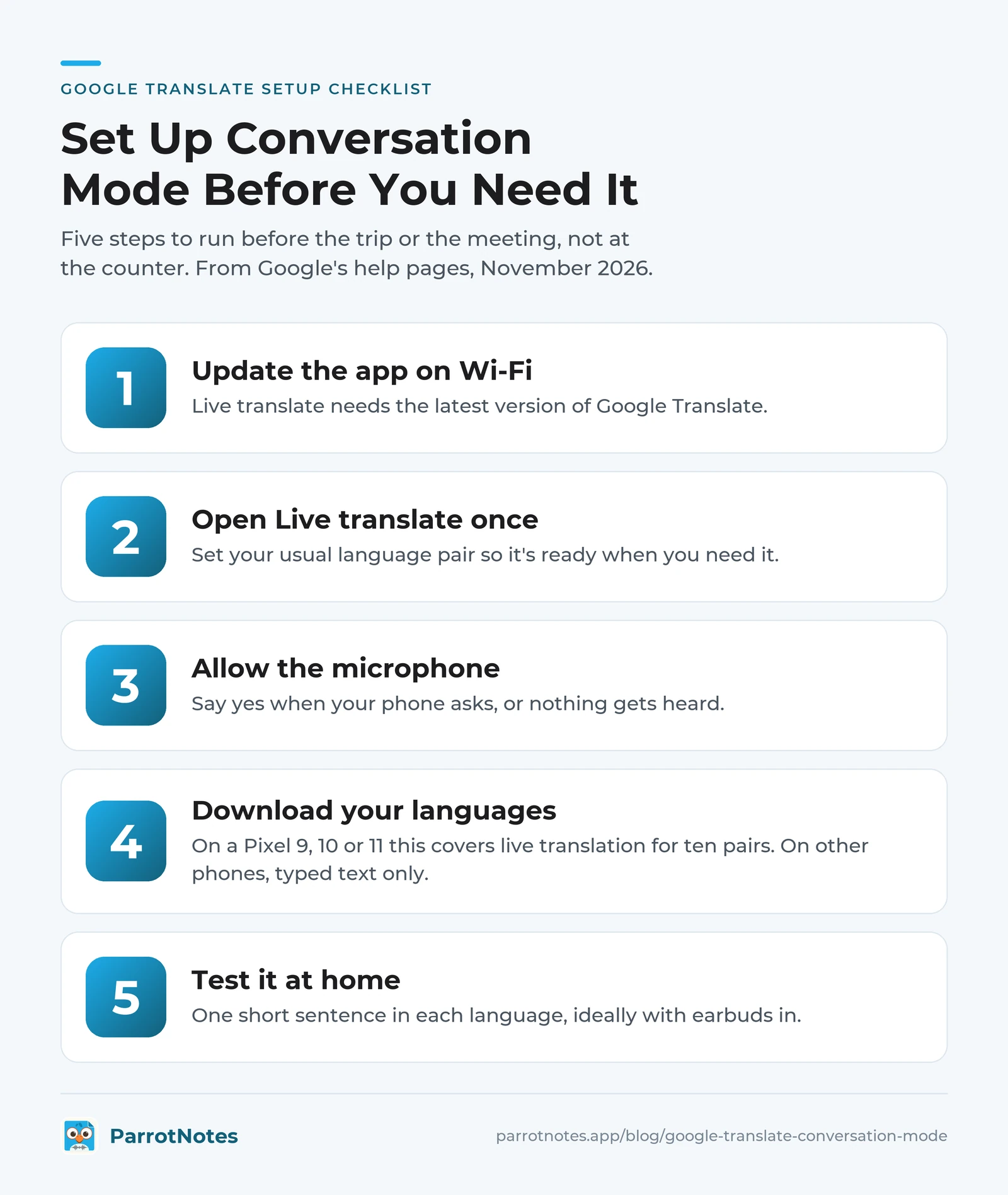
Run this before the trip or the meeting, not at the counter:
- Update the app on Wi-Fi. Live translate needs the latest version.
- Open Live translate once and set your usual language pair, so it's ready when you need it.
- Allow the microphone when your phone asks. On Android, Google lists microphone permission for Translate as required.
- Download your languages on Wi-Fi. On a Pixel 9, 10 or 11 this covers live translation for the ten pairs above. On other phones it covers typed text only.
- Test it at home with one short sentence in each language, ideally with earbuds in. A 30-second test beats finding a permission prompt mid-sentence.
Maya, back at that pharmacy in Mexico City, would have needed step five. Her app asked for microphone access in front of the pharmacist. It cost her a minute and a little dignity, but the fever medicine got sorted.
When conversation mode isn't enough: talks you need to keep
Live translation is built for the moment. Once a line scrolls off the screen, you're relying on memory. For anything with dates, prices or instructions, keep a record.
Take Rosa, who moved to Chicago and has a 40-minute parent-teacher meeting in English, which she reads better than she hears. (Rosa is an illustration too.) Conversation mode would get her through the meeting. Afterwards, she wants the teacher's three suggestions in Spanish so she can reread them at home. That's a job for a recording, not live translation.
Here's how that works:
- Record the meeting on your phone, after asking. Recording laws differ by place: some U.S. states need everyone's consent, and our one-party consent states guide lists them. This is general information, not legal advice. Never record someone secretly.
- Get the transcript in your language. ParrotNotes records in-person conversations and transcribes them. The Pro plan costs $19.99 a month, or $14.99 a month billed annually. With it you can record in one of 99+ languages and get the transcript in another, plus a summary. The free plan gives 100 minutes a month and an AI summary on every recording, but multilingual transcription is a Pro feature. Get ParrotNotes for iPhone or Android.
- Already have a short file? Our free audio translator takes a recording up to 10 minutes, shows the transcript, and translates it into English or 19 other languages.
Our guide to translating audio to English covers more routes for recorded files. If both people speak the same language and you only need captions, a live transcribe app is the better fit.
To be clear: ParrotNotes does not translate a face-to-face conversation live. Use Google Translate for that. Use ParrotNotes when you need the whole conversation written down afterwards.
Conversation mode not working? Quick fixes
- No Live translate button. Update the app. If it's still missing, live translate may not have reached your country or language yet.
- It keeps translating the wrong way. Check both languages in the picker, speak one at a time, and pause briefly between turns. Google says the app detects the switch from pauses and accents.
- Nothing is heard. Check microphone permission for Google Translate in your phone's settings.
- Listening mode is greyed out. Connect headphones first.
- No signal. Offline live translation only works on Pixel 9, 10 and 11 with downloaded pairs. Otherwise, type and show the screen.
Make the next conversation easier
Google Translate conversation mode now lives under Live translate, on both iPhone and Android. Pick Conversation for quick back-and-forth, Face to face across a table, and Listening when you only need to follow along. Don't count on it offline unless you have a Pixel 9, 10 or 11. And set it up before you need it.
For conversations that matter later, record them with permission, get them transcribed in your language, and keep the record. Download ParrotNotes to have that ready on your phone.
Frequently Asked Questions
Where is conversation mode in Google Translate?
Open the Google Translate app, tap Live translate at the bottom, and choose Conversation. Older app versions showed a separate Conversation button; Google's current help pages, as of November 2026, describe conversation translation as a mode inside Live translate on both iPhone and Android.
Is Google Translate conversation mode free?
Yes. The Google Translate app is free on iPhone and Android, and conversation mode has no paid tier. You need a data connection unless you have a Pixel 9, 10 or 11 with offline languages downloaded.
Does Google Translate conversation mode work offline?
Only on Pixel 9, 10 and 11 phones, for ten languages paired with English: Italian, Spanish, French, German, Portuguese, Hindi, Russian, Swedish, Japanese and Indonesian. On other phones, downloaded languages work for typed text translation, not live conversation.
Do I have to tap a button each time the other person talks?
No. Google says the microphone detects when one language stops and the other starts. Speak one at a time and pause briefly between turns so it can switch.
Can Google Translate save a conversation?
Google's live translate help page doesn't describe saving a session. Transcribe mode does save: tap Save transcript when you finish, then find it under Menu > Saved transcripts. For a long meeting, a recording app like ParrotNotes gives you the full transcript and a summary afterwards.
Related Posts
Whisper Memos Review: The iPhone Voice-to-Email App
Whisper Memos review from its own pages and App Store listing, checked Nov 2026: price, free trial, Apple Watch, Meeting mode and 4 alternatives compared.
Transkriptor Review: Pricing, Free Trial and Limits
Transkriptor review, November 2026: every plan price, the cost per hour of audio, what the 90-minute free trial transcribes, and the cancellation fine print.
TicNote Review: Mobvoi's AI Recorder, Plans and Limits
TicNote review from Mobvoi's own pages, checked Nov 10, 2026: five devices, 600 free minutes, Pro plans, year-one cost, TicNote vs PLAUD. Try ParrotNotes free.